Dynamics 365 app for outlook tracking

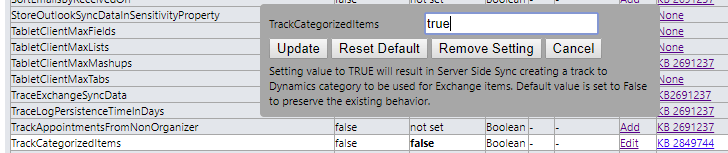
The purpose of this exercise is to see tracked items in outlook that provide an important visual aid for the user. Why this is not default on I honestly don’t know.

Download the OrgDbOrgSettings tool from GitHub https://github.com/seanmcne/OrgDbOrgSettings/releases/

Version might change over time, but you get the idea

Navigate to the solution import of dynamics, and for now you have to use the classic view! notice the force classic in the URL.

You will now be able to see items as tracked in Dynamics 365

Installing SharePoint connector Dynamics 365 Online

The SharePoint standard connector will work for customers with simple needs for collaboration. There is a Teams integration available soon, and I will write about that once it is released in Europe.

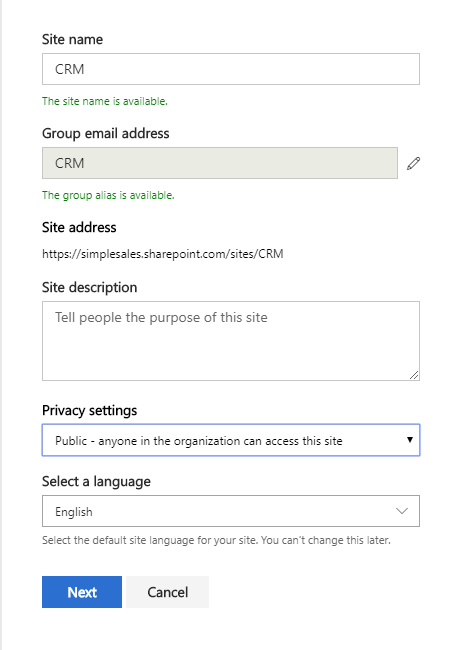
Start off by creating a new site in SharePoint. I prefer to create everything on a new site, because then we can control the site better.

Copy the URL of the site before you move on back to CRM.

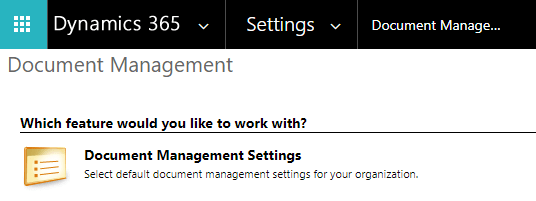
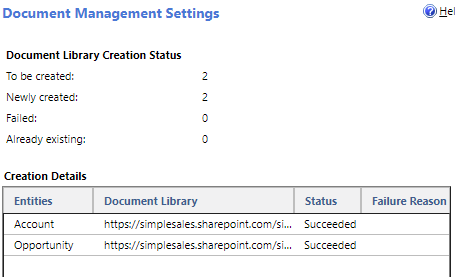
I prefer to create folder for the entities Account and Opportunity. Remove all the other entities in the simple demo (not that it really matters).

I prefer to have a structure based on account. This will create opportunity folders bellow the account folder.

If it all worked out, you can now open an opportunity with account connected.

Opening the document on opportunity will now give full access to storing documents in SharePoint. I will write an extended blog about considerations to make when integrating this to Teams later.