Power BI embed to Dynamics 365 form with filtering

There have been several post about this topic before, but this one is the only way I got it to work. Rasmus wrote about this a few weeks ago, and I am using most of his code. Ida was also early out mentioning this possibility, but I just couldn’t get it all to work before now. Big thank you to Jeroen Vos for BI assistance:)

Bear in mind that I had to start from scratch here to make sense of it all. You can fast forward quite a bit if you already have a data model. I believe Microsoft will release a OOTB function sometime this year, but until then we can demo embedded BI in CRM forms like this.

Create a report

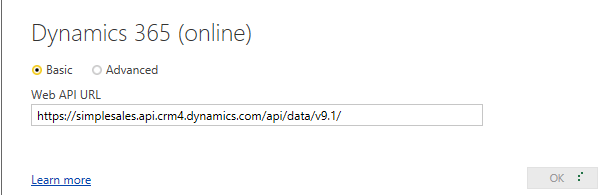
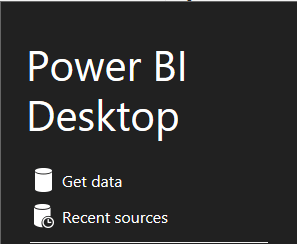
Start by opening Power BI dashboard, and creating a new project with “Get Data”
If you don’t know where to find the developer settings, you can copy the url from above, and just replace it with your org and crm* that you have in your country.
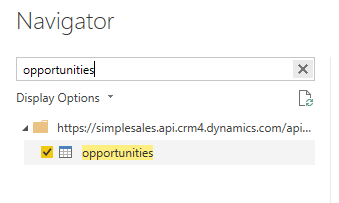
For this demo I am only choosing Account and Opportunity.
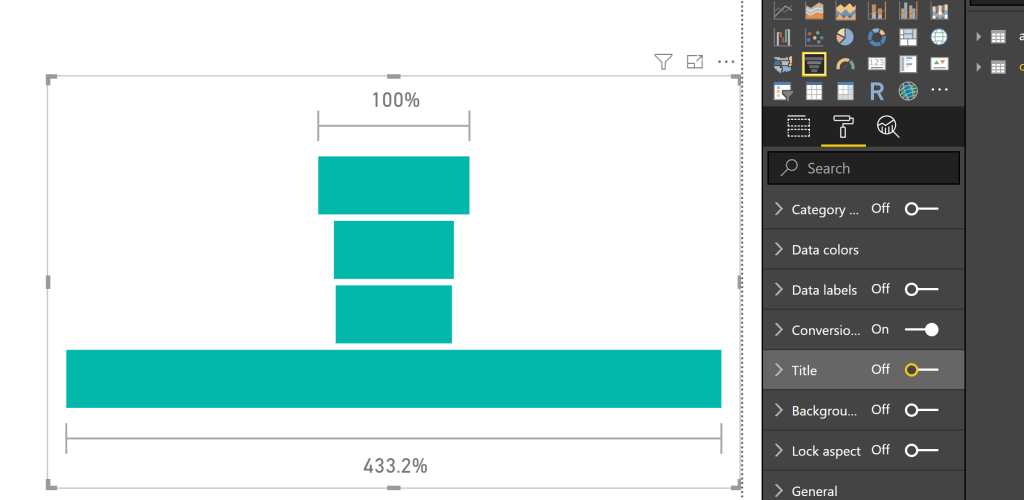
After loading, add the funnel graph.

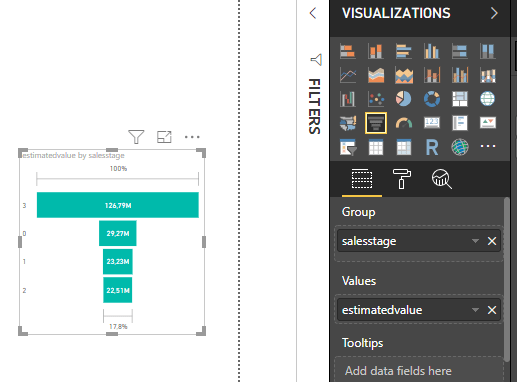
Add the field salesstage and estimtedvalue. Both are from Oppty table.
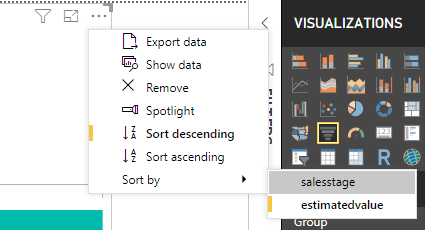
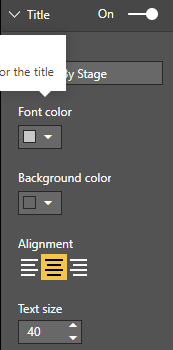
Your report should resemble something like this. Now we have to format quite a bit for this to actually look presentable in Dynamics. Because this solution is highly custom at the moment, we need to make it fit the Dynamics IFrame for it to look decent.

The most important format of them all is the page format to the right. You need to make this one small for the Dynamics Tab to be able to open it in full screen. I made it half of the standard. Eventually you should end up like something below:

Numbers on the right are a picklist, but for the demo I didn’t care to rename them.

Publish to powerbi.com

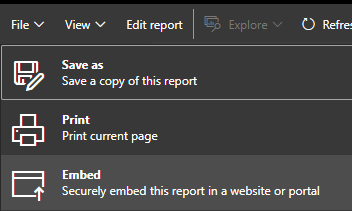
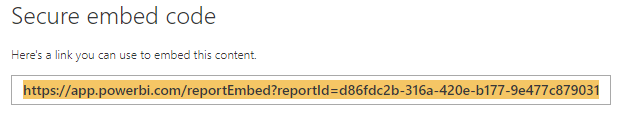
Remember to copy the URL here

Dynamics 365 form configuration

This process requires a webresource with javascript and a tab with IFrame in Dynamics. Because of the new UI this layout is actually quite nice!
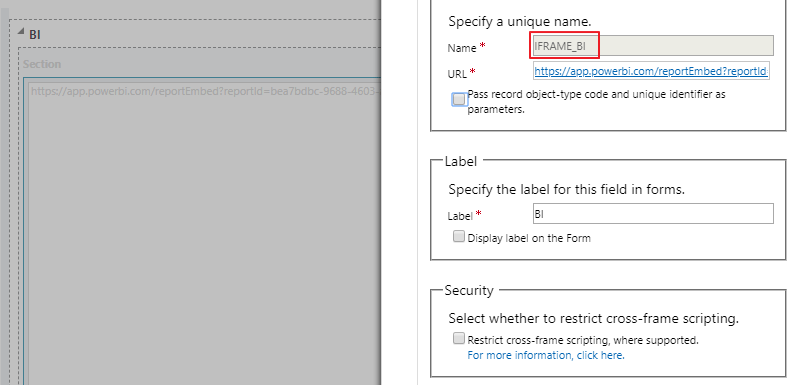
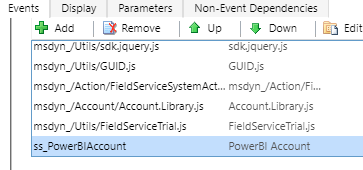
URL can be any website since we are overwriting it anyway. The name of the iframe is used in the javascript. Don’t restrict any cross-frame scripting.
function SetBIFrame(executionContext){
    var formContext = executionContext.getFormContext();
    var pbiFrame = formContext.getControl("IFRAME_BI");
    var GUID = formContext.data.entity.getId().replace(/[{}]/g, "");
    //replace the Power BI url with the url from the Embed step
    var PBIurl = "https://app.powerbi.com/reportEmbed?reportId=d86fdc2b-316a-420e-b177-9e477c879031&autoAuth=true&ctid=83121429-cfda-4a1b-89c9-969eb42dc605";
    //accounts = account table in BI, and accountid=guid for account
    pbiFrame.setSrc(PBIurl + "&filter=accounts/accountid eq '" +GUID+ "'");
}

Only thing you need to change is the URL from the powerbi.com secure embed. Since I am using account and opportunity out of the box, the table names for both of them are “accounts” and “opportunities”.

In the filter above I am filtering the results in the Account table with the account ID that i will find within CRM. The result is to show a graph for only that single account.
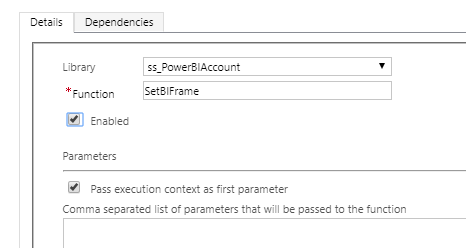
Remember to Pass Execution Context here. I don’t really now why, but it wont work without. Normally when I script I don’t have to use this, but if someone would tell me what it does I am happy to learn:)

Publish all settings and open Dyanmics 365 to the account (that you know has some opportunities).

As you can see Alpine Ski House is showing a sales funnel of the opportunities related and nothing more. This is a filtered report in Dynamics based on the account in a BI tab on top. Navigation here in dynamics is pretty smooth.

Power BI embedded dashboard Dynamics 365

Download Power BI Desktop https://powerbi.microsoft.com/en-us/desktop/
and login to the Power BI with your credentials.

Then download the content pack file for Power BI
https://docs.microsoft.com/en-us/dynamics365/customer-engagement/analytics/customize-power-bi-content-packs

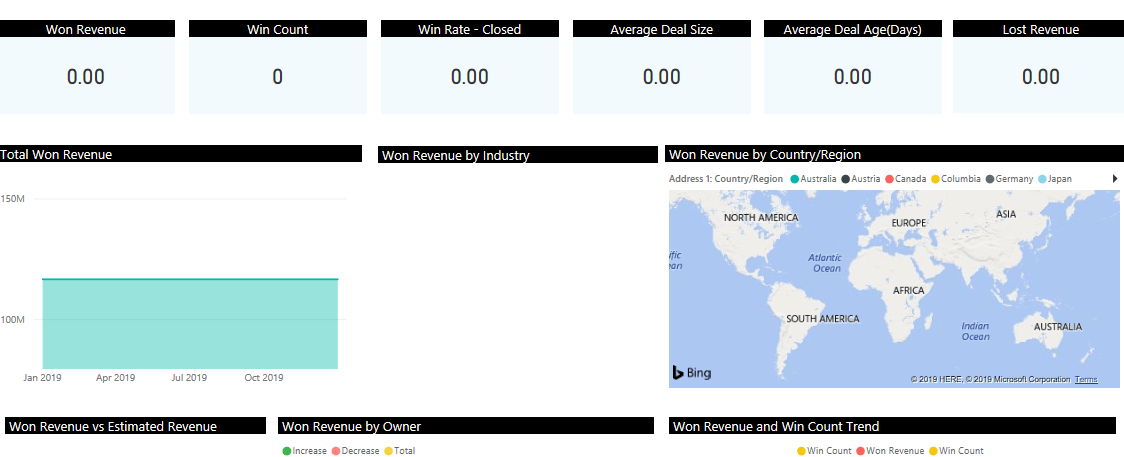
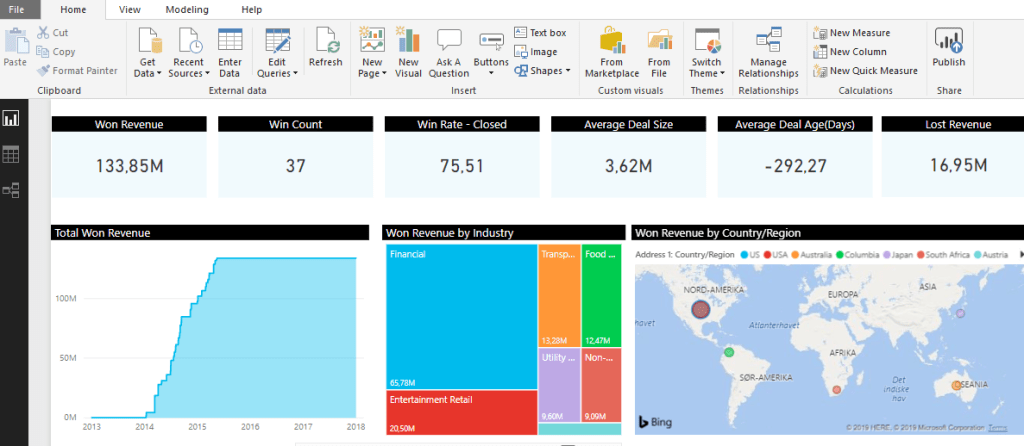
Open the .pbix file in Power BI desktop, and it should look something like this

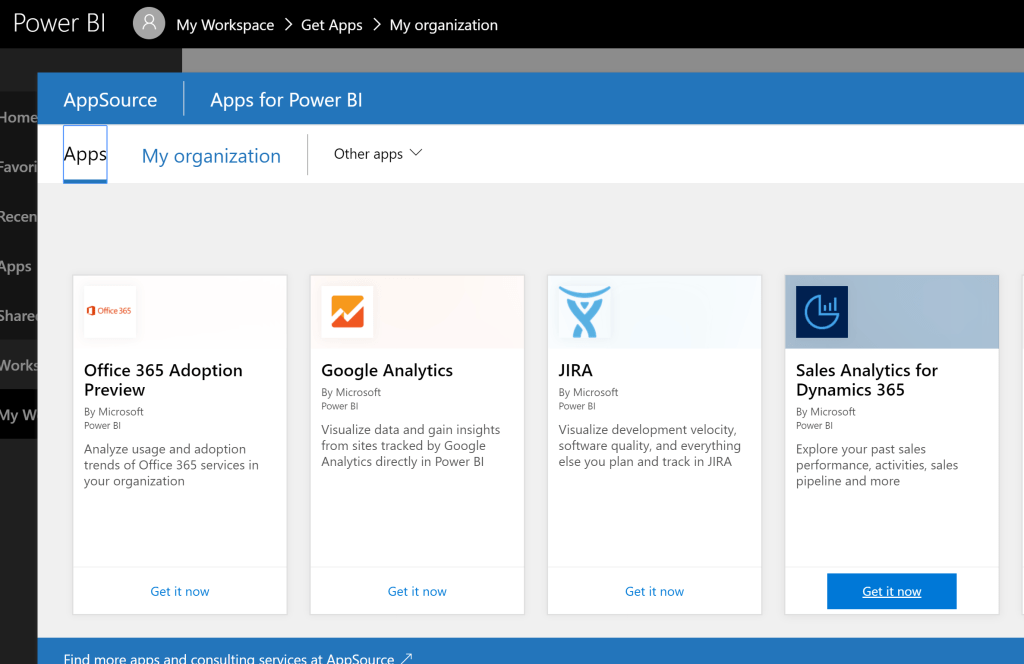
If for some reason the dashboard isn’t showing any data, you might need to run through the Power BI Sales Analytics fix for Dynamics 365

Next step is to publish this to Power BI

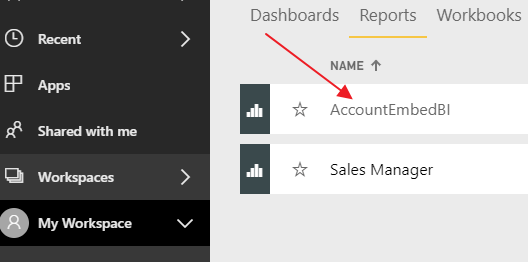
Open https://www.powerbi.com and locate the report you uploaded. A report itself can’t integrate with Dynamics, so we have to create a Dashboard for CRM to be able to pick this up. Open up the report

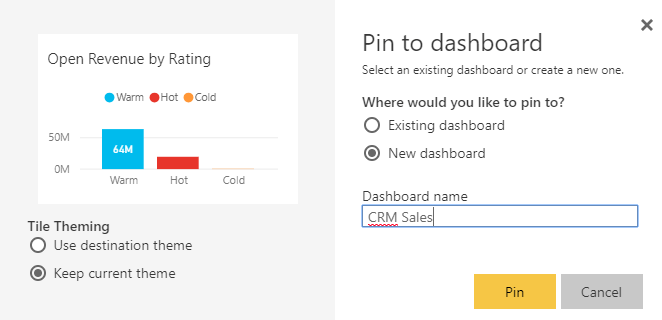
Find a chart you like and pin it

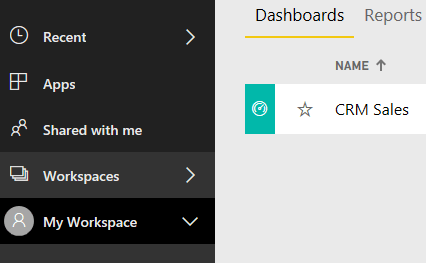
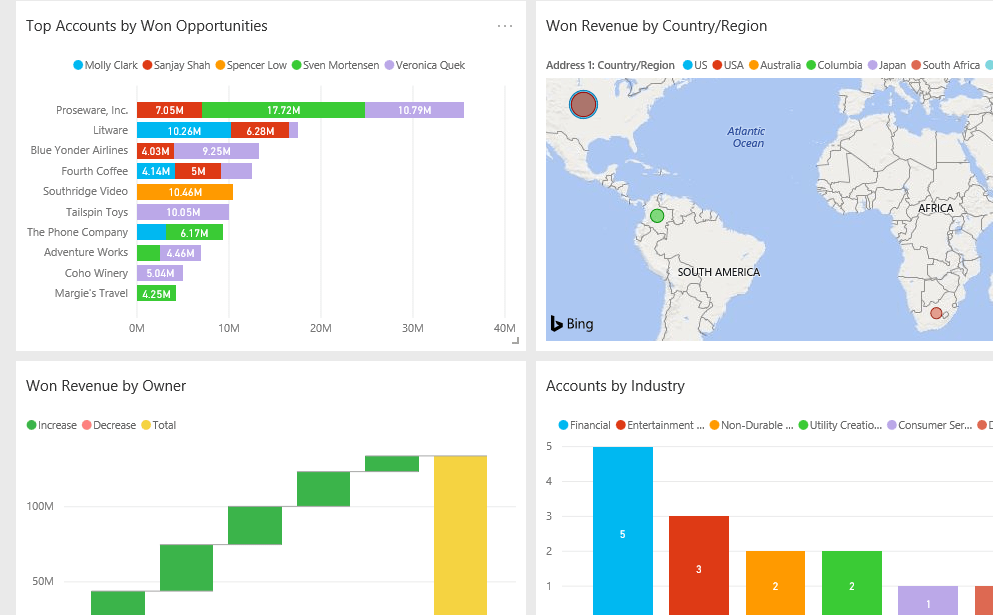
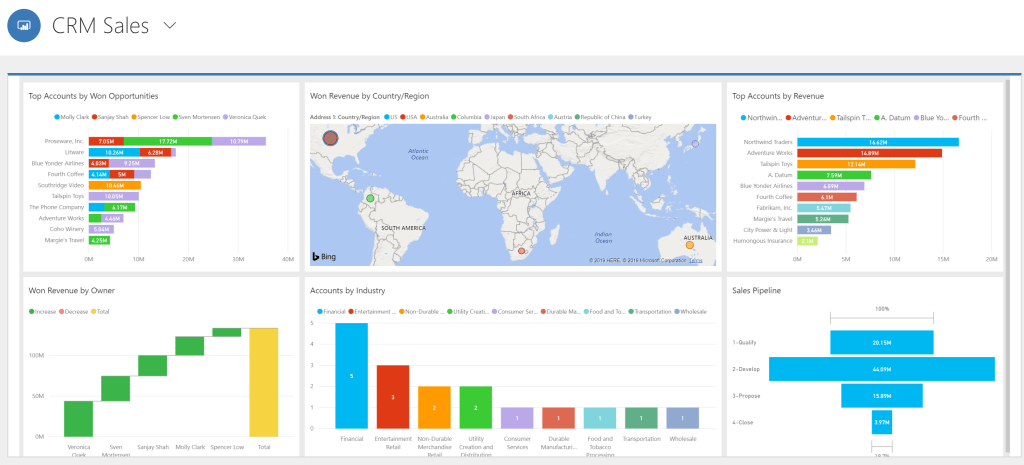
Continue the process for the charts you like, but add them to the existing dashboard “CRM Sales”. Eventually you might have a dashboard looking something like this:

NB!!! I had to make the size of these charts fairly large. Otherwise Dynamics 365 was doing strange things with scaling. Just try different approaches.

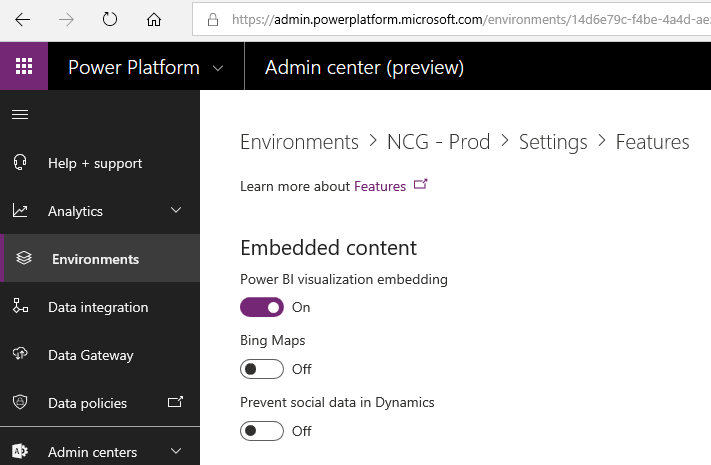
Now we have to configure Dynamics 365 to allow Power BI embedded reports. Open https://www.admin.powerplatform.microsoft.com for Environment settings.

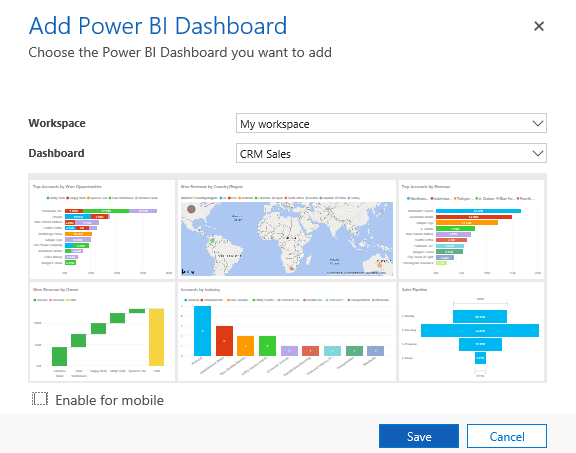
Open CRM in your app and you can now add a BI Dashboard.

The result will be nice if you remembered to scale the Dashboard in PowerBI.com large enough.

One little side note. At the moment I can only see the option to add Personal Dashboard with Power BI embedded.

Fix – Power BI Sales Analytics data for Dynamics 365

Problem

There is something wrong with the BI content pack for Dynamics 365. It might be my setup, but this is what I have to do before demos to fix the connection problem. The issue is related to the content pack filters locked. So after completing the setup you will se an almost blank BI dataset. I haven’t figured out why, but figured out a way around.

Solution

I will go through the steps to fix the report and make it ready for demo.

Download Power BI Desktop https://powerbi.microsoft.com/en-us/desktop/
and login to the Power BI with your credentials. Then download the content pack file for Power BI
https://docs.microsoft.com/en-us/dynamics365/customer-engagement/analytics/customize-power-bi-content-packs

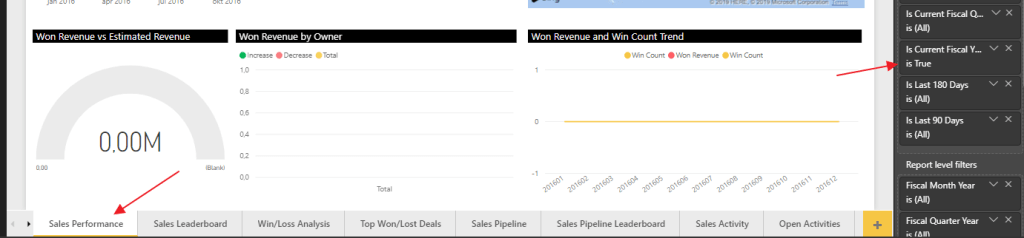
In the filter view for every page you will notice that there is an active filter. This is the problem when looking into the data!”

I personally would remove all the filters pr page for the purpose of the demo. More data looks better:)

Next step is to fix the Dynamics source, so the system is getting data from the correct CRM system.

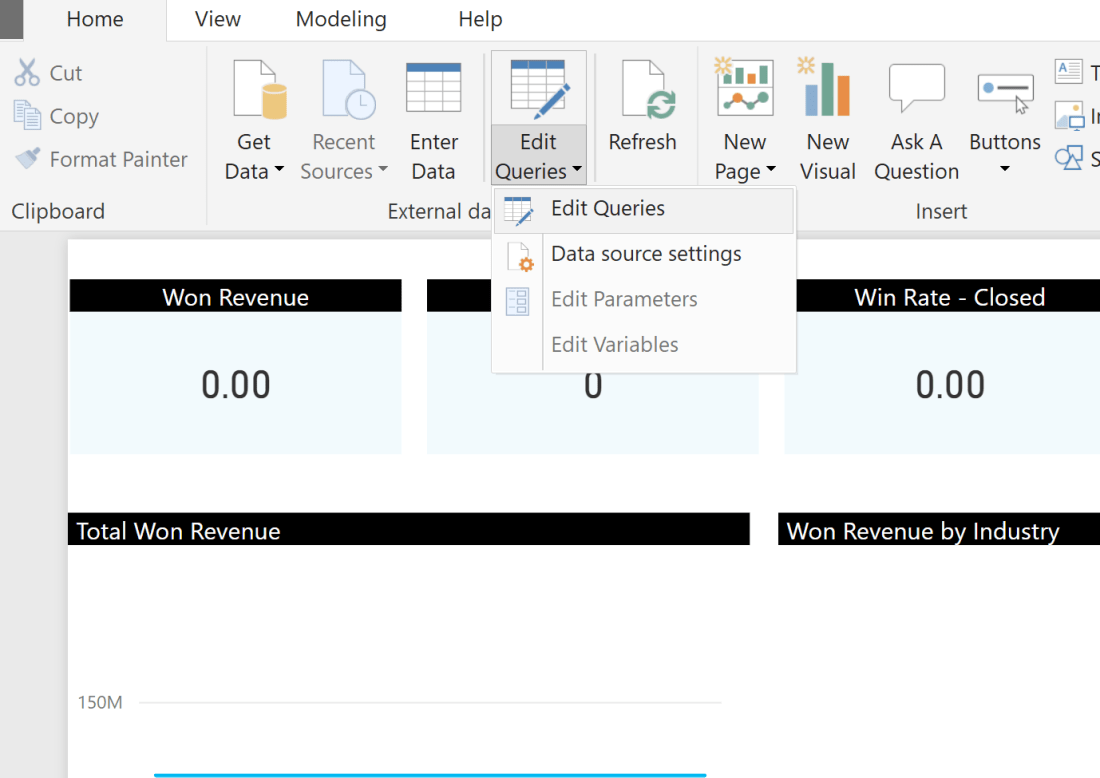
Find the query, advanced editor and change to the CRM org. Based on MS doc when writing this article, only the 8.2 was supported. When you are done, “close & apply”.

That’s it for the fix. This should now be ready to publish to Power BI online. Next step is embed Power BI report to Dynamics 365.

Dynamics 365 app for outlook tracking

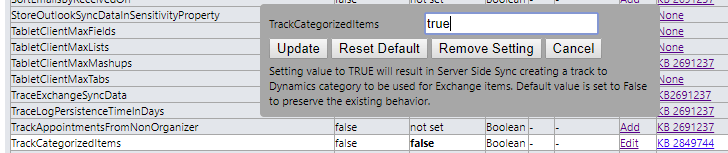
The purpose of this exercise is to see tracked items in outlook that provide an important visual aid for the user. Why this is not default on I honestly don’t know.

Download the OrgDbOrgSettings tool from GitHub https://github.com/seanmcne/OrgDbOrgSettings/releases/

Version might change over time, but you get the idea

Navigate to the solution import of dynamics, and for now you have to use the classic view! notice the force classic in the URL.

You will now be able to see items as tracked in Dynamics 365

Installing SharePoint connector Dynamics 365 Online

The SharePoint standard connector will work for customers with simple needs for collaboration. There is a Teams integration available soon, and I will write about that once it is released in Europe.

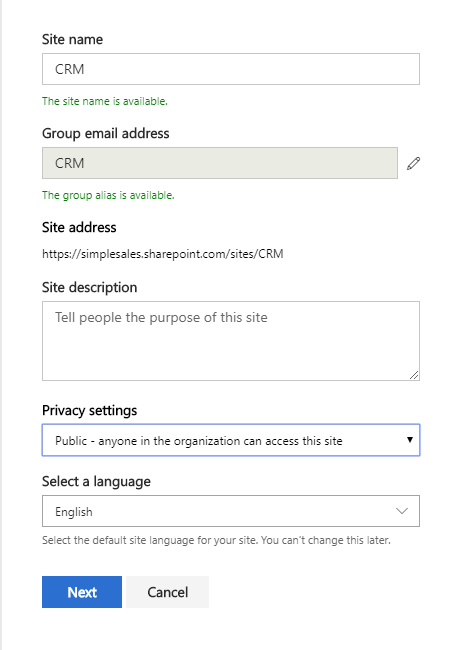
Start off by creating a new site in SharePoint. I prefer to create everything on a new site, because then we can control the site better.

Copy the URL of the site before you move on back to CRM.

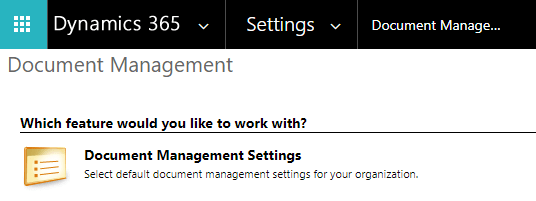
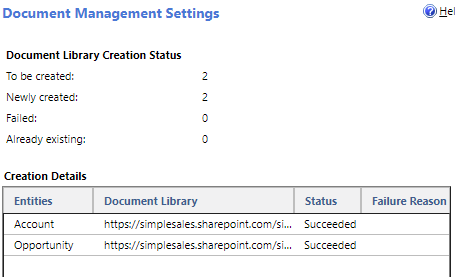
I prefer to create folder for the entities Account and Opportunity. Remove all the other entities in the simple demo (not that it really matters).

I prefer to have a structure based on account. This will create opportunity folders bellow the account folder.

If it all worked out, you can now open an opportunity with account connected.

Opening the document on opportunity will now give full access to storing documents in SharePoint. I will write an extended blog about considerations to make when integrating this to Teams later.

Uninstalling Dynamics 365 for Marketing dependency error

I installed Microsoft Marketing for the purpose of testing in our dev environment. My first irritation was the need of a separate portal just for marketing. I had to reset my customer self service portal just for marketing (fairly annoying). I have heard that this will change later this April, so hoping for the good news:)

PS! I also had to install VOC and I can’t really understand why I have to install this!

ANYWAY. If you wonder what the uninstall button does, here you go!

Email from Dynamics 365 marketing team

I started off opening the email I got when I installed the Dynamics 365 for Marketing and clicked the bottom link, and then “uninstall marketing from this org”.

Uninstall marketing from this org
Yes I’m sure
Work it!
Are you sure it is?

Well that is nice. It all took about 2 minutes. Could it be true that it was that easy?

NO (lol)

30 ish solutions and 1 portal reset later I was almost there!

Still there!
Reset portal
OMG!!
What could possibly go wrong?

Thank you VOC for creating dependencies that I simply can’t find.. Supportcase created.

Conclusion

This was far from smooth. Uninstalling the solutions way to long because Dynamics kept freezing (probably because of database locks).

Worst of all was probably that Voice Of Customer was installed and I can’t remove it without a support case.

Update:

Support called, and they found a dependency in the App for VOC that did not uninstall correctly. If you go into the default solution, and then remove the app step by step you can finally delete the VOC solution! For me that meant doing the ribbon first. Then the entities in the app, and finally the app. All the while publishing changes.