This post is a part of a series of posts for Customer Service. The complete GUIDE can be found here
Why on earth did anyone think that this was a reasonable number to include in Customer Service cases?
This number is way to hard to relate to, and too hard to explain why came to be. It has absolutely nothing to do with the Email Tracking Token, leaving the customer utterly confused when talking about numbers.
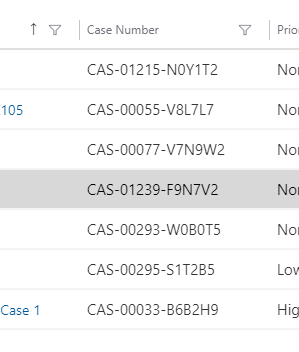
Might be a little hard to see here, but I open my solution from https://make.powerapps.com and select the case entity. In the Case entity I have the default Case Number field. When choosing to edit this field I simplify the autonumber. This will make even more sense later on.
A larger image
All of this will be included in my Customer Service Solution later on in the guide.
This post is a part of a series of posts for Customer Service. The complete GUIDE can be found here
I prefer to define a team with a security role when i create Customer Service solutions. The idea is that the incoming case is assigned to the Customer Service team. This way it is clear to see what cases are new and not yet assigned.
NB! Reassigning Cases to a new user Out Of The Box is not great. The cascading rules changes the sorting of emails because of modified on dates. I will therefore include a post on how to modify the cascading rules.
Security Role
Open Dynamics in any app and find the Advanced Settings
This will open up the good old Dynamics Setup. This is where we can access the security model.
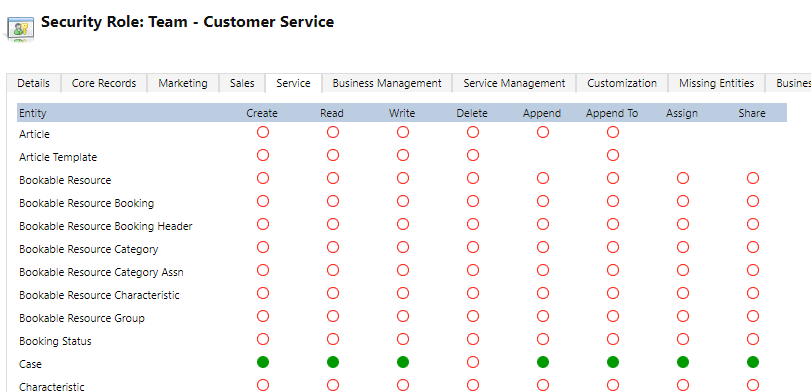
We need to create a security role for the team.
These are the entities that I needed to make my scenario work. It is a very minimal role, but I won’t be needing more than this for Customer Service Team.
Team
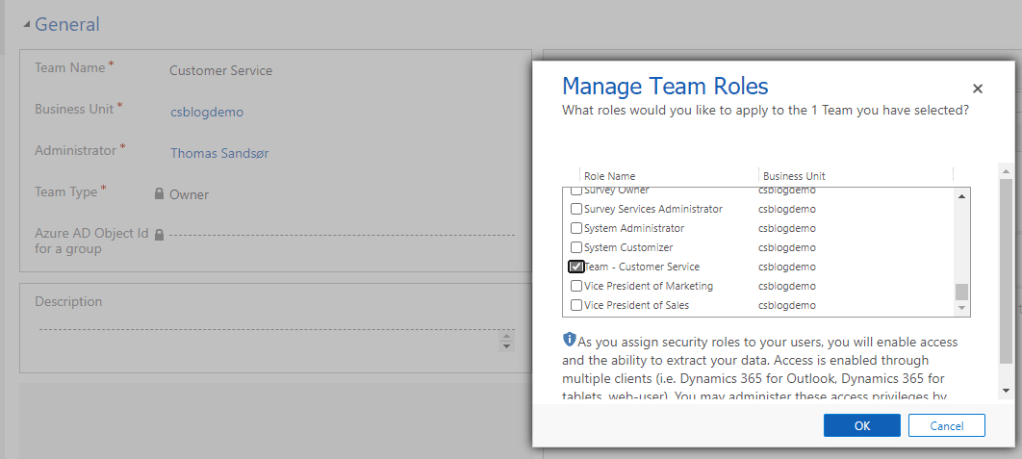
Open teams and create a new team. I will call mine Customer Service. Make sure you assign the security role to the newly created team.
I know that change online is imminent, and is continuous. I don’t mind this, but i do mind how it’s done. I would never have noticed this if I had not created a new demo. It is a little annoying that the functionality introduced can’t be put to use in my existing environment.
This rant is just because I like to keep things vanilla as long as possible. The changes we see here make it even more clear that the platform where I work every day still is an open platform, and not at all a product. If certain things would act more like a product the changes would apply to everyone, and behave the same way. There will always be pro’s and con’s for Platform VS Product..
Not sure when it happened, but the 1 form App for Outlook configuration has now become 2.
OLD
Form 1: App for Outlook Contact Card
NEW
Form 2: App for Outlook Contact Quick View – NEW
Why does this matter?
I am not sure yet, and that is the problem. Why split them up in the first place? Another extremely interesting thing about the new form is magic in the background that we can’t manipulate or recreate.
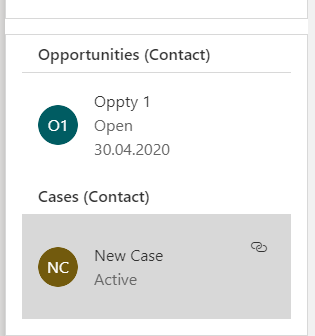
The new CASE subgrid looks like this
Not sure what this name means, but its obviously something they have defined after converting the old forms to the new forms.
Lets have a look why this is wierd:
The following picture is in a new untouched demo. The subgrids should have: Account Name Next Activity (Subgrid) Last Activity (Subgrid) Opportunity (Subgrid) – Showing Case (Subgrid)
But as you can see, it only shows content where content is present. If I add a case to the contact Thomas Outlook, it will dynamically show cases in App for Outlook.
This is a great feature, so why am I complaining about it? Well, i can’t reproduce it. That’s why!
This is the same setup in config, but Cases are constantly showing here. I tried every step in config to recreate the function, but no luck..
I even tried importing a UN-managed and Managed solution from the vanilla environment to my existing production without any luck.
Did I not get the memo on this change by any chance? 🙂
If you are a customer, click “no, continue signing up”. If you are a partner you should look for different places to create demos. Head on over to CDX Expereiences
It doesn’t matter what you choose here. If you ever turn this into production, the domain name will be something you can change at a later time.
Continue proving you are not a robot, and then wait for everything to finish up.
Start the setup when it’s done. Doesn’t matter what you choose in your setup of apps. It usually installs everything anyway. Eventually you will end up here, and you can open Customer Service HUB:
We have now completed the first step, and created a new trial for Customer Service.
Start “Get Free Trial”, and click the next next etc etc.
Back in the portal you want to open users, and locate your user. Choose the Microsoft E3 subscription and attach this to your contact. Remember to click “SAVE CHANGES” in the bottom when you are done.
This is a quick guide to the simplest form of SSIS import. I will not cover all of the amazing ETL possibilities you can do with SSIS, because I am not the correct person to set this up:)
The background for this post is also trying to learn the differences between DataFlow and SSIS in regards to API stats online.
The setup
Install BIDS LINK HERE – If you don’t have visual studio
The structure is very simple here. Get file, add one data column and then import to dynamics.
The flat file I am getting is a simple .csv file and you see the following columns.
Next step is a bit odd, but that’s how lookups work in SSIS. I have to create a new column that is called “account”, because i have to define the lookup type. This Derived Column does nothing else.
In the end we connect to Dynamics via the KingswaySoft connector.
I have chosen to use alternate keys. If you wonder what this is, look at my previous post about alternate keys and DataFlow.
Then I click on columns to map the fields
For the lookup we connect to ParentCustomer. Once you have mapped the field, i can choose to what field to match on the Account. I open the “…” and here I choose the primary key for account as matching. You could use whatever you want, but I have created alternate key for account on AccoundNumber.
The result
I ran this test during the night time at the same time as DataFlow. SSIS used 1 hour and 22 minutes for the exact same file, and that is fine by me. There are so many different variables in online load times, that 20 minutes doesn’t really prove anything.
What about the API?
I wrote a post about DataFlow and API. Mostly because I was curious about the analytics within CDS. I don’t understand the numbers i see, so I have written to Support about the numbers. What I heard back was because of the batch of records being entered, this should be about right…
If this is correct, SSIS is a lot more efficient in the API calls to Dynamics, but took more time in this one single test i performed.
SSIS = 3,501 API Calls DataFlow = 13,544 API Calls
I was never a fan of the Business Process Flow (BPF) because of the many flaws. Sometimes I didn’t think it was easy enough, and other times not advanced enough. It simply wasn’t what I needed.
In a recent project I decided to give it another go, because the customer wanted to continue with the BPF they had from their old CRM system.
Opening the PBF now I see that there is so much new features here that I haven’t seen before. I guess most of these features are due to the FLOW platform now taking over the BPF.
Challenge: Setting pipeline phase
I know you can report on the BPF entity, but that is more complex than reporting on the opportunity entity if you ask me.
Can I set the “Phase” field on the opportunity when navigating to the next step in the BPF? Let’s see!!
I wanted to set the Pipeline Phase with BPF
Config
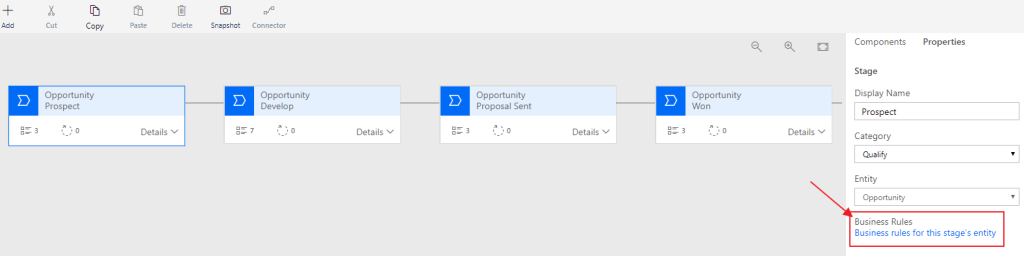
Open the Business Process Flow from your solution and notice a button at the bottom right “Business rules for this stage’s entity”.
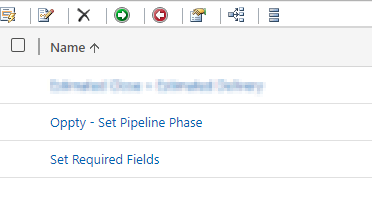
Create a new Business Rule for Opportunity “Oppty – Set Pipeline Phase”.
For the first condition we check if the BPF is in the stage named Prospect.
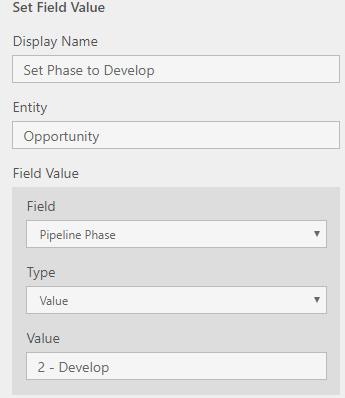
If true, set the Pipeline Phase to “1 – Qualify”.
Repeat for the second step!
The business rule should look something like this:
Result
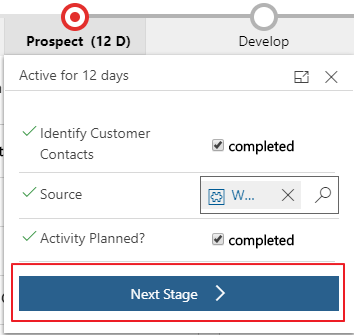
Let’s get back to the Opportunity. We see that it default is active on the Qualify stage in the beginning of the sales process.
Click the next stage
And there you go!!
New Found Love
So what do I think of the BPF now? Honestly, I liked it. It might be a replacement for many other JavaScripts that I have been using the later years, and that is only a good thing. In this case I was able to skip JavaScript and therefore deliver a solution with a low technical footprint:)
Julian Sharp was recently in Norway to teach the App in A Day. I was one of the lucky few that got a spot in his class. Sure I have been in Dynamics since 2007 and should know it all, but that is the only once certainty. I will never know it all, and there is always something to learn from a person that has a different perspective on things.
Thank you Julian for the great class, and the advice during the interview! See you again soon in Oslo for the PowerSaturday August 24th.
Follow Julian in the following channels Blog Twitter
Knut is a salesperson at Point Taken. He just came across a HUGE deal that he has registered in Dynamics 365. This deal is so big that Knut will need the assistance of several resources to deliver. One of these resources is Kjetil, a SharePoint consultant.
The setup
Knut enters the details needed for the Dynamics 365 deal
Knowing that this opportunity is HUGE, Knut starts by creating a new channel in the Offers Team (name is “General” for demo purposes).
The connection
Knut has now setup the structure for collaboration, and is ready to connect Teams and Dynamics 365 together. Well done KNUT!! 🙂
Add the Dynamics 365 connection for the tab in the channel
Knut chooses the correct opportunity record.
When Knut is done, he can see the newly created connection message in Teams. The above message indicates that Teams and Dynamics successfully connected.
The harmony begins
Kjetil begins right away with the PowerPoint they will need to win this deal. Kjetil does not have a license for Dynamics, so he creates the PowerPoint in Teams because this is the natural place for collaboration.
Knut can now choose to navigate Teams or Dynamcis 365, because the systems are working with the same document location.
Knut and Kjetil represent 2 different work processes, but are harmonizing well when referring to the ONE TRUTH document. Well done you to!!!
The configuration of the client is pretty straight forward. A typical office product, and that is a good thing:) FYI, it does not install a solution file within Dynamics, and I like that a lot… Never been a fan of the overcrowding of solution files (Hint hint portals.. hehe).
Start på opening the system settings from Dynamics and locating the “Enable Dynamics and Teams integration”.
NB! Before starting, I would create a new Team and a new channel just for the sake of simplicity. Also create a new record in CRM that you want to connect to.
It took me about 3 minutes before I received my complete message, so be patient!
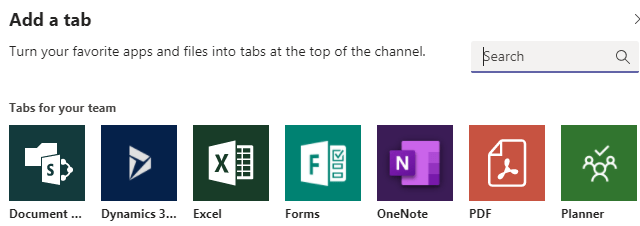
Open teams and locate the App Store within teams and search Dynamics. You will find it on the “…” menu on the left side.
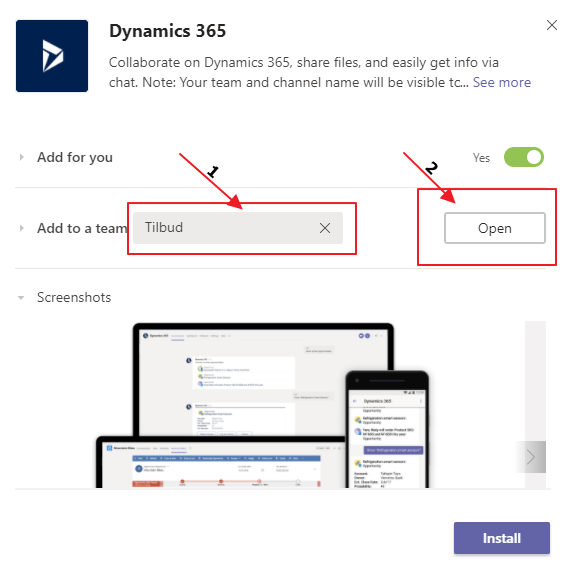
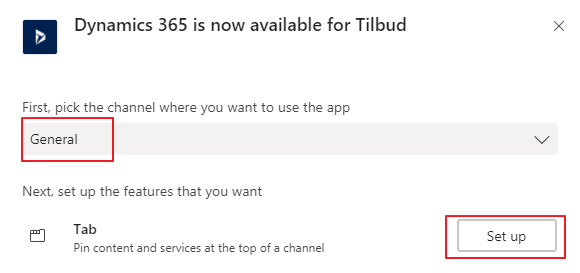
Add to the team you created. In my case “Tilbud” and then click Open
Next step is connecting it to the channel in the team, and hit “Set up”.
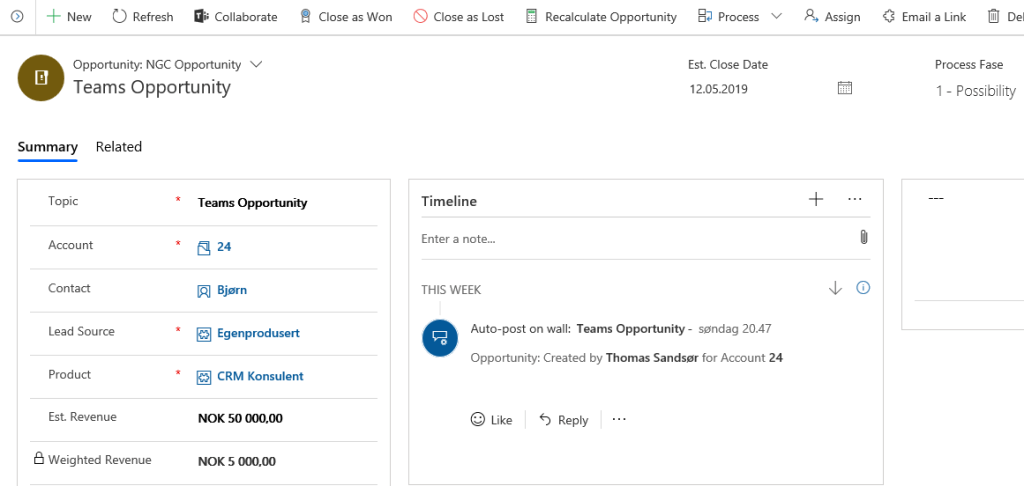
Now it will ask you for an entity to connect to, so I am going to choose the Opportunity I created before I started the configuration “Teams Opportunity”.
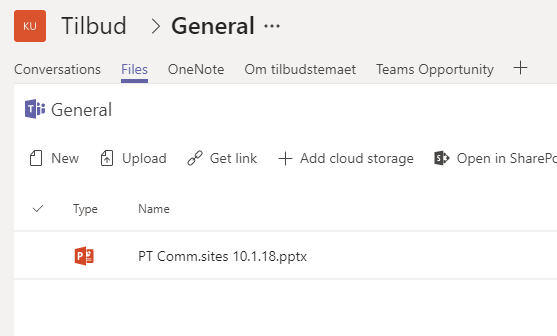
If it all went well, you will now see a new tab in your channel with the name of the record. You also see a message that the record is connected.
RLS stands for Row Level Security and is a function within Power BI used to securely manage what the users see. I am reusing the steps from the Power BI embedding blog, and continuing with the same dataset to define RLS. Another big thanks to Jeroen Vos for teaching me PowerBI.
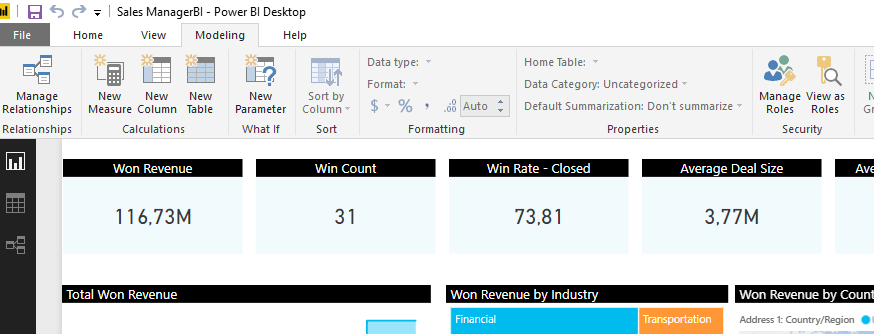
We start the process in Power BI for Desktop. Open the same report, and then navigate to Modeling and Manage Roles.
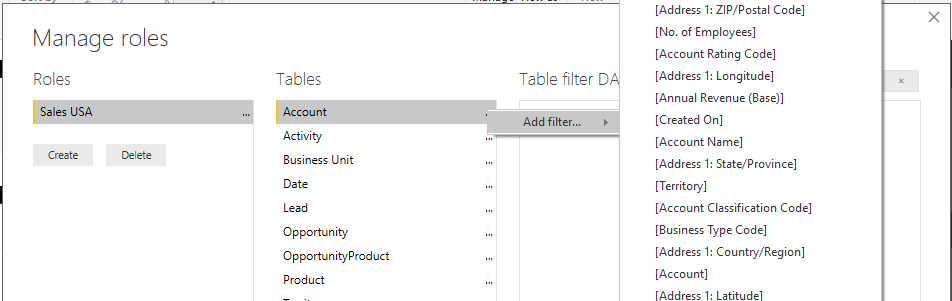
This brings up a DAX console, and I will chose the “Address 1: Country/Region”
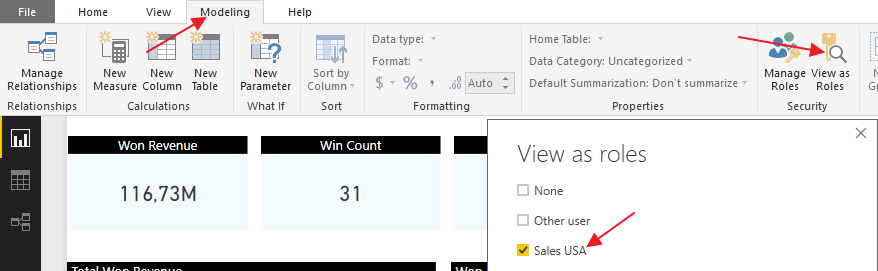
Now we can test the DAX by simulating how it is with another user login. This function is something I wish we had in Dynamics!!!
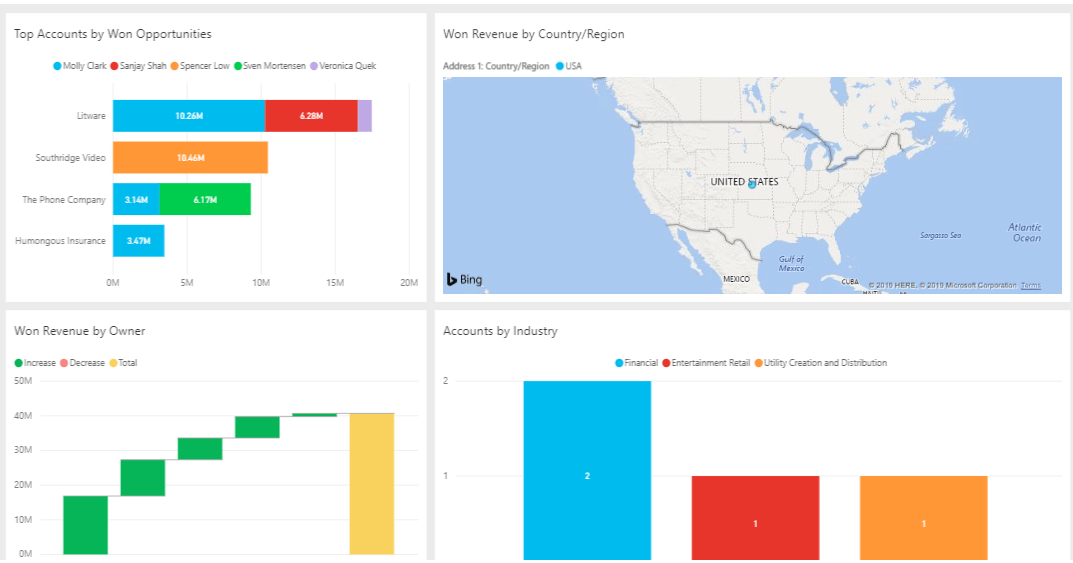
Notice that the data has changed!:) NB! Remember to publish changes to PowerBI.com



























 CRM Keeper