I still don’t know if this is local to my tennant, but I have tried in 2 different orgs, and I always get an error with Customer field for Contact. This post is almost identical to the Set Parent Lookup, but there are some differences in the end.
Setup Contact
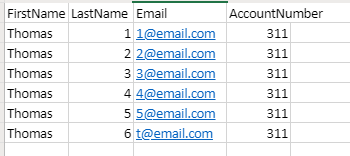
I have one Excel file with 6 contacts. They are linked to the account with number 311. The unique identifier I have on contact is email.
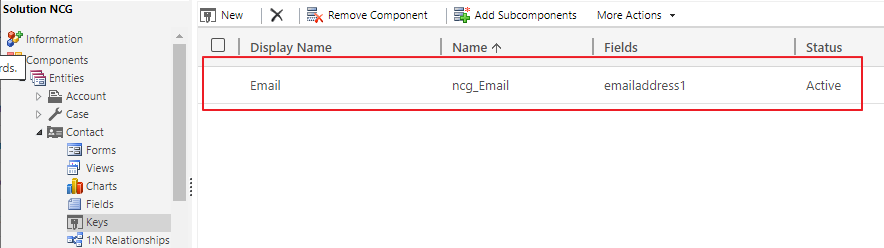
I setup a key for email on contact, so that the system will understand what to write to.
Setup Account
On the Account I have 2 fields for number matching, because I have different systems that integrate, but it doesn’t matter in this case. PO Account Number is what we are going to use, and I will try to explain why (based on my findings).
PS: Both Account Number and PO Account Number are Alternate Keys on Account!!
Setup Data Flow
Go to https://make.powerapps.com and start a new Data Flow project. In this case I am choosing the Excel file for simplicity. I have uploaded the Excel file to One Drive, so that it is available at all times online.
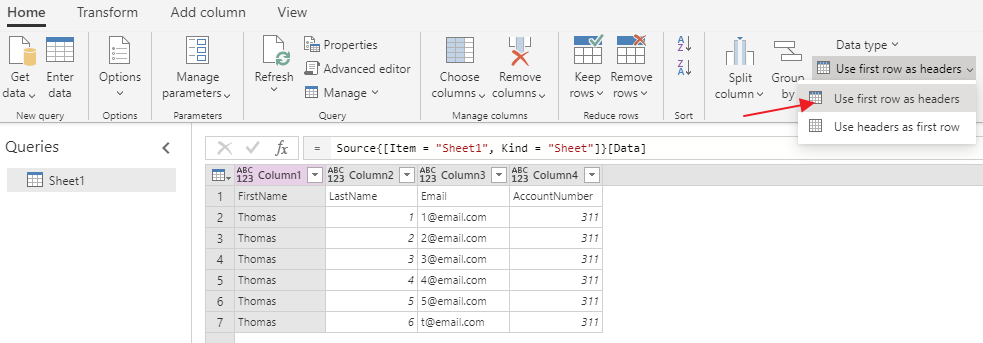
In the Excel file I had to make sure that the first row was headers before i continue
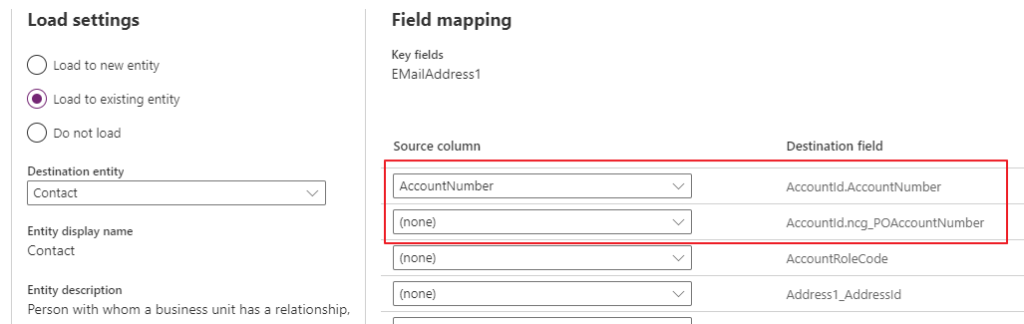
During the mapping I will see both the Alternate Keys I have for account. Normally you probably only have 1 Alternate Key for Account, but my setup requires 2 because of 2 different systems integrating against 2 different numbers. For blog i am using value 311, so it doesn’t really matter here.
When done mapping Account Number (again it doesn’t matter if I choose one of the other) continue to the next step. I choose a manual refresh, and it get stuck here.
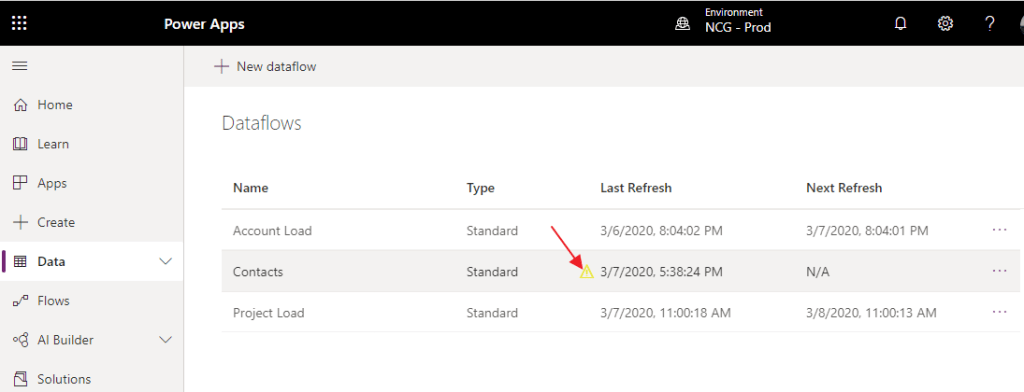
You will also see an error in the data flow projects.
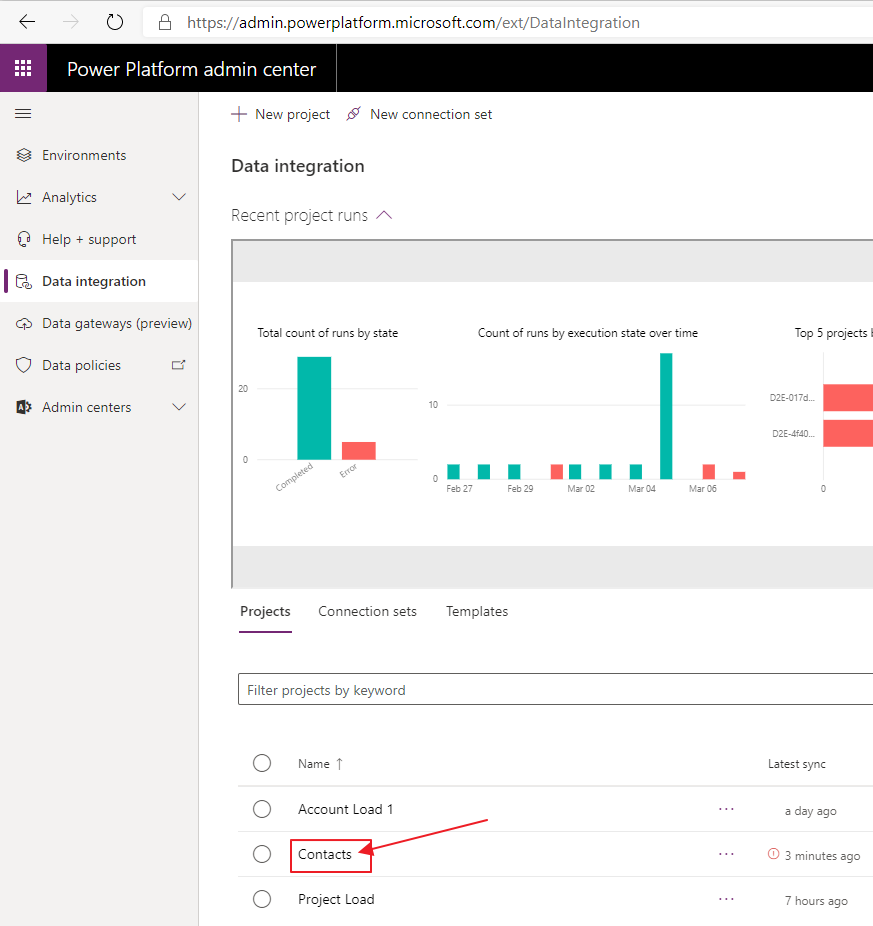
Open data integrations, and open the one that failed.
From here you can open the mapping table
This is where you most likely will see a missing mapping. For some reason it cancels out my mapping. I have tried this in 2 environments and same issues. Every time i choose the Customer Lookup i have this problem.
Click on the destination field, and navigate WAY to the bottom.
This is where I believe the bug is located. Data Flows happens to be sensitive to what Alternate Key was created last. This key is the last thing that I published on Account, and therefore it is in the list. If you only have 1 alternate key, this will show.
Again, it doesn’t matter in this demo because i have 311 in both KEY fields.
The Work Around
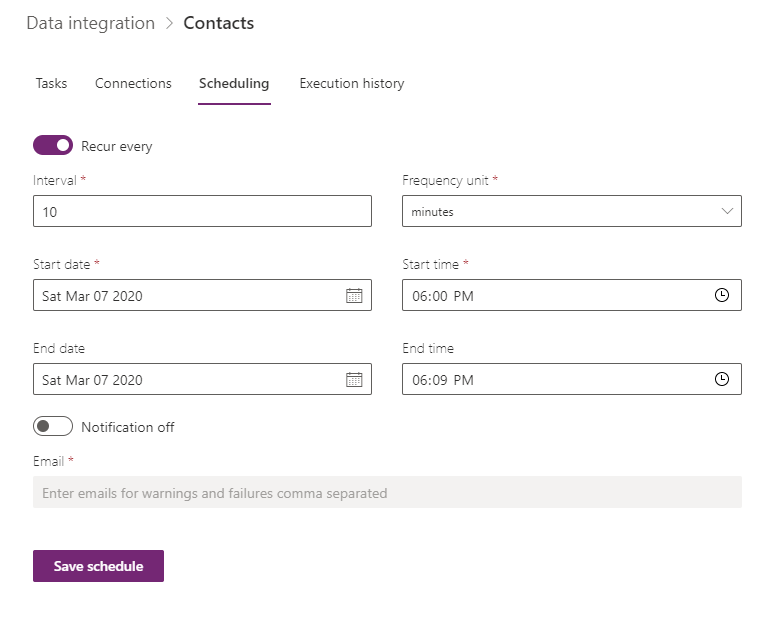
After you save the changes, open Data integration. Here you will setup a schedule to run from the admin.powerplatform.microsoft.com.
Click save schedule and wait for it to run. PS!! Remember to stop the schedule when done!
For the Final result you will see 6 contacts connected to the Account
Next up is how long does it take to import 94000 contacts to CDS via Data Flow!
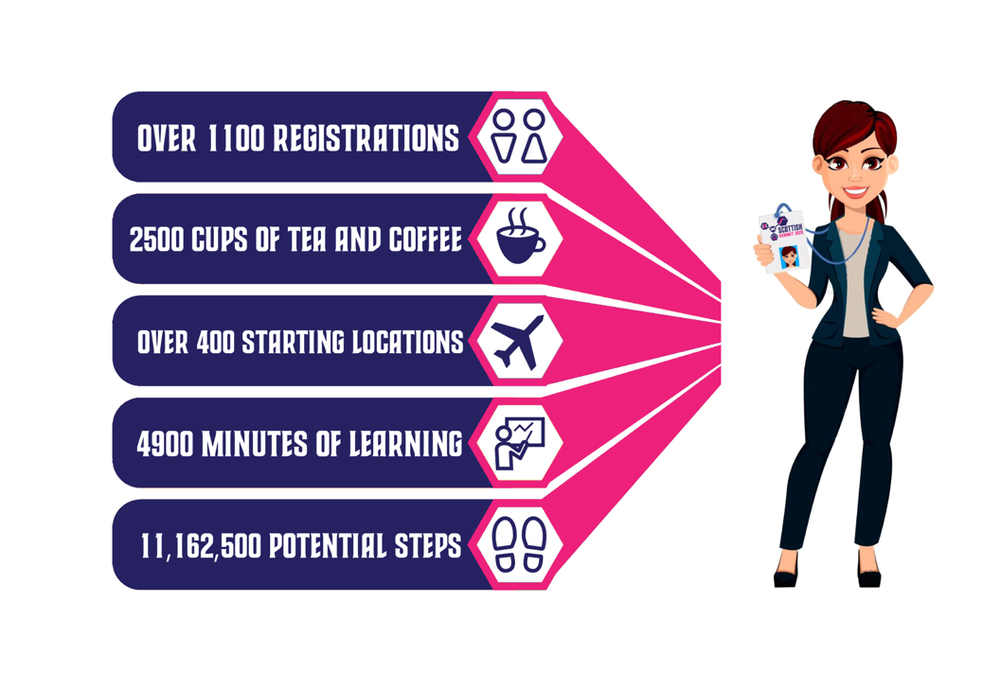
Scottish summit was really impressive, and that is probably why you see everyone writing about it. There were so many sessions to attend, that it was impossible to be everywhere. That is why everyone has a different experience of the summit. That is just to say how extremely big it was!
Mark Christie and Iain Connolly…. Well Done!
Keynote – Jon Levesque
Picture from Marijn Somers
Kicking of the keynote was Jon Levesque entering the session on possibly the coolest way ever, and wearing a kilt accompanied by bagpipes
Jon is a great speaker. His talk was about personal transformation, and how he had gotten to where he was today. Believing in himself and setting a goal in his life. He wanted to get payed for talking. Given his current role in Microsoft, it is clear that he has come far with his goal.
He also time to talk about Samit from Heathrow (recent addition to the MVP family), and how his transformation from a security officer at the airport to one of the communities leading entrepreneurs in power platform.
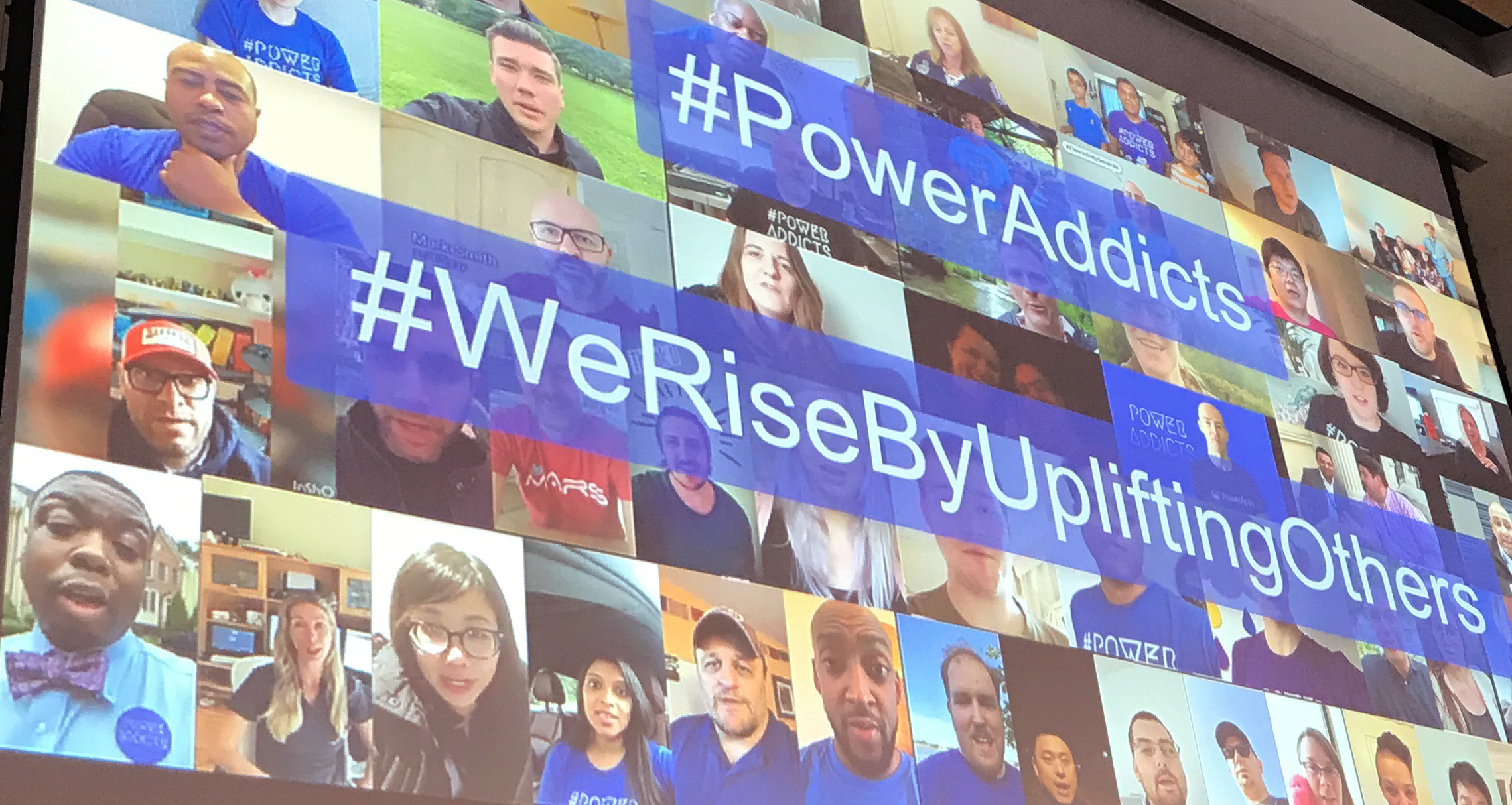
He completed the keynote by talking about the community and the #PowerAddicts. The community is seeing a spike in participation that is just unreal. So many no-code / low-code enthusiast out there that love sharing knowledge. I have been in Dynamics since 2007 and I have never seen anything like it before. Sharing knowledge has never been so important, and I am glad I get to take part in it.
Tricia Sinclair – Omnichannel
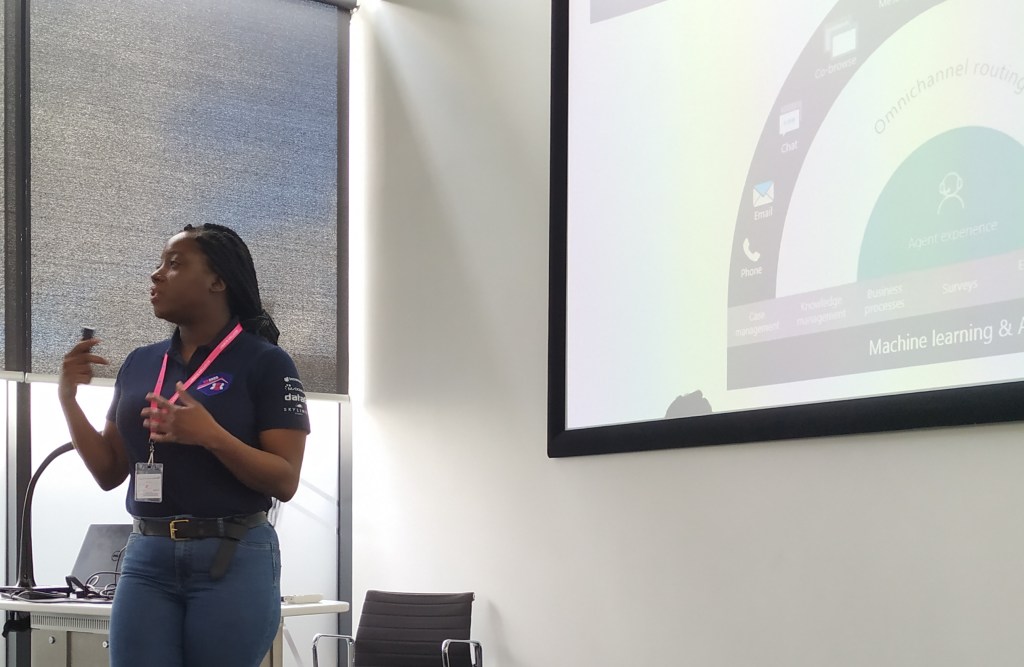
Omnichannel is a fairly new product in the Dynamics family, and many people consider it USD’s little brother. I would say that the project is smaller than USD, but in functions it is amazing!
Smart Assist (really cool) on the right side of the panel reads the chat dialog and gives live suggestions to help the agent. In her example she mentioned a meeting, and the smart assist suggested to setup a meeting with the client. Things like this can be a major time saver and great help for the agents.
The best thing about this product is that many of the settings require very little configuration. Microsoft has produced something that is very similar to an actual product that delivers value from day one. I believe this product will fit both large and small companies because of the configurable setups. I would definitely set this on the “ONE TO WATCH” list for the next months.
Tricia is extremely knowledgeable about Dynamics, so it is just relaxing to hear her talk about it all. There is no doubt about what can or can’t be done.
Seriously, I really want a project where I can use this tool. Connect with me if you want to be a trial customer for a good price:)
Ben Volmer – Field Service Business Value
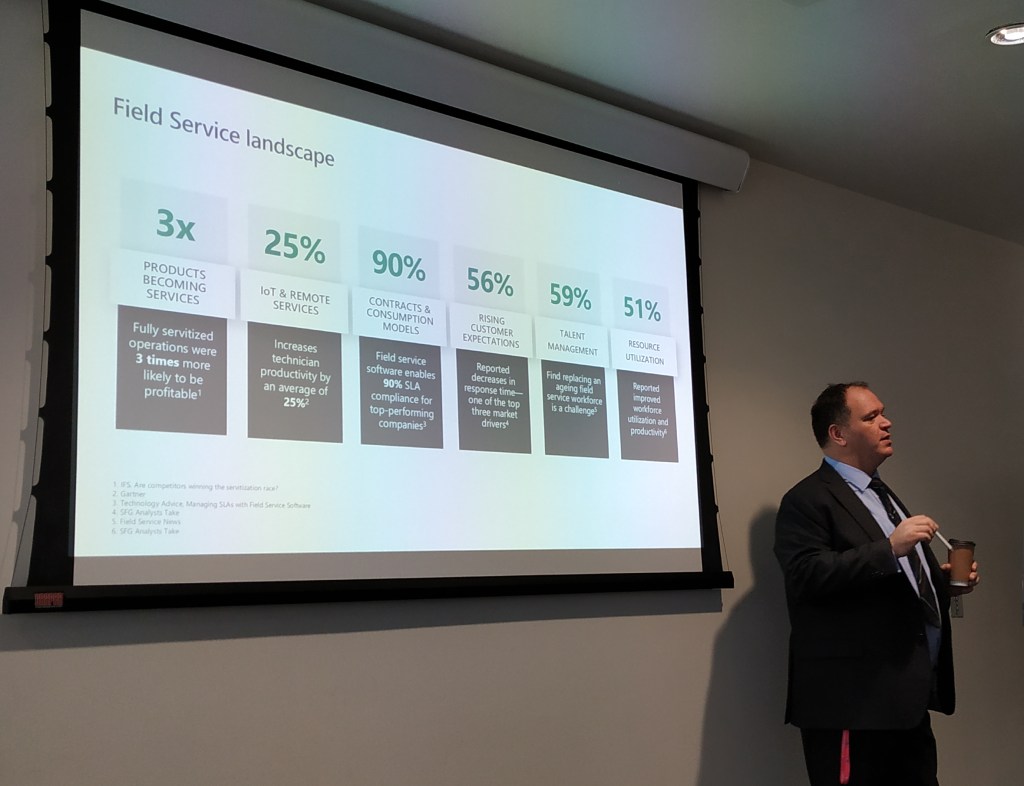
In Europe we wonder if Microsoft ever looks outside the USA to see how the rest of the world is in scale. During this talk I really got into the mind of Ben and what discussions he is having with his customers. In short terms, everything is bigger there.
While Ben is talking about optimizing operations to save millions, I am still at the ABC’s in teaching what Field Service can do for your organization. Attending his session made me realize that I have a long way to go in order have a similar conversation with potential customers regarding Field Service optimization.
I learned a lot by actually not being able to relate to any of the business decisions that a Field Service organization in the USA (and large organizations) have to make. If you ever have the chance to go to a Ben session, make sure he indulges you in the business perspective of Field Service, because it put’s a lot of things into perspective. Functions and features you can read about in the release notes:)
Business models are changing, and old cost centers are now potentially the best ways of increasing revenue. Rolce Royce is no longer just an engine manufacturer. They now sell engines based on running time. This way the customer is paying for an active engine, and not the typical maintenance and support contract. This increases the revenue stream for the company by a lot, because the hardware business has lower margins now than ever before
— Thomas Sandsør | CRM Keeper 🇳🇴 | MVP (@CrmKeeper) February 29, 2020
Chris is one of those people you just believe was born to talk. I am sure he has worked his ass of to be where he is today, but if you meet him you will know what I mean. He is simply in the correct role for his personality, and I am sure he is one of the major contributors to the fact that UK has such a great community.
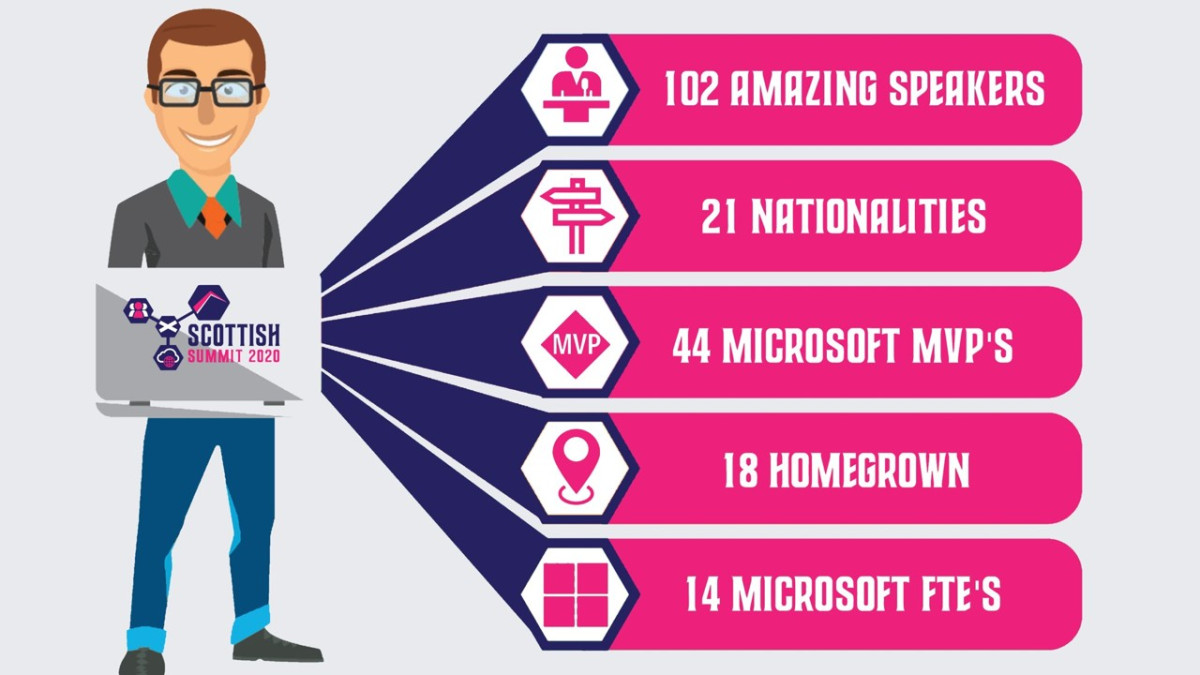
So what about his session? Well, it was mostly about momentum in the Power Platform, and how it has been moving the last year(s). Just look at the numbers under to be amazed.
The platform has transformed what used to be workers without power, to workers that now call themselves citizen developers. Microsoft has a goal to grow the number of citizen developers to 10 mill within a few years, and that means that you, me, and everyone out there will learn how to get more out of the data in the organization. This is good news.
Chris also has a smart way of defining the difference of Model Driven apps and Canvas Apps.
Model Apps is the Line of Business application that supports complex business scenarios.
Chris
Canvas Apps is not LOB, but is designed to support a specific workload for a specific role. This is where the citizen developer comes in. Instead of having to use developers to get great value, non technical people now get the power to create smart applications. We ended the session by creating a UFO Sighting app within 10 minutes, just to prove how quick it can be done. We managed to create both a Model driven app and a Canvas app in that time. Not many platforms in the world are capable of something like this.
Lucy Bourne – Surviving Networking
Lucy shared 20 great tips for getting better at networking. This session also related to the mental issues that some people struggle with when they are their own worst enemy.
20: Go get started, take the leap – Dare to do things you haven’t done before. What is the worst that can happen
19: Be ballsy, like Howie (ACDC) – Howie was a consultant wanting to participate at the ACDC hackathon in Oslo. He didn’t have a team, but gave it a shot anyway. He wanted to be a part of something where he could identify as “home”.
18: Make a plan for the year, sessions, meetups etc. What does it mean for you personally? – Being prepared helps you manage time better. Time is important, and when you improve your time skills, everyone around you benefits from this. Friends and Family should never be neglected when pursuing a dream. They should bee there as important assets in achieving a goal.
17: Work out where you want to start. – Find your clan. Find out where you want to belong, and what passions others share. Be inclusive and never think you are better than others.
16: Find your focus – You cant cover it all, and that is ok!!
Define topics and channels – Where is your passion? Work on it
15: Be Authentic – If people don’t like you for who you are, that is their problem. Don’t try to be something you are not. Unless you are an asshole, then you can change;)
14: Remember Empathy Not just listen, but actually listen #bekind
13: Meet people in their onlyness Everyone has their own story to tell, experience and challenge. Understand them and try to relate.
12: Dedicate time to research Figure out where people are talking, who the speakers are, topics they will be covering etc etc.
11: Follow up – Luise Freese has found ways of automating follow-up of contacts when at seminars. Using different tools to reach out while recording who you are. Find a method that works for you, so that you don’t forget.
10: Share the Love – Find something you like. Share it. Community is about sharing. Open up to others, and they will in turn open up to you.
9: Ask for help – Be the person who asks the question everyone is wondering about. There is always someone there that is wondering about the same.
8:Create your own mission statement How do you want to be perceived. Make it simple, but meaningful. That way it is easy for people to understand what your goal is.
7: Give it time One event wont make you famous. Tender love and care.
6: Find a Balance It can be overwhelming you being everywhere. Find inner peace knowing that not being at an event is OK.
5: Get the tools – About.me. Smart way of sharing your info. – Session questions (get customer interaction). Get the people in the audience activated
4: Remember inclusivity – Bring a friend – Be a friend – Be a matchmaker
3: Build your network – Talk to people, and figure out who they are. Don’t be afraid to approach people. At a community event they are mostly here for the same reasons.
2: Be a matchmaker. If you know people that might match, just try to help them meet.
1: Put your skills to the test Link up to local communities and try to be a part of it. All communities love receiving help. Most of the people are doing this at free will.
Random Pictures
What’s next!!!??
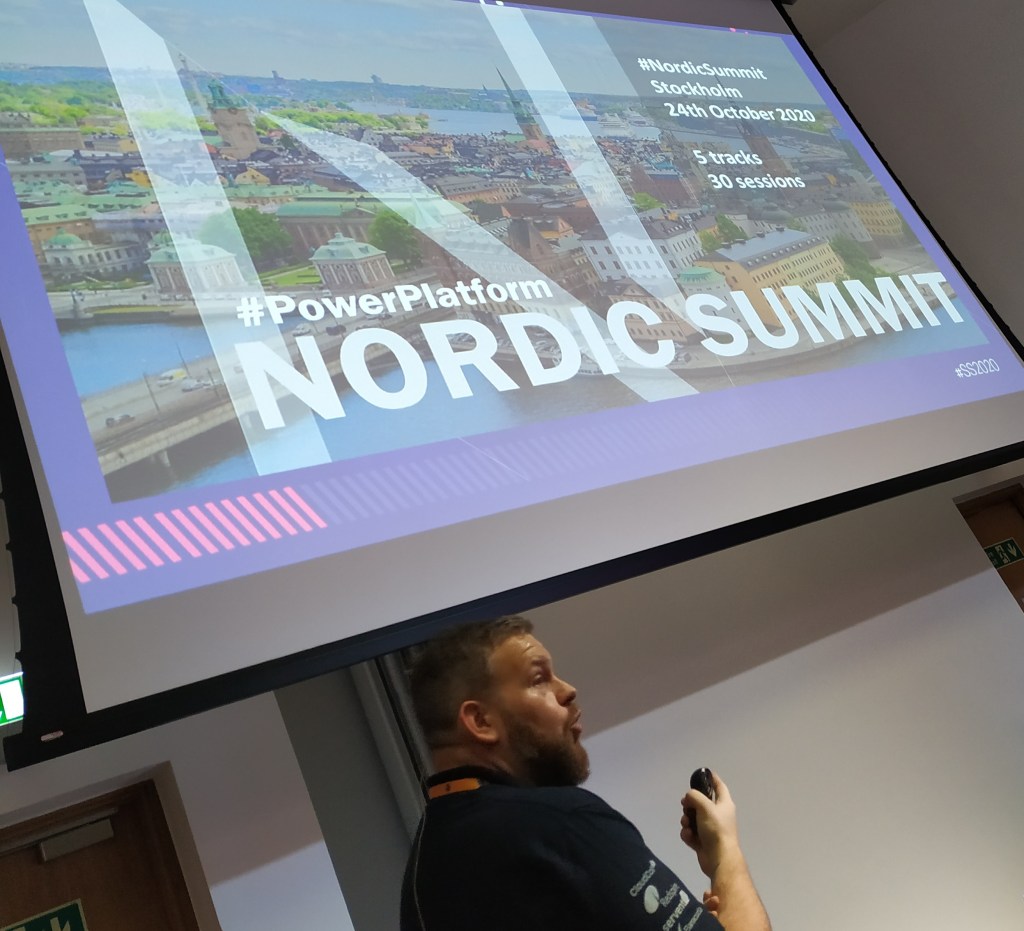
NORDIC SUMMIT is in October. Don’t miss out on this epic event…
So why am I fussing about it now? Well, after all these years Microsoft is still using the Potential Customer field for Field Service.
The error (Accound with id Does not Exist)
Did you ever see this message in Field Service?
“Account With ID = Does Not Exist” – Field Service
As you can see from the image above, the Potential Customer has been set to a Contact.
Standard behaviour is that Account should overwrite the contact, and therefore always show account if account is present. Sometimes this doesn’t happen, and then you will receive the following error when trying to convert to Work Order.
The fix is extremely simple. Dear Microsoft, please just read from the Account field😊
Ideas
If you for some reason feel the same about this, I created a suggestion for improvement..
In Norway we have a saying “everything was better before”. It’s commonly used to describe what old people feel when things are just moving to fast, and they don’t see the purpose of the change.
The new timeline for Unified Interface has been like this for me, BUT recently things are starting to get better:)
The Old
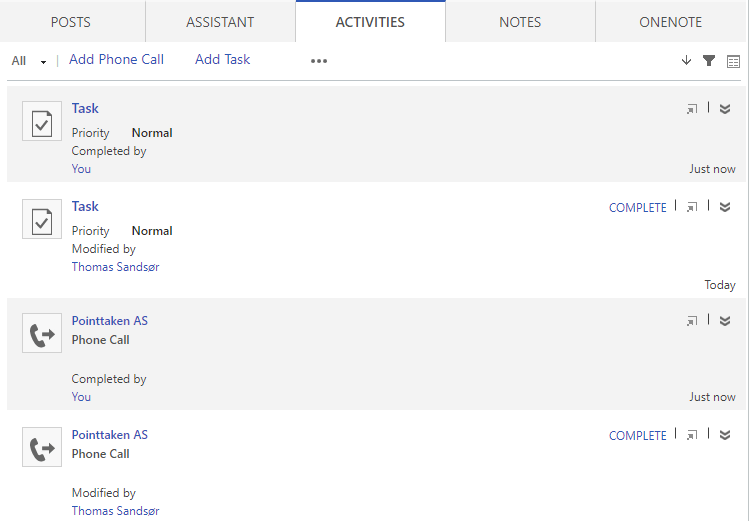
2 tasks and 2 phone calls created. Et was easy to see what type of records these were on the left side with the icon. It was also easy to see that they were not yet completed on the right side, AND that they were white.
When completing one of each I saw clearly that it was completed both with color, and the fact that the complete button was gone.
Another great feature about this was the possability to navigate (hyperlink) to the item by clicking on the phone call or task icon. Worked like a charm.
At last you had a nice feature for quick create that was really nice. The only problem though is that this was never a form we could edit, so in the big picture of things I understand why this was not continued.
The new
So the new timeline has been through a few changes, and this is the lates on wave 2 at the time of writing. They have allready made some small improvements that make it better, but lets break it down.
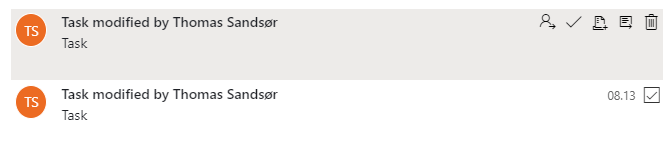
I have the same 2 tasks and phone call. On the left side I now see orange with my name. I don’t know why my name is there. Would make more sense to have the ICON of the activity type. My name should be sown in FULL as is. In a large company you have no idea who TS is.
On the right side it looks like the task is done.. Well, it isn’t.
When you hover over a task you see the color difference, and this is the first time you actually see the button for complete and open. The “check” mark is complete task, but the odd one here is the open record next to the trash can. Why is it so hard to open a record suddenly? This is absolutely not intuitive, but I guess they just need feeback on this.
WTF!
The picture below look like the one above, right? Well, in this picture I have actually completed the to phone calls. Can you tell? Nope.. A little odd to leave out the color coding for the visuals. This should be something they could fix in a small release soon i guess.
So for the new UI we have to rely on the Quick Create form instead of the nice little form on the old one. This is actually not that bad once you get used to it. On this form we have access to the fields via javascript etc, so this is not a bad thing.
Conclusion
I love the new UI because of more activities shown in less space, but they still need to understand how people use the timeline. If you really want to make sense of the timeline you need to clearly see what is todo, overdue and complete. Otherwise it doesn’t make any sense really.
PS!
Will they ever give us the option to stop the email warnings? (i mean completely gone)
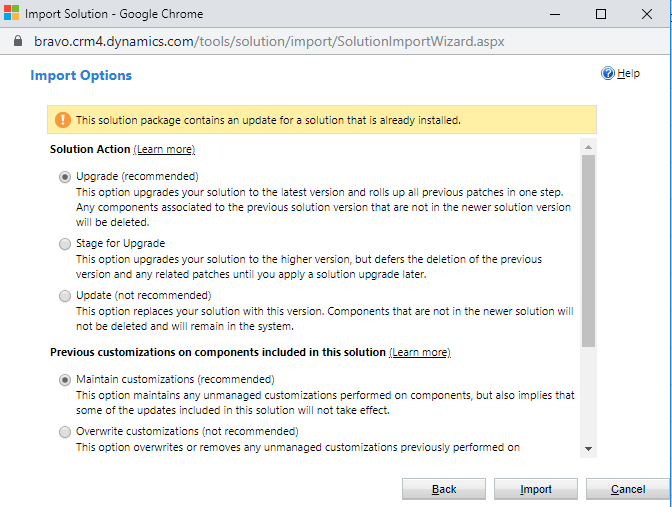
I haven’t touchet managed solutions for quite some time, so importing a managed solution recently surprised me:)
This article is not explaining the differences in detail, but I wanted to make sure you knew there is a difference between upgrade and update. I don’t understand why Microsoft insist on recommented the way they do. I feel you need to know the project before this is a certainty.
Upgrade
New for me is the option of upgrading. If you remove an item in the source managed file, this will now actually delete it in the destination. Say you remove a field on account this should remove the field in the destination.
A great way to test something before committing to any changes. I would not use this for an ISV solution, but if you happen to use Managed internally this might be a way to go.
Update
This is marked as the Not Recomended option, but I still feel this is the normal way to do. If you are doing an ISV import this doesn’t matter because the solution file probably is correct, but if you are working with managed internally, I would use this just because I might not trust someone in dev doing config 100% correctly…
I was never a fan of the Business Process Flow (BPF) because of the many flaws. Sometimes I didn’t think it was easy enough, and other times not advanced enough. It simply wasn’t what I needed.
In a recent project I decided to give it another go, because the customer wanted to continue with the BPF they had from their old CRM system.
Opening the PBF now I see that there is so much new features here that I haven’t seen before. I guess most of these features are due to the FLOW platform now taking over the BPF.
Challenge: Setting pipeline phase
I know you can report on the BPF entity, but that is more complex than reporting on the opportunity entity if you ask me.
Can I set the “Phase” field on the opportunity when navigating to the next step in the BPF? Let’s see!!
I wanted to set the Pipeline Phase with BPF
Config
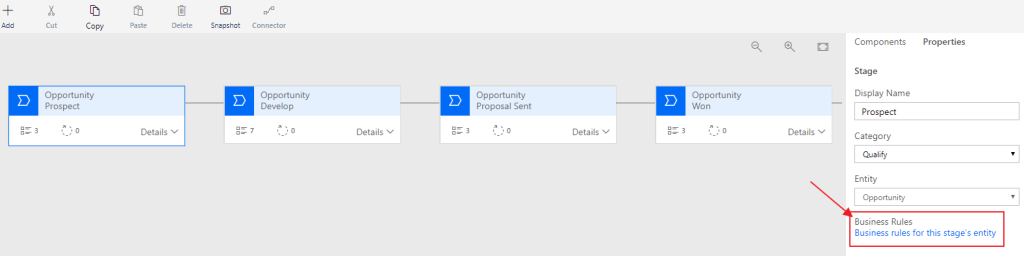
Open the Business Process Flow from your solution and notice a button at the bottom right “Business rules for this stage’s entity”.
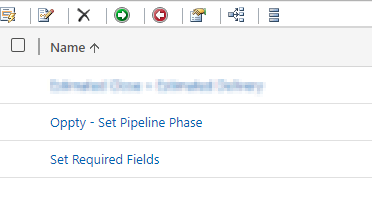
Create a new Business Rule for Opportunity “Oppty – Set Pipeline Phase”.
For the first condition we check if the BPF is in the stage named Prospect.
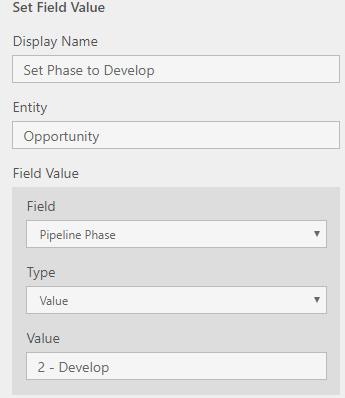
If true, set the Pipeline Phase to “1 – Qualify”.
Repeat for the second step!
The business rule should look something like this:
Result
Let’s get back to the Opportunity. We see that it default is active on the Qualify stage in the beginning of the sales process.
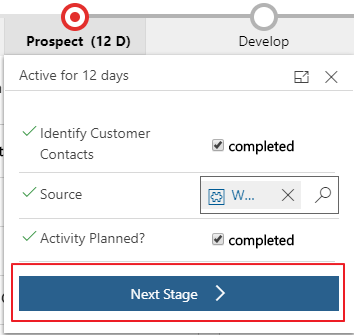
Click the next stage
And there you go!!
New Found Love
So what do I think of the BPF now? Honestly, I liked it. It might be a replacement for many other JavaScripts that I have been using the later years, and that is only a good thing. In this case I was able to skip JavaScript and therefore deliver a solution with a low technical footprint:)
So Power Platform Oslo was a unique experience for me, since it was the first time I was on stage at a community event. Marius Agur challenged me to create a presentation that would showcase my view of Dynamics from a business perspective. I am not the most technical person, so I try to create solutions based on simplicity for the end user within a “do it yourself approach”.
3 ways the Power Platform can increase user adoption
I was using our own company as example for this demo, and demonstrating the issues we have had when migrating from HubSpot to Dynamics 365. A journey with lots of bumps in the road, and long nights to figure out the best solution.
1. Connecting Flow to API
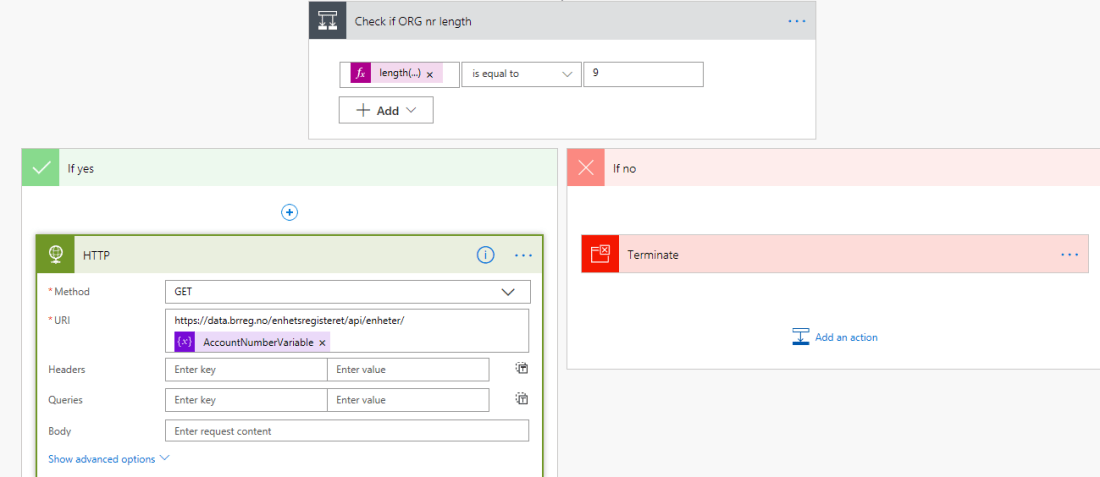
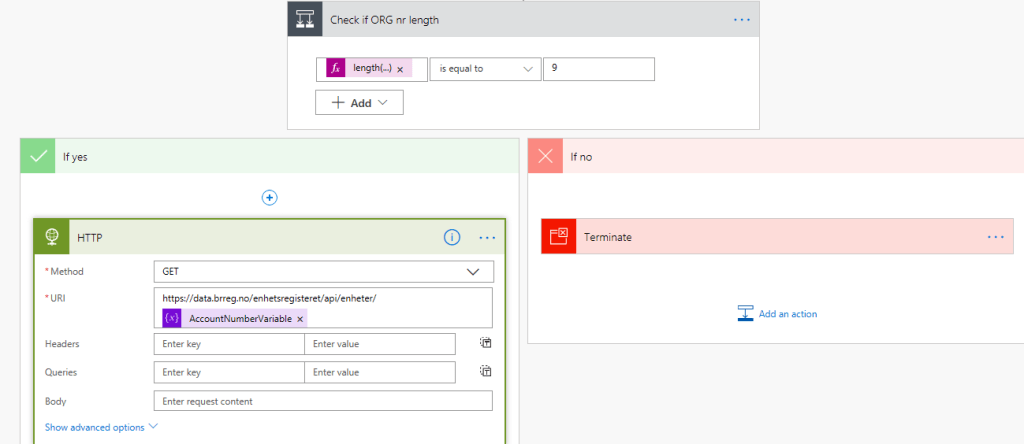
Part One showed how we can connect flow to an API and receive real time data from sources like Bisnode, Proff.no or in my case BRREG. I will blog about how to do this soon.
2. Creating a PowerApp for simplicity
Part 2 was showing how you can create a powerapp to simplify not only the user input, but also create a bridge between those who don’t like Dynamics CRM, but accept using a PowerApp, because it is new and fun. Blog about this will also come soon.
3. Integrating to onpremise data source
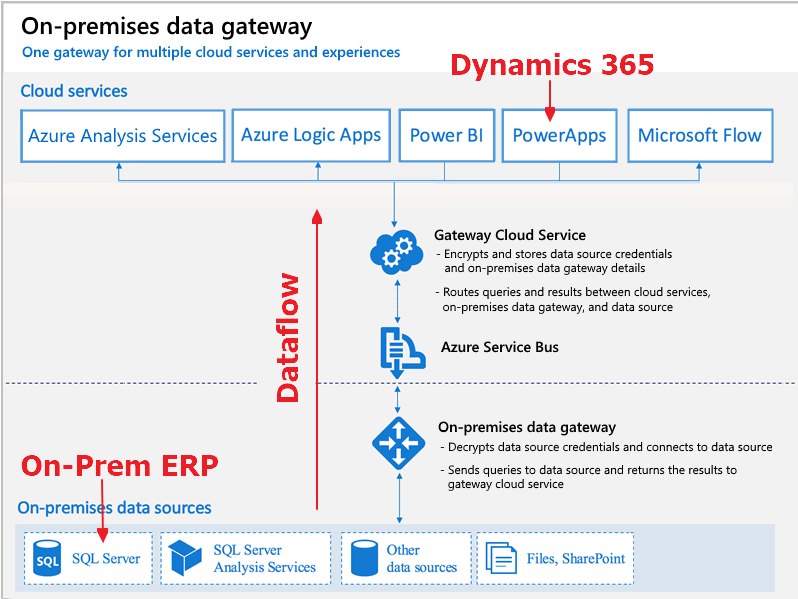
The last step was showing how we could integrate our CDS/CRM solutions to an onpremise ERP solution without a single line of code. Read more about hit HERE
People to thank
Chris Huntingford: @TattooedCRMGuy I would never have even thought of doing community or personal exposure if it were not for your exceptional outgoing personality motivating me when you where in Oslo. I know it sounds odd, but I wanted to be like you, and spread excitement and joy to others. Somehow you made something in my brain say “why not” create a blog and speak my mind! MASSIVE thanks..
Megan Walker: @MeganVWalker Getting to know you and understanding how you use the tools in regards of blog, wordpress, youtube has been very important. You were also so kind to be my first interview subject 🙂
Mark Smith: @nz365guy Thank you for hosting the 90 day Mentoring Challenge. Even though you were speaking to the masses, you make it personal to participants. I have also shared many conversations with you that mean a lot to me. Thank you for guidance in som many different levels in regards to creating a profile. I might not be the fastest at getting everything done, but I will get there.
Malin Donoso Martnes: @MalinMartnes Thank you for being persistent in your work. It inspires others to try:) You gave me the final push to submit my talk, and I don’t regret it!
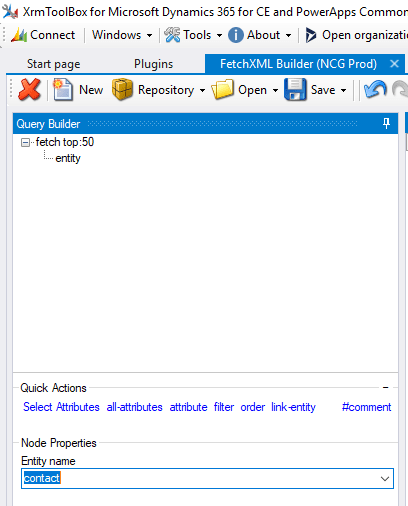
This week I needed to use the List Records function, and I realized that I had no idea how to use the filters. Thank you Jonas Rapp for creating the FetchXML Builder!! The function “Flow List parameters” saved my day:)
Simple filters
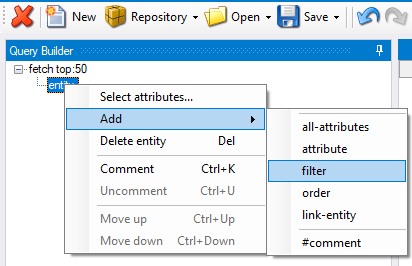
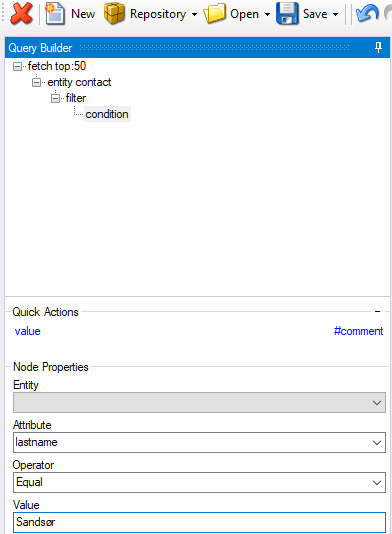
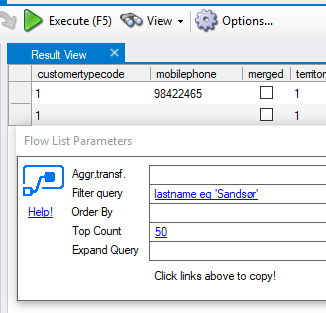
Let’s begin with the simple filters where I get a contact with the last name of Sandsør
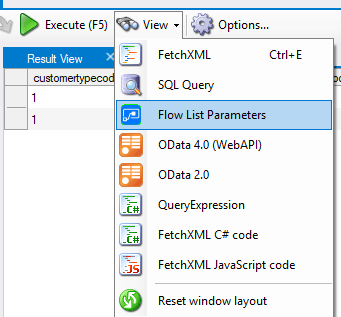
Test your search result with the Execute button so see that anything is actually returned. Then open the Flow List Parameters
The tool converts the Fetch XML, and magically gives the correct filter to add in our FLOW query. It can’t get much simpler than that!!
Lookups
Lookups act a little bit different with the syntax, as lookups always to. This got me quite confused before finding this tool, because I was not getting match to my result.
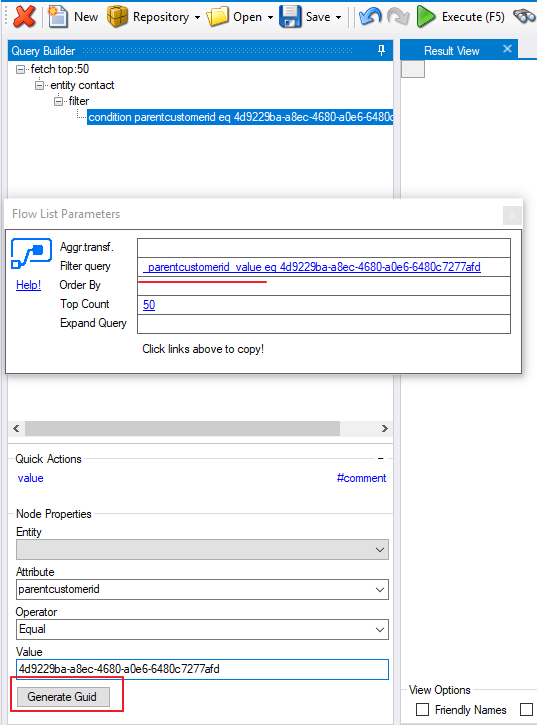
I am searching for contacts with a given GUID. In my case I didn’t know what the GUID was, so I randomly generated a GUID for the formula. In FLOW I substituted the GUID part of query with a dynamic variable.
Filter Query with lookups, you need to add “_” as seen above. When working with lookup you won’t get at match without the “_LookupField_Value”.
Filter linked entity
The last filter is a little more complex, and might not get used due to some limitations of Odata (Must match on unique ID for related).
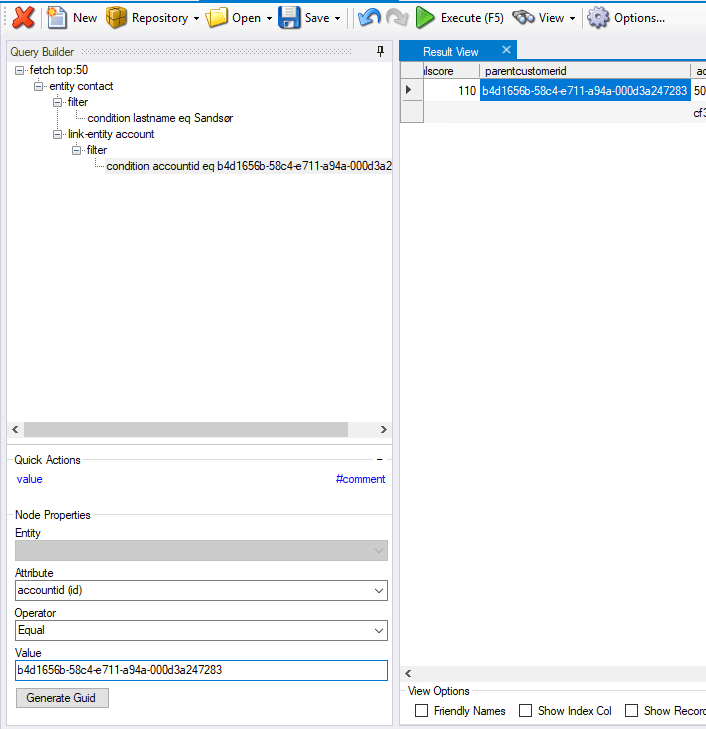
In this scenario I wanted to locate all contacts with last name “Sandsør” where the regarding accountID = GUID.
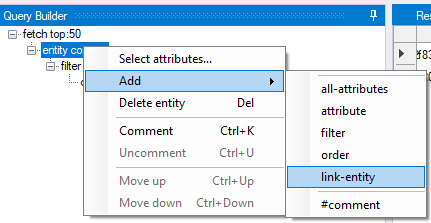
Choose the main entity on top, and add “link-entity”
Make sure you have the correct relationship here. Some Lookups support more than one entity, and therefore you make sure you have the correct one.
Again we find the magic with the “Flow List Parameters“.
In this scenario we also get Expand Query result that we need to copy/paste.
Apply to Each
Once you have figured out what filter to use, you can select the “Apply to Each” function, and add custom logic in here.
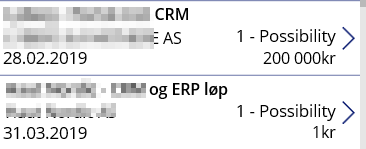
So far I feel that currency formatting in PowerApps seems to be a little troublesome. Sure everything would be great if we all sold in $ and our offers were all huge! All of the examples out there are based on this. I needed to represent values at 1 NOK and up. In Norway we don’t use “,” for separating thousands.
I am sure there are simpler ways of doing this, and I am hoping someone can fill me inn:)
For me I need to format PowerApps currency NOK. I have tried manipulating all of the above with no luck at all. Have no idea what I am doing wrong, but that doesn’t matter. I finally found one that worked for me


































 CRM Keeper