Low-Code Is Dead… Ish. From Canvas Hacks to React Apps

For years, Microsoft has been selling the dream of Low-Code/No-Code: business users dragging boxes onto a Canvas, wiring up some Power Fx, and shipping “apps” without ever touching “real code.”

That era might be coming to an end.

If you’ve missed the recent announcements around Generative Pages in model-driven apps (docs here), let me put it bluntly:
👉 Microsoft is now letting you prompt your way into React code running within the Power Platform.

You read that right. Beneath the pretty maker studio UI, your app is no longer just a quirky YAML with formulas glued on top. It’s React. Real code. A pro developer’s framework.

And while you can’t directly manipulate the code today, let’s not kid ourselves. If the code exists in the backend, the next logical step is exposing it. At that point, “makers” stop being Low-Code hobbyists and start working in an environment where everything you build is by definition Pro-Code under the hood.


Why This Matters: Canvas Apps Are the Walking Dead

Canvas apps have been Microsoft’s big Low-Code poster child. Drag, drop, squint, hack together logic with Power Fx, and pray your delegation warnings don’t tank performance in production.

But ask yourself:

  • Would you trust a mission-critical banking or healthcare process to a canvas built on top of spaghetti formulas?
  • Would any professional developer inherit a Canvas App and thank you for it?

Exactly.

Microsoft knows this. And that’s why the shift is happening:

  • From Low-Code hacks → to Pro-Code foundations.
  • From business hobby projects → to enterprise-ready apps.
  • From citizen dev “I made this” → to “Consultants and business can both work on this.”

Canvas apps won’t disappear overnight, but make no mistake: they are becoming the VHS tapes of Power Platform. Nostalgic, clunky, and doomed.


The Big Upside: A Community Ready to Evolve

This is actually fantastic news. Why? Because for the first time, Power Platform makers are building on top of technology that pro devs actually respect.

React is everywhere. Every dev shop hires React talent. Suddenly, those “weird Power Apps” in the corner of your business are future-proof:

  • Easier for pro devs to adapt. No more “what is Power Fx and why does it look like Excel’s evil twin?”
  • Better ALM. With apps grounded in actual code, the days of Power Automate connection reference nightmares may finally fade away.
  • Business-critical by design. If you want your Power Apps to run core processes, you want them running on real code—not a drag-and-drop toy.

The Provocative Take: Low-Code Isn’t “Dead”… It’s Reborn as Pro-Code

Let’s be clear: Low-Code isn’t disappearing. It’s transforming.

The promise of Low-Code (faster delivery, more accessible tooling, easier experimentation) will remain. But the foundation is shifting from fragile pseudo-code (Canvas + Power Fx + connectors duct-taped together) to robust, industry-standard codebases.

That’s the real revolution here:

  • Business makers will still drag, drop, and prompt.
  • The platform will compile those prompts into professional-grade code.
  • Developers will finally have a sane way to extend, govern, and maintain those apps.

If you thought “fusion teams” were a buzzword before, wait until everyone is technically a React developer by default.


A Future Without Power Automate Nightmares?

Let me dream a little here. If Microsoft keeps doubling down on pro-code foundations in Power Platform, maybe—just maybe—we’ll finally:

  • See the end of brittle Power Automate spaghetti flows.
  • Eliminate connection reference chaos that breaks ALM pipelines.
  • Build real software on Power Platform that lasts a lifetime.

The citizen dev name finally makes sense now. The “dev” part will actually be true 😀
We’re all pro coders now.


TL;DR

  • Microsoft is quietly killing Low-Code as we know it.
  • Canvas apps are already on life support.
  • Generative Pages prove Power Platform is shifting toward real pro-code (React).
  • This is a huge win for the community: easier ALM, pro dev collaboration, and apps that can actually be business critical.

👉 Low-Code isn’t dead. It just grew up.

Low Code Vibezzz: Can Power Platform Catch the Vibe Coding Wave?

What If Microsoft Could Start Over with Power Platform?🤔

The world didn’t change overnight when AI arrived at our doorstep—it’s been creeping in for years. Quietly embedding itself into release notes, keynote demos, and C-level posts about copilots. But something has shifted recently. It’s not just about AI anymore. It’s about how we build.

Enter Firebase Studio—Google’s latest tool that reimagines app development in an AI-first world. You type a prompt. You get a working app. No need to understand frontend or backend development to get going.

To be honest, it’s not no-code or pro-code. It’s something new:
Vibe coding—live-coding an app while vibing with an AI.

But it raises a big questions:

If Microsoft could rebuild Power Platform today from scratch—would they? Should they?


🧱 Power Platform: An amazing Low-Code product from Microsoft

Let’s be clear—Power Platform is a success. It has matured into a serious contender in enterprise low-code. It integrates deeply into Microsoft 365, Azure, and Dynamics. It empowers organizations to build apps fast, with governance and security built-in. That’s huge💪🏼

But like every long-running platform, it carries legacy and complexity that customers unfortunately need to understand.

  • Canvas vs. model-driven.
  • Custom pages vs. screens.
  • ALM pipelines that almost work well, but are still too complex for makers.
  • Two devs working on the same app? Still tricky.

Power Platform is constantly evolving, but having a hard time reinventing. Features are added, yes. Power FX, Copilot, co-authoring (kind of). But it’s like adding smart tech to a legacy car. You still feel the steering pull.


🤖 Vibe Coding: The New Developer Mindset

Firebase Studio isn’t just impressive because of what it can do—it’s impressive because of how it makes you feel while building. You’re not clicking through menus or configuring controls—you’re coding through conversation. It understands intent, backend structure, and front-end flow. It speaks your developer language.

That’s vibe coding.

And it changes the entire mental model of app development. It doesn’t feel like low-code—it feels like the fastest way to get real code out of your head and into a product.

Microsoft’s Copilot in Power Apps made an early push in this direction, but the experience felt more like autocomplete than a creative partner. There’s still a gap between vision and execution—and that’s what vibe coding is beginning to fill.


🍎 Are We Even Comparing the Same Fruit?

This is where we need to slow down. Comparing Power Platform to Firebase isn’t really apples-to-apples.

Power Platform is primarily about apps within organizations. It’s designed for internal users—business analysts, operations teams, HR, finance etc etc. The goal is to automate, digitize, and streamline internal processes, not launch a consumer product.

Firebase, on the other hand, is focused on external-facing apps. Think: public apps, customer portals, mobile-first products. It’s optimized for scale, authentication, telemetry, and UX polish.

So when people ask which platform is “better,” maybe we’re asking the wrong question. These tools are solving different problems for different audiences.

But here’s the thing: what if Power Platform could serve both?


🌍 Should Microsoft Blur the Lines?

Right now, if you want to build an external-facing app with Power Platform, your path usually leads to Power Pages—a separate product, with its own learning curve and licensing model. But what if Power Apps could evolve to let you publish customer-facing apps without leaving the platform?

💡Could Power Platform adopt more external scalability features?
💡Could it support richer public UX design options natively?
💡Could it blur the line between internal tool and external product?

If Microsoft wants to meet the expectations of the next generation of developers—raised on vibe coding, AI chat loops, and fast product delivery—these are questions worth asking.


💸 Pricing Models: A Mindset in Disguise

Firebase’s pricing is based on usage—you pay for authentication, reads, writes, bandwidth. It feels like you’re scaling your cost with your success.

Microsoft’s Power Platform pricing has historically been harder to navigate: per user, per app, per plan, per… something. Recent changes have simplified this somewhat, especially with the Developer Plan and Pay-As-You-Go licensing. But many organizations still feel that cost becomes a question before innovation can even begin.

This difference isn’t just a billing structure—it’s a reflection of platform philosophy. Microsoft monetizes the potential to build. Google monetizes the outcome of building.


💡 Power Platform: Building the Bridge Between Low-Code and Pro-Code

So here’s where we land.

Power Platform has done incredible work empowering business users to build. But the future of app development won’t be about choosing between low-code and pro-code—it’ll be about combining them, in a seamless, AI-driven workflow.

That’s what vibe coding hints at.

If Microsoft can continue to build that bridge—bringing Copilot closer to being a real dev partner, simplifying collaboration, supporting external users natively, and making the pro-code experience feel native, not bolted on—then Power Platform won’t just keep up… It will lead.

Because the real challenge ahead isn’t just catching up to new tools.
It’s embracing a new way of thinking about what an app is—and who it’s for.

Power Platform Low-Code Plugins: A Step Forward or Sideways?

Microsoft’s vision for the Power Platform has always been about enablement. “Low-code, no-code” has enabled many makers to build business applications without writing traditional code. It’s an attractive idea—why rely on scarce pro-dev resources when we can empower citizen developers to build what they need?

But then, there’s the reality. And reality often doesn’t align with the marketing slide decks.

The Promise of Low-Code Plugins

With the introduction of Power Platform Low-Code Plugins, Microsoft is making a push to bring more low-code automation into Dataverse without requiring full-scale C# development. This is positioned as a way for makers and consultants to extend Dataverse business logic without writing actual “code.” Instead, Power FX—the formula language familiar from Canvas Apps—is now the tool of choice for defining business logic inside Dataverse.

Sounds great in theory. But in practice? Well…

Power FX: The Wrong Tool for the Wrong Job

Power FX was originally designed as an Excel-like expression language for Canvas Apps. It made sense in that context—business users working with familiar formula structures to manipulate data and UI elements. But introducing Power FX into the Dataverse backend, for things like plugins and actions and custom API’s? That’s where I’m starting to become more skeptical.

The biggest challenge? Documentation and consistency.

Power FX has been evolving rapidly, and Microsoft’s documentation often lags behind its features. Unlike C#, which has decades of well-documented patterns, Power FX still feels like a moving target. That’s a serious problem when you’re expecting makers to build business-critical logic with it.

Another issue? Limited debugging and developer tools. If you’ve worked with C# plugins in Dataverse, you know there are well-established debugging workflows, ALM processes, and mature developer tooling. Power FX inside low-code plugins lacks much of this maturity, leaving makers and consultants with trial-and-error debugging experiences that feel more like “guess-and-check” than actual software development.

The Rise of the “Semi-Devs”

A common argument for low-code plugins is that they enable a new breed of “semi-devs”—makers who aren’t full-blown pro developers but need more control than what business rules offer. But instead of making things easier, Power FX in low-code plugins risks creating a knowledge gap that is harder to bridge:

  • Too complex for true no-coders (who are used to simple workflows and Power Automate)
  • Too limited for pro-devs (who would rather use C# plugins and proper ALM practices)

The result could be a language that neither no-coders nor pro-devs fully embrace.

Is This Really the Right Evolution?

Low-code development has its place. But if the goal is to reduce friction in extending Dataverse, introducing Power FX for backend logic might not be the answer. Instead of making things easier, it risks:

  • Creating a fragmented development experience (Canvas Apps vs. Model-driven Apps vs. Power Automate all having different functions available)
  • Complicating long-term maintainability (A language still in its early stages that could suddenly deprecate functions needed to run)
  • Forcing makers to learn yet another Microsoft language that doesn’t have the same depth of community support as C# or JavaScript

Conclusion: Proceed with Caution

The dream of empowering non-developers to build business applications is a good one. But Power FX for low-code plugins feels like a compromise that benefits neither no-coders nor pro-devs. It’s yet another Microsoft experiment in bridging the gap between citizen developers and traditional software engineering—and I am going to wait a moment before jumping on any train.

For now, the best approach? For me personally, I am going to stick to the pro-code approach. My reason: knowing that what I do will most likely work without interruption for the next years. Sometimes there is no obvious right or wrong, but you have to commit to your decision knowing the potential consequences.

Ribbon Editor Updates: Hide/Show Buttons and Customize NEW Button

Since my last post Advanced Settings Facelift was about old things getting a facelift, I thought I would be ok to continue on another similar post. This time it’s about the good old ribbon.

It’s no news that the ribbon is possible to edit in the make.powerapps view, but we all know that the functionality there has been so poor that you mostly end up customizing the buttons in the good old Ribbon Workbench from Scott Durow. Not that there is anything wrong with the tool, but Scott works for Microsoft ATM, and maintaining an amazing tool like that is not future thinking.

A few days ago, I stumbled upon a post on Twitter/X from Robin that mentioned new updates to the Command Bar (Ribbon Editor in Make). The video might seem a bit simple, but we have to look behind the simplicity to see the complexity 😃

Whats new?

We are now able to Hide/Show (without formula for now) the following buttons

The hide is currently only located on the left side menu

You are probably going to ask yourself WHY exactly these buttons and not all? Well, there seems to be a lot of technical things behind the scenes where a button isn’t just a button. A CRM button isn’t even the same as a Dataverse button in the backend according to sources. We could all complain about this, since RibbonWorkbench doesn’t seem to even care about any of this, but let’s focus on the positive parts here. WE ARE ONE STEP CLOSER 🙂

Next update was the possibility to modify the actually NEW button

This is the first time we have been able to customize an OOTB button with PowerFX or JavaScript. Again, you may ask why only the NEW button. I’m asking the same thing, but also accepting that it’s a step in the right direction 😂

This does bring the possibility to add cool stuff to the NEW button when in Main Grid. Have a look at the Twitter video and you might see what is going on. The button calls a JavaScript that in turn opens a Custom Page. The record itself isn’t actually ever opened. Yes, we could do this with RibbonWorkbench, but again… One step closer 😉

Why is it important?

Just to reiterate what I wrote earlier. Scott now works at Microsoft, and leaving the Ribbon Workbench unattended for the next years is not a viable option! Microsoft has to realize that the Command Bar has to get better fast. A LOT BETTER. This update might seem like a small/insignificant change, but this is jumping a few hurdles that will get us closer to the end goal. 🏁

In the future, we can hopefully retire the Ribbon Workbench and be thankful that Scott got us through a lot of hard situations😃. Just imagine the weight Scott has had on his shoulders since the release of the first Ribbon Workbench! Everyone is reliant on his work, but we all probably take it for granted every time we use it. Just think of how many hours it has saved you, and it’s designed and maintained by a single person receiving no money for it!

Dev Environments Dataverse

Did you recently see the update from Power CAT announcing the 3 dev environments pr user?!?! The topic of more than one dev environment has been discussed in several forums over the last years, but finally, it is here. Go check out the video on YouTube about the details:

In short a few key takeaways:

  1. 3 Dev environments PR user
  2. 2 GB of data pr environment (does not count against storage)
  3. Premium Connectors included for testing
  4. ALM setup for getting to know solution management better
  5. Automatic cleanup of environments over time (if inactive).
  6. Ability to create dev environments from https://make.powerapps.com

make.powerapps.com

Or should I say https://make.preview.powerapps.com <- for now:) Depending on when it will be released to everyone, the ability to add environments from make.powerapps portal is not yet rolled out. Go to the PREVIEW make, and you should be able to see it there. This is important for users without access to the admin.powerplatform.com.

Go ahead and try it out and see where the limitations are. The important part here is to learn new things by trying them out. Enjoy!

Custom Page – Opportunity Close Solution Download

Initially, I was just going to explore some possibilities with Custom Pages, but decided to make a solution out of it instead. This way you can just download the solution and do the required modifications for your project (GIPHY API key), and you are good to go😁

I am really excited to hear your feedback after seeing/trying this out, and hopefully, I will be able to make it a lot better in next revisions of the Custom Page!

Go to my GitHub to get a hold of the solution. It’s a pretty “thin” solution that should be easy to configure and easy to delete if you no longer need it.

💾 DOWNLOAD 💾

I have also included a video displaying how you install and use the solution

Installation and setup

Because of ribbon changes, I was forced to create a managed solution for this. The only way it wouldn’t overwrite the current opportunity ribbon.

If you want to play around with the solution, download the unmanaged. Just make sure you don’t have any other ribbon customizations on Opportunity. If you do back it up first!!

For everyone else, you have to download the managed solution to be on the safe side.

On my Gihub page I have written what components get installed, so you can easily remove it all at a later point in time.

Custom Page – Close Dialog Logic

In the last post, we created a new close dialog, but we didn’t add any logic to the buttons.

Logic – Fields and Buttons

The most important parameter we send in via JavaScript last time was the GUID of the record that we are going to work with.

The first thing we do is add an onload to the app and perform a lookup as the very first step. This will give us all of the data for that given Opportunity that we can use within the Power App. We store the whole record in a variable “varOpportunity”.

A little clever step here is actually the “First(Opportunities)”. For testing purposes, this will open up the first Opportunity in the DB if you open the app without the GUID from Dynamics, and from here you can test the app make.powerapps.com studio without having to pass a parameter to the Custom Page 👍

ONLOAD

Set(VarOppportunity,
If(IsBlank(Param("recordId")),
First(Opportunities),
LookUp(Opportunities, Opportunity = GUID(Param("recordId"))))
)

Fields

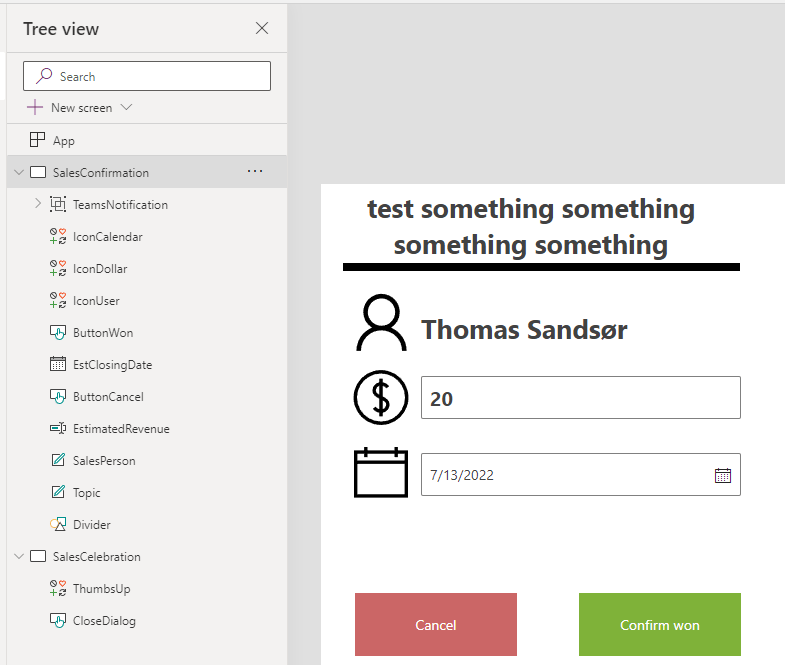
Fields can now be added via the “varOpportunity” that contains all of the data to the first opportunity in the system.

BUTTONS

The cancel button only has “back()” as a function to close out the dialog, but the “Confirm WIN” has a patch statement for Opportunity.

//Patch the Opportunity fields
Patch(
    Opportunities,
    LookUp(
        Opportunities,
        Opportunity = GUID(VarOppportunity.opportunityid)
    ),
    {
        'Actual Close Date': EstClosingDate.Value,
        'Actual Revenue': Int(EstimatedRevenue.Value)
    }
);
//Hide input boxes and show confirmation
Set(
    varConfirmdetails,
    false
);
Set(
    varCongratulations,
    true
);

HIDE/SHOW

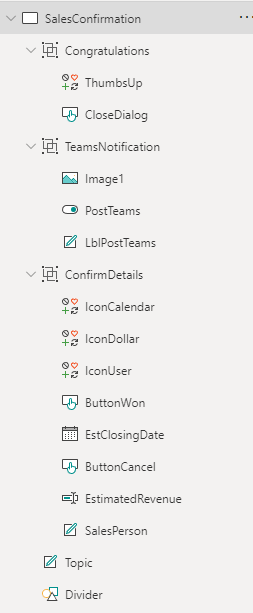
Because of some challenges I met with multiple screens, I had to use a single Screen with hide/show logic. Therefore I added all the fields to Groups and will hide Show based on groups.

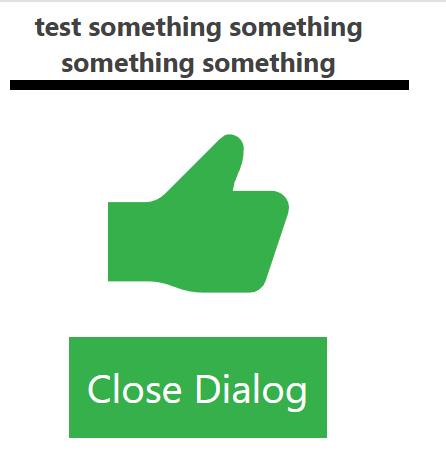
The Congratulations group looks like this.

Closing the Opportunity Challenge

If this were a custom entity we could close the opportunity by setting the Status and Status Reason values. Unfortunately, the Opportunity has a function for closing the Opportunity that will create a Case close dialog. In order for this to work, we have to call a custom service for closing the Case. This does get a bit tricky.

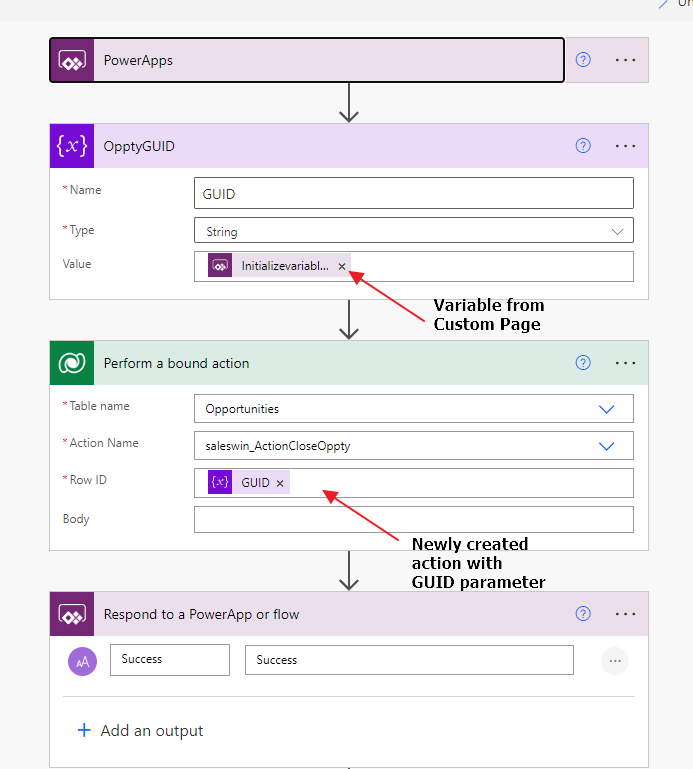
We now have to call an action from Power Automate to close the opportunity as WON. At the moment of writing the blog, the process of calling the Microsoft action in Power Automate wasn’t working, so I created my own action. I will show you how, and honestly maybe even recommend doing it this way for now. It works all of the time and uses the technology that has been working in CRM since 4.0.

Custom Action

Actions work with the same logic as a Workflow, but they can be fired at any time from anywhere. They can receive inputs, and generate outputs. A workflow will only trigger from CRUD events, and work within the context of the record triggering the actual workflow. They are in many ways an underrated function in Dynamics / Dataverse.

It’s a pretty simple step updating the status of the opportunity to “won”, and by doing it this way the system will automatically do the correct calls in the API for Opportunity Close.

This is all you need for the action. After activation, we can go back to the custom page and create a instant flow (Power Automate).

In the Custom Page we now add a line to our “Confirm WIN” button. (Yes, I know we probably should add some logic for success/fail, but that will be a part of the final solution on Github).

//Patch the Opportunity fields
Patch(
    Opportunities,
    LookUp(
        Opportunities,
        Opportunity = GUID(VarOppportunity.opportunityid)
    ),
    {
        'Actual Close Date': EstClosingDate.Value,
        'Actual Revenue': Int(EstimatedRevenue.Value)
    }
);
//Hide input boxes and show confirmation
Set(
    varConfirmdetails,
    false
);
Set(
    varCongratulations,
    true
);
//Update Opportunity Close entity
CloseOpptyPostTeams.Run(VarOppportunity.Opportunity);

WINNER WINNER 🏆🥇

You should now be able to close the opportunity as won via a custom page. Just remember to publish the custom page AND publish the app again. If not it will now show. Do remember to give it a few moments before refreshing after a change.

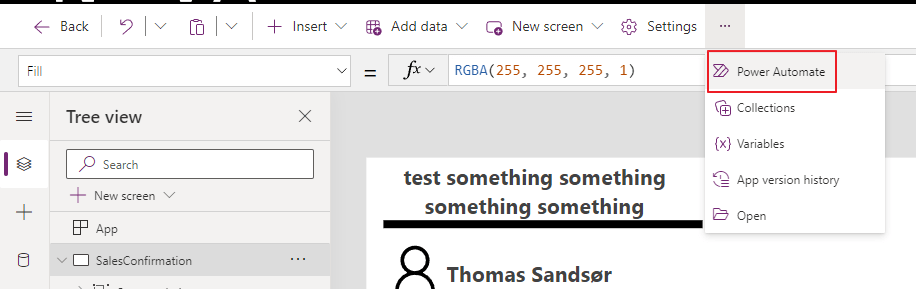
Custom Page Multiple Screens

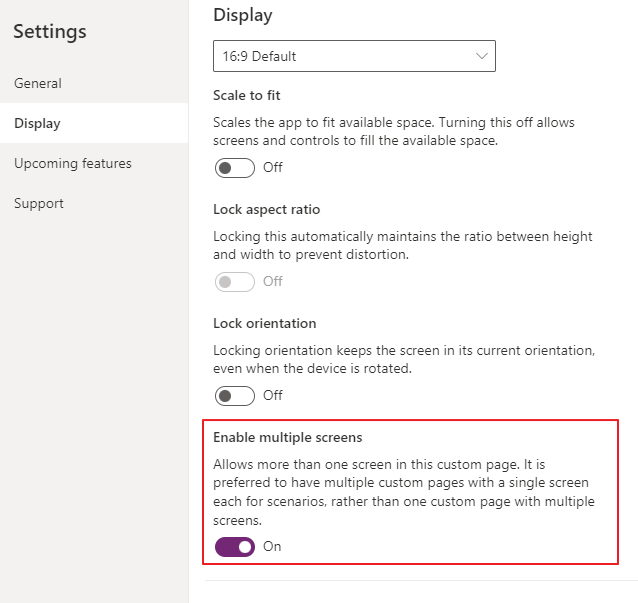
Custom pages can only have one screen… Right? No, actually they can have multiple screens like a normal Canvas App

I was a bit surprised when learning this because I have been told that there only was one screen per Custom Page. Turns out that Microsoft only recommends one screen pr Custom Page, because they want to isolate the pages better, and rather navigate between custom pages.

In some cases, you actually just want a simple screen instead of a new Custom Page.

Enabling multiple screens

This might be old news for many, but I for one did not notice this before recently🤷‍♂️

AI Builder + Lobe

During the recent Arctic Cloud Developer Challenge Hackathon I was playing around with AI Builder for the first time. The scenario we were going to build on there was the detection of Good guy / Bad guy.

The idea was that the citizens would be able to take pictures of suspicious behavior. Once the picture was taken, the classification of the picture would let them know if it was safe or not.

For this exercise I would use my trusted BadBoy/GoodBoy nephew toys:)

Lobe

To start it off I downloaded a free tool called Lobe. www.lobe.ai . Microsoft acquired this tool recently, and it’s a great tool to learn more about object recognition in pictures. The really cool thing about the software is that calculations for the AI model are done on your local computer, so you don’t need to setup any Azure services to try out a model for recognition.

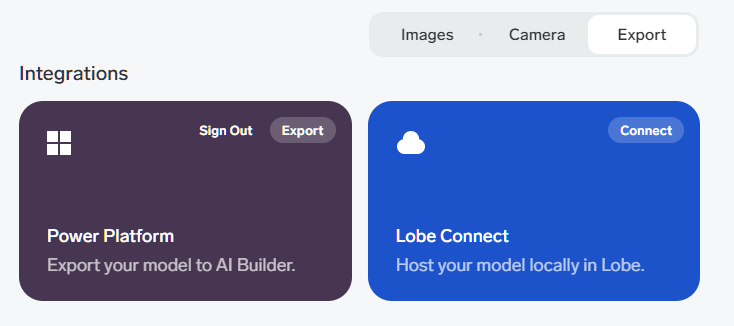
Another great feature is that it integrates seamlessly with Power Platform. Once you train you model with the correct data, you just export it to Power Platform!👏

The first thing you need to do is have enough pictures of the object. Just do at least 15 pictures from different angles to make it understand the object you want to detect.

Tagg all of the images with the correct tags.

Next step is to train the model. This will be done using your local PC resources. When the training is complete you can export to Power Platform.

It’s actually that simple!!! This was really surprising to me:)

Power App

Next up was the Power App the citizens were going to use for the pictures. The idea of course that everyone had this app on their phones and licensing wasn’t an issue 😂

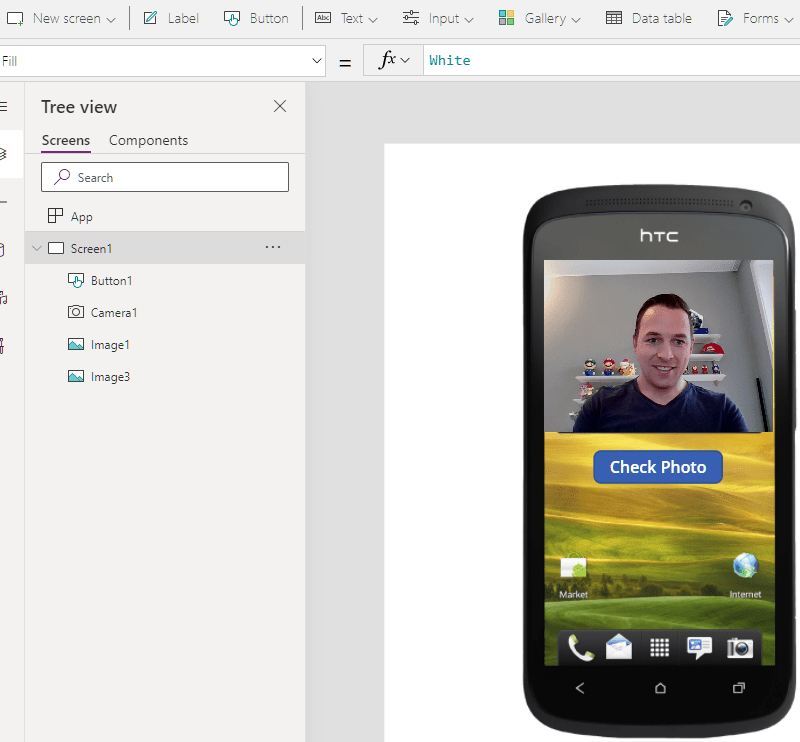
I just added a camera control, and used a button to call a Power Automate Cloud Flow, but this is also where the tricky parts began.

An image is not just an image!!!!! 😤🤦‍♂️🤦‍♀️

How on earth anyone is supposed to understand that you need to convert a picture you take, so that you can send it to Flow, only there to convert it to something else that then would make sense???!??!

Image64 and Power Automate – What a shit show

After asking a few friends, and googling tons of different tips/trics I was able to make this line here work. I am sure there are other ways of doing this, but it’s not blatantly obvious to me.

Set(WebcamPhoto, Camera1.Photo);

Set(PictureFormat,Substitute(Substitute(JSON(WebcamPhoto,JSONFormat.IncludeBinaryData),"data:image/png;base64,",""),"""",""));

'PowerAppV2->Compose'.Run(PictureFormat);

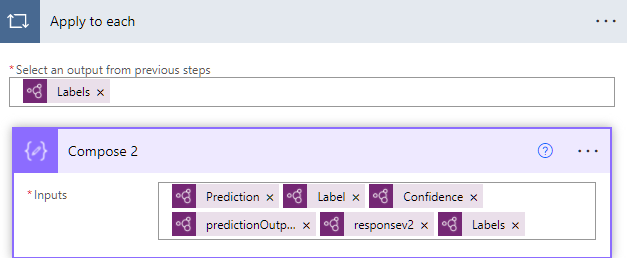
The receiving Power Automate Cloud Flow looked like this:

I tried receiving the image as a type image, but I couldn’t figure it out. Therefore I converted it to a Base64 I believe when sending to Flow. In the Flow I again converted this to a binary representation of the image before sending it to the prediction.

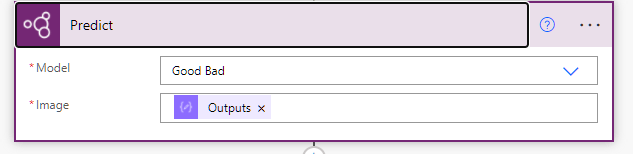
The prediction on the other hand worked out really nice!! I found my model that I had imported from Lobe, and used the ouputs from the Compose 3 action (base64 to binary). I have no idea what the differences are, but I just acknowledge that this is how it has to be done.. I am sure there are other ways, but that someone will have to teach me in the future.

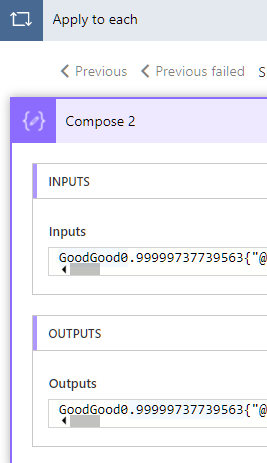
All in all it actually worked really well. As you can see here I added all types of outputs to learn from the data, but it was exactly as expected when taking a picture of Winnie the Poo 😊 The bear was categorized as good, and my model was working.

Why Lobe?

One can wonder why I chose to use Lobe for this, when the AI Builder has the training functionality included within the Power Platform. For my simple case it wouldn’t really matter what I chose to use, I just wanted to test out the newest tech.

When working with larger scale (numbers) of images, Lobe seems to be a lot easier for the importing/tagging/training of the model. Everything runs locally, so the speed of training and testing is a lot faster also. It’s also simple to retrain the model an upload again. This being a hackathon it was important to try new things out 😊

More about AI builder

I talked to Joe Fernandez from the AI builder team, and he pointed me to some resources that are nice to checkout regarding this topic.

https://myignite.microsoft.com/sessions/a5da5404-6a25-4428-b4d0-9aba67076a08 <- forward to 11:50 for info regarding the AI Builder

https://youtube.com/watch?v=MQQmDUCufS8 <- Lobe

Business Unit Name Change

Something small, but yet useful. Thank you Tanguy for the tip🤗

As you probably figured out the Default Business unit name is something you can’t change OOTB after you have created a CRM/Dataverse environment.

If you are not careful when creating a new environment the org name will be set for you, and that is also when the Business Unit Name is set.

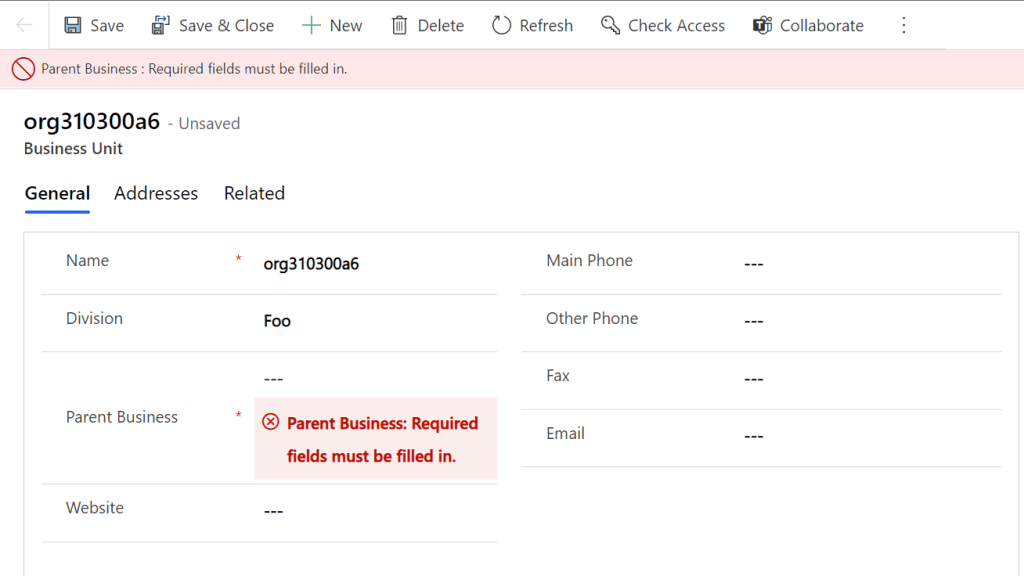
This can result in the following main Business Unit, and it just doesn’t make any sense. Also you can’t change it because Parent Business needs to be entered. Problem is that there is no parent to the parent in this case 🤣

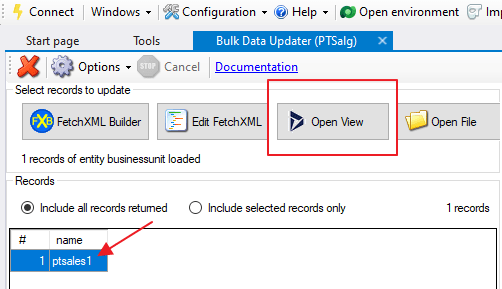
XrmToolBox – Bulk Data Update to the rescue😎

Open the view for active Business Units and find your result.

⛔NB!! Make sure your search only returns one business unit

Next thing you do is set a fixed value, add attribute to the bulk job, and the update the record.