Power Platform is maturing rapidly, and users are really loving the new platform for citizen development. The only natural thing to do for Microsoft was to alter the licensing model now that they see how users are working with the platform.
Normally I am the first one to hate on all changes, but this time I am not sure I hate it. I am actually seeing some opportunities here that I didn’t see before.
I am seeing this from a Dynamics perspective, and not Office. There are 2 different ways of viewing this change.
From what I read, we can now setup a 10$ pr user pr month and create a sales app with both Model Driven and Canvas AND Portal. Within the app we are also capable to run as many flows as we want without the need for a FLOW plan.
You might still need one Enterprise or Proessional license in the bottom for the entities to be installed on the CDS, but after that you can create your own simple apps.
NB! I am sure that Microsoft will introduce some other restrictions later on to separate the apps (Sales, Customer Service etc), but currently this is not the case.
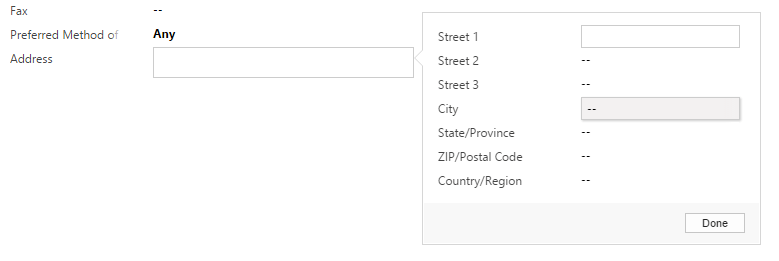
Ohhhh how I miss the Composite fields in dynamics<3
It was introduced in 2013, but was never given much love. It was one of those changes the customers loved, but always wanted to configure. This resulted in many strange javascripts that I personally refused to use. Now that the new UI is being forced upon us, the field will disappear it seems, and that is too bad. The new UI is fine, but it is not as efficient with screen space yet, fields like this actually make a lot of sense.
Julian Sharp was recently in Norway to teach the App in A Day. I was one of the lucky few that got a spot in his class. Sure I have been in Dynamics since 2007 and should know it all, but that is the only once certainty. I will never know it all, and there is always something to learn from a person that has a different perspective on things.
Thank you Julian for the great class, and the advice during the interview! See you again soon in Oslo for the PowerSaturday August 24th.
Follow Julian in the following channels Blog Twitter
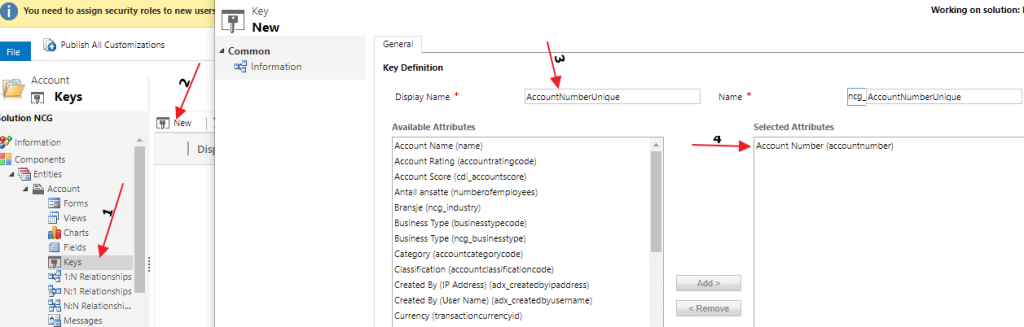
We need to do one config in CRM/CDS before we continue. For the integration to work we need to create a KEY for it to match on. The source doesn’t know of GUID, so I create a key for “Account Number”. In Norway we are lucky that this number is unique and applies to all organization’s.
Open the entity you are integration to (Account for me), and create a new field called KEY. I am choosing to use the “Account Number” field here as my Unique KEY. Remember to publish changes!!
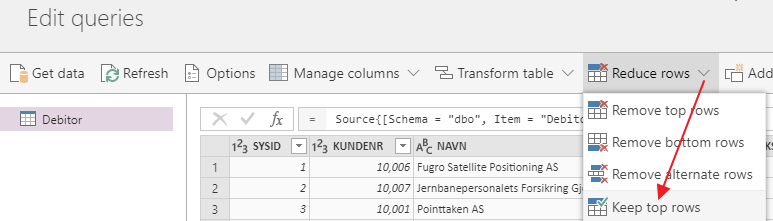
First thing I do is limit the number of accounts while testing.
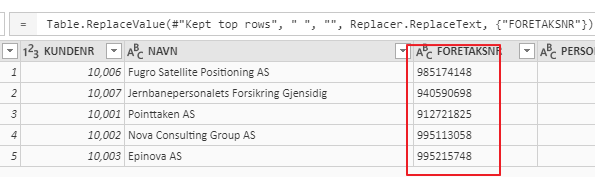
Then I remove all the blank fields in the KEY, to make it equal to the user input in Dynamics. You don’t have to do this, but chose to for simplicity.
In the next step you choose the entity to connect to in CDS/CRM, and map the field. I am choosing to only map “Name” and “Account Number” during the test.
And the magic continues. Here you can setup how often you wan this awesome sync to happen. Our data is fairly static, so once a week is fine:)
Wait until the query is done, and check out the newly created/updated Accounts in Dynamics. This is just a gamechanger for me.
So the On-Premise data Gateway itself might not be the most awesome thing in history, but in combination with the data integration of PowerApps it is just incredible! Carina wrote about this earlier, but I had to see it for myself 🙂
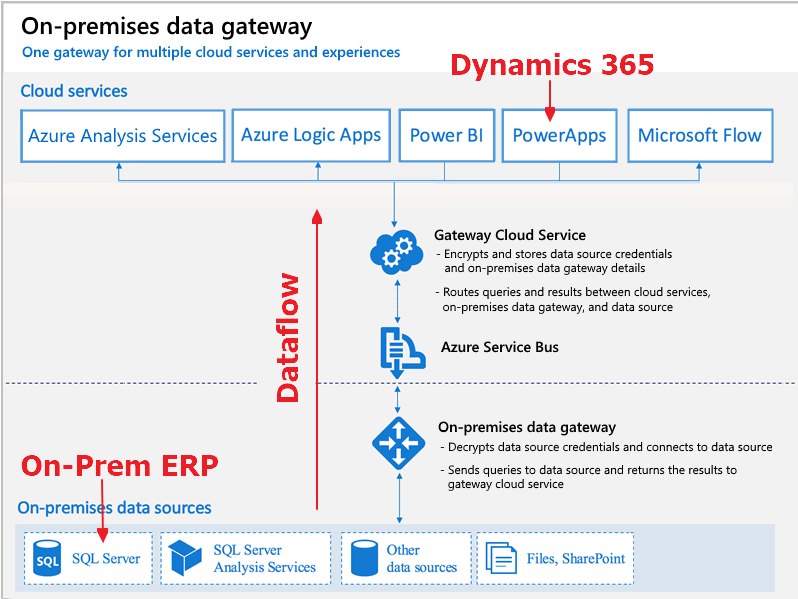
My example is based on the need to integrate my On-Prem ERP (SQL) server with Dynamics 365 online (aka PowerApps).
This method does require that you have username/password credentials to a view in SQL that will allow you to read data. After the setup, Part 2 – Final Finnish.
I need data from On-premise to Online
I needed to integrate my ERP system (On-Premise) to D365 in the cloud. There are several ways to complete this normally with code, SSIS, Scribe etc. I wanted to learn what the PowerPlatform was capable of.
I am not a developer, so I am always seeking for solutions considered No-Code, Low-Code. Integrations was something I always had to involve developers to complete.
The software should be installed on a server, because of the need for 24/7 uptime. While testing, you can easily install the software on your personal computer as long as it is in the same network as the SQL database you are trying to connect to.
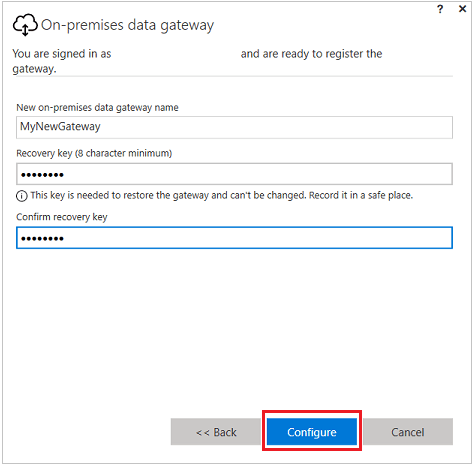
Open the software, and set it up. I chose to use my login credentials for this action. These credentials where also the ones that were “creators” in Dynamics.
Remember the Gateway Name and Password
When this is done you should find the Gateway in your PowerApps. NB!!! It will only install under the Default instance for now!!
Check connection with PowerApps
Last step is to open up your browser to PowerApps and see if we can retrieve the data. Open PowerApps
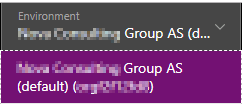
Make sure you navigate to the Dynamics Production environment
Then you open a new integration project
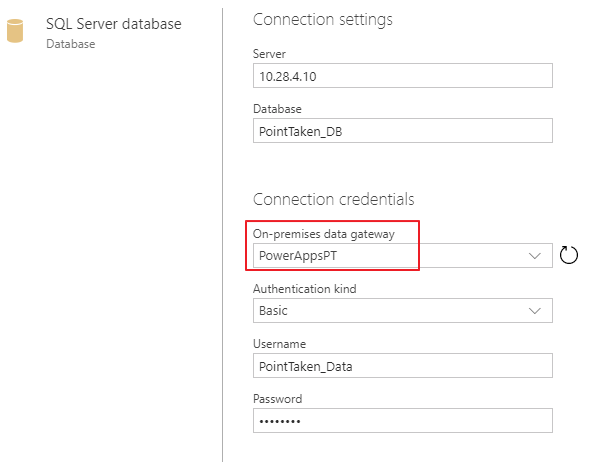
From here you connect to the On-Prem SQL DataGateway. Don’t worry, the credentials and IP are not real here:)
So the important thing on the next step is to use the credentials for your SQL server. These credentials only need to be read from a database. This means that you might have to ask someone to create read credentials for your database.
Choose the tables you want to sync. Debitor is Accounts in our ERP system.
If you are lucky, you will see the following result!! You are now one step closer to actually complete a NO-Code integration with an onprem SQL server.
Knut is a salesperson at Point Taken. He just came across a HUGE deal that he has registered in Dynamics 365. This deal is so big that Knut will need the assistance of several resources to deliver. One of these resources is Kjetil, a SharePoint consultant.
The setup
Knut enters the details needed for the Dynamics 365 deal
Knowing that this opportunity is HUGE, Knut starts by creating a new channel in the Offers Team (name is “General” for demo purposes).
The connection
Knut has now setup the structure for collaboration, and is ready to connect Teams and Dynamics 365 together. Well done KNUT!! 🙂
Add the Dynamics 365 connection for the tab in the channel
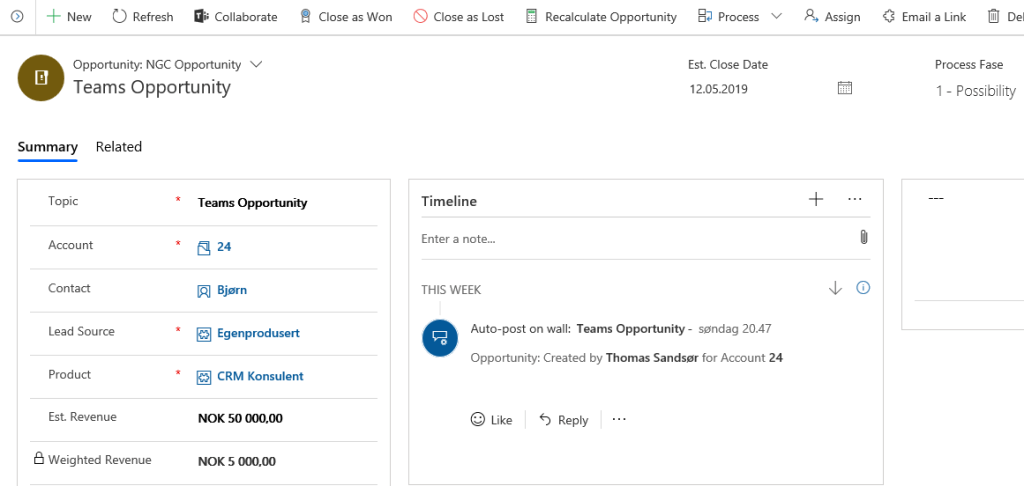
Knut chooses the correct opportunity record.
When Knut is done, he can see the newly created connection message in Teams. The above message indicates that Teams and Dynamics successfully connected.
The harmony begins
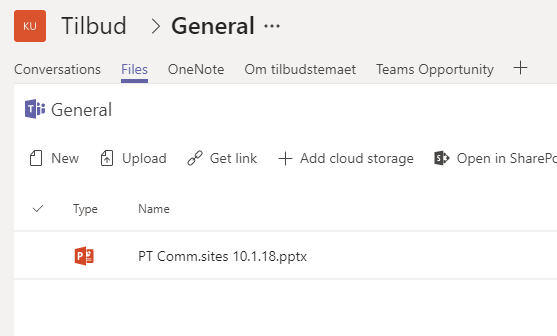
Kjetil begins right away with the PowerPoint they will need to win this deal. Kjetil does not have a license for Dynamics, so he creates the PowerPoint in Teams because this is the natural place for collaboration.
Knut can now choose to navigate Teams or Dynamcis 365, because the systems are working with the same document location.
Knut and Kjetil represent 2 different work processes, but are harmonizing well when referring to the ONE TRUTH document. Well done you to!!!
The configuration of the client is pretty straight forward. A typical office product, and that is a good thing:) FYI, it does not install a solution file within Dynamics, and I like that a lot… Never been a fan of the overcrowding of solution files (Hint hint portals.. hehe).
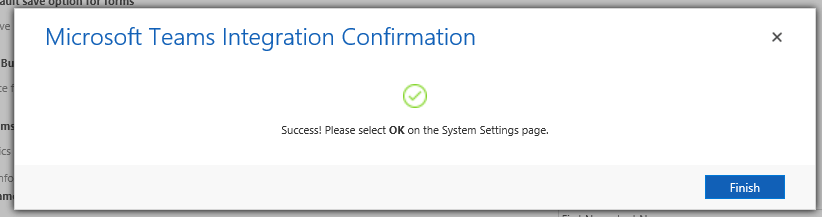
Start på opening the system settings from Dynamics and locating the “Enable Dynamics and Teams integration”.
NB! Before starting, I would create a new Team and a new channel just for the sake of simplicity. Also create a new record in CRM that you want to connect to.
It took me about 3 minutes before I received my complete message, so be patient!
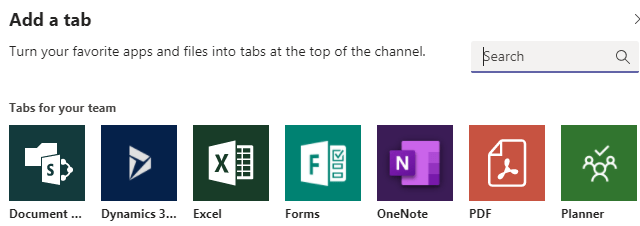
Open teams and locate the App Store within teams and search Dynamics. You will find it on the “…” menu on the left side.
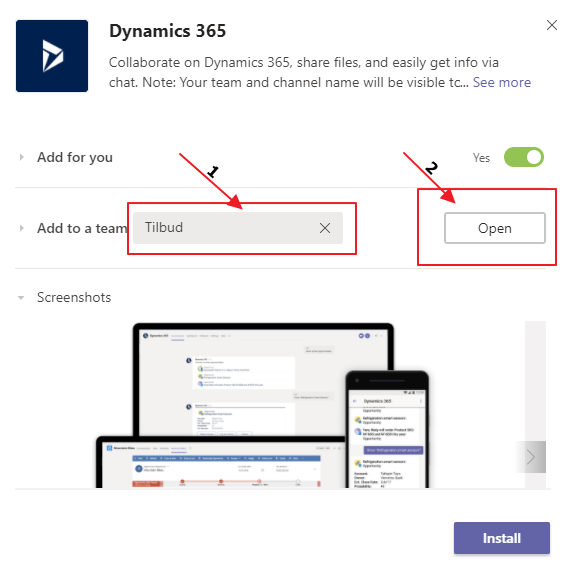
Add to the team you created. In my case “Tilbud” and then click Open
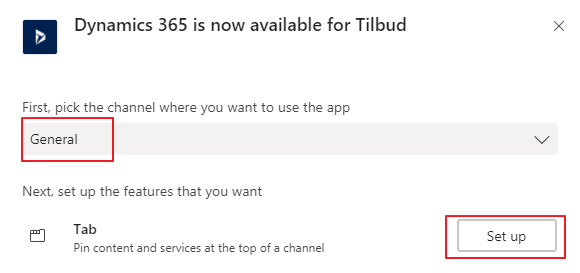
Next step is connecting it to the channel in the team, and hit “Set up”.
Now it will ask you for an entity to connect to, so I am going to choose the Opportunity I created before I started the configuration “Teams Opportunity”.
If it all went well, you will now see a new tab in your channel with the name of the record. You also see a message that the record is connected.
Microsoft has used words like “seamlessly” integrated when speaking about Dynamics 365 and SharePoint, and I have hated it since day one. CRM and SharePoint never seemed to get it right, and after a while I feel they just gave up. The current state of the integration is in most cases utterly useless.
Larger companies
The larger companies will require scalability and security. The integration has none of these in combination. The standard integration has absolutely no idea what security is, and therefore opens all documents for everyone with site access. In larger organizations they might want to separate the BU’s or even more granular access like team access in CRM. This is where you have to use 3rd party tools like Connecting Software. The second you start adding security to folders, you will hit the cap of 50k something unique permissions in a DocLib.
Result: Fail
Smaller companies
The smaller companies have the highest requirements in regards to simplicity. They expect it to be easy to drag/drop files, navigate a simple folder structure, merge documents from CRM that end up in the SP folder etc. In general the smaller companies are always benchmarking the CRM system against smaller collaboration solutions, and therefore expect simple usage. Again the standard isn’t enough.
Result: Fail
Microsoft Teams, the new hope
So with the introduction of Teams + Dynamics integration, we might be somewhat closer to a solution for collaboration that could work. For the first time it makes sense to include others outside of Dynamics 365 to collaborate on the documents. A salesperson could now easily work together with others in the organization that don’t have the Dynamics license. I will show you how in a later blogpost.
Does this mean that we can use the word “seamless” in regards to integration? NOPE, but we are one step closer. My biggest concern is still that the product teams working on this seem to be forgetting to solve the simple features. When you merge a document out of Dynamics, it should be easy to put it back in to Dynamics (SP folder) where it belongs! We should need to have solutions like Documents Core Pack or Xperido for the simple templates.
Anyway. Stay tuned for the next blog when I show how cool the new integration with Teams is:)
We all have different ways of demonstration the product, so I chose to create a video showing how I demonstrate in the simple sales presentations. I have only focused on the core essentials in sales during this demonstration.





















 CRM Keeper