Blog

Custom Page – GIF for the win🏆

Most of you might know by now that I am a huge fan of GIF’s. I have written about GIF’s earlier when trying to motivate sales people, and I thought I would turn it up one notch!

Last post I wrote was about the opportunity close dialog. It was functional, but not exciting.
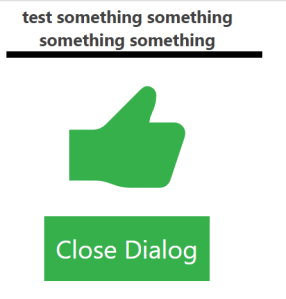
It is still 100% more feedback friendly than the Microsoft OOTB functionality, but it’s a little boring now that we have the option to be creative. This is why I thought I would add my earlier GIF post together with this to create a solution for instant response to the salespeople.

We all know that there is no better feeling than finding the correct GIF! 😂

So let’s start off by including a flow that I have written earlier with the Custom Page Confirmation dialog to make it all a little better than the thumbs up that my last post was showcasing.

RUN Instant Flow when completing sales

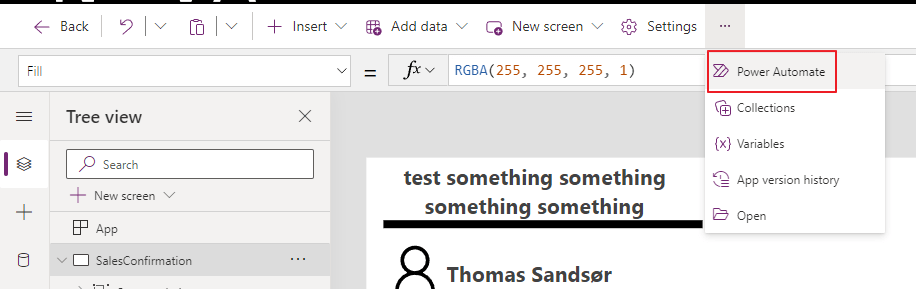
In the last post we covered the Power Automate action when the confirmation button was pressed. Now we reopen it to add a few more steps. The steps are identical to the steps I have linked to above in the article that coveres GIF connector.
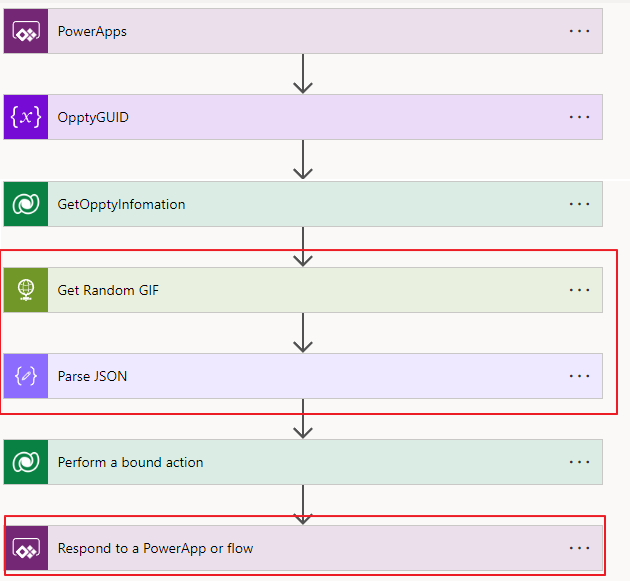
First let’s query for a WIN gif.

Go to Giphy and setup a developer account for free. I have written about it in the GIF post that I have on top here. Just replace the api_key value in the string:
https://api.giphy.com/v1/gifs/random?api_key=**********&tag=win

Parse the return of this query (SORRY.. This is a bit long!)

{
    "type": "object",
    "properties": {
        "data": {
            "type": "object",
            "properties": {
                "type": {
                    "type": "string"
                },
                "id": {
                    "type": "string"
                },
                "url": {
                    "type": "string"
                },
                "slug": {
                    "type": "string"
                },
                "bitly_gif_url": {
                    "type": "string"
                },
                "bitly_url": {
                    "type": "string"
                },
                "embed_url": {
                    "type": "string"
                },
                "username": {
                    "type": "string"
                },
                "source": {
                    "type": "string"
                },
                "title": {
                    "type": "string"
                },
                "rating": {
                    "type": "string"
                },
                "content_url": {
                    "type": "string"
                },
                "source_tld": {
                    "type": "string"
                },
                "source_post_url": {
                    "type": "string"
                },
                "is_sticker": {
                    "type": "integer"
                },
                "import_datetime": {
                    "type": "string"
                },
                "trending_datetime": {
                    "type": "string"
                },
                "images": {
                    "type": "object",
                    "properties": {
                        "downsized_large": {
                            "type": "object",
                            "properties": {
                                "height": {
                                    "type": "string"
                                },
                                "size": {
                                    "type": "string"
                                },
                                "url": {
                                    "type": "string"
                                },
                                "width": {
                                    "type": "string"
                                }
                            }
                        },
                        "fixed_height_small_still": {
                            "type": "object",
                            "properties": {
                                "height": {
                                    "type": "string"
                                },
                                "size": {
                                    "type": "string"
                                },
                                "url": {
                                    "type": "string"
                                },
                                "width": {
                                    "type": "string"
                                }
                            }
                        },
                        "original": {
                            "type": "object",
                            "properties": {
                                "frames": {
                                    "type": "string"
                                },
                                "hash": {
                                    "type": "string"
                                },
                                "height": {
                                    "type": "string"
                                },
                                "mp4": {
                                    "type": "string"
                                },
                                "mp4_size": {
                                    "type": "string"
                                },
                                "size": {
                                    "type": "string"
                                },
                                "url": {
                                    "type": "string"
                                },
                                "webp": {
                                    "type": "string"
                                },
                                "webp_size": {
                                    "type": "string"
                                },
                                "width": {
                                    "type": "string"
                                }
                            }
                        },
                        "fixed_height_downsampled": {
                            "type": "object",
                            "properties": {
                                "height": {
                                    "type": "string"
                                },
                                "size": {
                                    "type": "string"
                                },
                                "url": {
                                    "type": "string"
                                },
                                "webp": {
                                    "type": "string"
                                },
                                "webp_size": {
                                    "type": "string"
                                },
                                "width": {
                                    "type": "string"
                                }
                            }
                        },
                        "downsized_still": {
                            "type": "object",
                            "properties": {
                                "height": {
                                    "type": "string"
                                },
                                "size": {
                                    "type": "string"
                                },
                                "url": {
                                    "type": "string"
                                },
                                "width": {
                                    "type": "string"
                                }
                            }
                        },
                        "fixed_height_still": {
                            "type": "object",
                            "properties": {
                                "height": {
                                    "type": "string"
                                },
                                "size": {
                                    "type": "string"
                                },
                                "url": {
                                    "type": "string"
                                },
                                "width": {
                                    "type": "string"
                                }
                            }
                        },
                        "downsized_medium": {
                            "type": "object",
                            "properties": {
                                "height": {
                                    "type": "string"
                                },
                                "size": {
                                    "type": "string"
                                },
                                "url": {
                                    "type": "string"
                                },
                                "width": {
                                    "type": "string"
                                }
                            }
                        },
                        "downsized": {
                            "type": "object",
                            "properties": {
                                "height": {
                                    "type": "string"
                                },
                                "size": {
                                    "type": "string"
                                },
                                "url": {
                                    "type": "string"
                                },
                                "width": {
                                    "type": "string"
                                }
                            }
                        },
                        "preview_webp": {
                            "type": "object",
                            "properties": {
                                "height": {
                                    "type": "string"
                                },
                                "size": {
                                    "type": "string"
                                },
                                "url": {
                                    "type": "string"
                                },
                                "width": {
                                    "type": "string"
                                }
                            }
                        },
                        "original_mp4": {
                            "type": "object",
                            "properties": {
                                "height": {
                                    "type": "string"
                                },
                                "mp4": {
                                    "type": "string"
                                },
                                "mp4_size": {
                                    "type": "string"
                                },
                                "width": {
                                    "type": "string"
                                }
                            }
                        },
                        "fixed_height_small": {
                            "type": "object",
                            "properties": {
                                "height": {
                                    "type": "string"
                                },
                                "mp4": {
                                    "type": "string"
                                },
                                "mp4_size": {
                                    "type": "string"
                                },
                                "size": {
                                    "type": "string"
                                },
                                "url": {
                                    "type": "string"
                                },
                                "webp": {
                                    "type": "string"
                                },
                                "webp_size": {
                                    "type": "string"
                                },
                                "width": {
                                    "type": "string"
                                }
                            }
                        },
                        "fixed_height": {
                            "type": "object",
                            "properties": {
                                "height": {
                                    "type": "string"
                                },
                                "mp4": {
                                    "type": "string"
                                },
                                "mp4_size": {
                                    "type": "string"
                                },
                                "size": {
                                    "type": "string"
                                },
                                "url": {
                                    "type": "string"
                                },
                                "webp": {
                                    "type": "string"
                                },
                                "webp_size": {
                                    "type": "string"
                                },
                                "width": {
                                    "type": "string"
                                }
                            }
                        },
                        "downsized_small": {
                            "type": "object",
                            "properties": {
                                "height": {
                                    "type": "string"
                                },
                                "mp4": {
                                    "type": "string"
                                },
                                "mp4_size": {
                                    "type": "string"
                                },
                                "width": {
                                    "type": "string"
                                }
                            }
                        },
                        "preview": {
                            "type": "object",
                            "properties": {
                                "height": {
                                    "type": "string"
                                },
                                "mp4": {
                                    "type": "string"
                                },
                                "mp4_size": {
                                    "type": "string"
                                },
                                "width": {
                                    "type": "string"
                                }
                            }
                        },
                        "fixed_width_downsampled": {
                            "type": "object",
                            "properties": {
                                "height": {
                                    "type": "string"
                                },
                                "size": {
                                    "type": "string"
                                },
                                "url": {
                                    "type": "string"
                                },
                                "webp": {
                                    "type": "string"
                                },
                                "webp_size": {
                                    "type": "string"
                                },
                                "width": {
                                    "type": "string"
                                }
                            }
                        },
                        "fixed_width_small_still": {
                            "type": "object",
                            "properties": {
                                "height": {
                                    "type": "string"
                                },
                                "size": {
                                    "type": "string"
                                },
                                "url": {
                                    "type": "string"
                                },
                                "width": {
                                    "type": "string"
                                }
                            }
                        },
                        "fixed_width_small": {
                            "type": "object",
                            "properties": {
                                "height": {
                                    "type": "string"
                                },
                                "mp4": {
                                    "type": "string"
                                },
                                "mp4_size": {
                                    "type": "string"
                                },
                                "size": {
                                    "type": "string"
                                },
                                "url": {
                                    "type": "string"
                                },
                                "webp": {
                                    "type": "string"
                                },
                                "webp_size": {
                                    "type": "string"
                                },
                                "width": {
                                    "type": "string"
                                }
                            }
                        },
                        "original_still": {
                            "type": "object",
                            "properties": {
                                "height": {
                                    "type": "string"
                                },
                                "size": {
                                    "type": "string"
                                },
                                "url": {
                                    "type": "string"
                                },
                                "width": {
                                    "type": "string"
                                }
                            }
                        },
                        "fixed_width_still": {
                            "type": "object",
                            "properties": {
                                "height": {
                                    "type": "string"
                                },
                                "size": {
                                    "type": "string"
                                },
                                "url": {
                                    "type": "string"
                                },
                                "width": {
                                    "type": "string"
                                }
                            }
                        },
                        "looping": {
                            "type": "object",
                            "properties": {
                                "mp4": {
                                    "type": "string"
                                },
                                "mp4_size": {
                                    "type": "string"
                                }
                            }
                        },
                        "fixed_width": {
                            "type": "object",
                            "properties": {
                                "height": {
                                    "type": "string"
                                },
                                "mp4": {
                                    "type": "string"
                                },
                                "mp4_size": {
                                    "type": "string"
                                },
                                "size": {
                                    "type": "string"
                                },
                                "url": {
                                    "type": "string"
                                },
                                "webp": {
                                    "type": "string"
                                },
                                "webp_size": {
                                    "type": "string"
                                },
                                "width": {
                                    "type": "string"
                                }
                            }
                        },
                        "preview_gif": {
                            "type": "object",
                            "properties": {
                                "height": {
                                    "type": "string"
                                },
                                "size": {
                                    "type": "string"
                                },
                                "url": {
                                    "type": "string"
                                },
                                "width": {
                                    "type": "string"
                                }
                            }
                        },
                        "480w_still": {
                            "type": "object",
                            "properties": {
                                "url": {
                                    "type": "string"
                                },
                                "width": {
                                    "type": "string"
                                },
                                "height": {
                                    "type": "string"
                                }
                            }
                        }
                    }
                },
                "user": {
                    "type": "object",
                    "properties": {
                        "avatar_url": {
                            "type": "string"
                        },
                        "banner_image": {
                            "type": "string"
                        },
                        "banner_url": {
                            "type": "string"
                        },
                        "profile_url": {
                            "type": "string"
                        },
                        "username": {
                            "type": "string"
                        },
                        "display_name": {
                            "type": "string"
                        },
                        "description": {
                            "type": "string"
                        },
                        "is_verified": {
                            "type": "boolean"
                        },
                        "website_url": {
                            "type": "string"
                        },
                        "instagram_url": {
                            "type": "string"
                        }
                    }
                }
            }
        },
        "meta": {
            "type": "object",
            "properties": {
                "msg": {
                    "type": "string"
                },
                "status": {
                    "type": "integer"
                },
                "response_id": {
                    "type": "string"
                }
            }
        }
    }
}

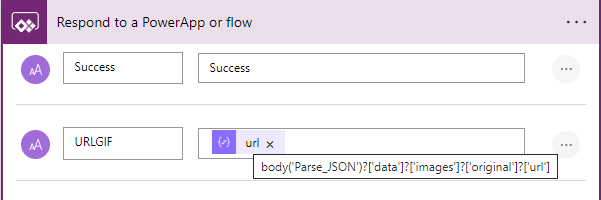
At the end we have to respond to the app with the GIF URL that we want to use. There are many variables that have the same name “URL”, so make sure you find the one that I am using below.
Back to the Custom Page

The “Confirm Win” button now has to do a few more things, so here is the added code.

//Patch the Oppty fields
Patch(
    Opportunities,
    LookUp(
        Opportunities,
        Opportunity = GUID(VarOppportunity.opportunityid)
    ),
    {
        'Actual Close Date': EstClosingDate.Value,
        'Actual Revenue': Int(EstimatedRevenue.Value)
    }
);

//Update Opportunity Close entity and retreive GIF
Set(varFlow, CloseOpptyPostTeams.Run(VarOppportunity.Opportunity));
Set(varGIF, varFlow.urlgif);

//Hide input boxes and show confirmation
Set(
    varConfirmdetails,
    false
);
Set(
    varCongratulations,
    true
);

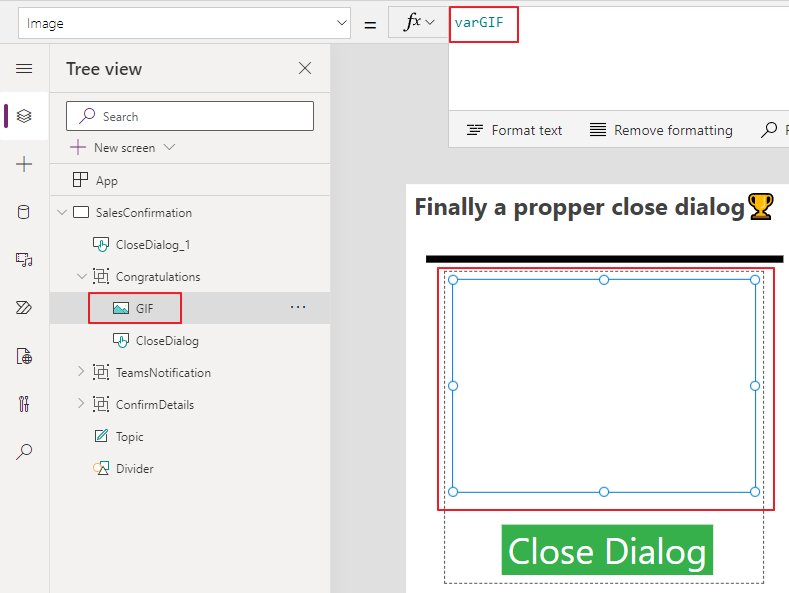
Mostly the only difference here is adding 2 variables. 1 that is the actual response from Power Automate (all of the fields), and the other one is setting a variable “varGIF” for use in our new image component that we add on the sales confirmation box.

Let’s check out that GIF!

Add an image to the Congratulations group, and reference the varGIF
Final Product 💘

When the sales person now closes the dialog, they get a 100% more awesome experience than the OOTB version!!! 🏆👍🎉

Custom Page – Close Dialog Logic

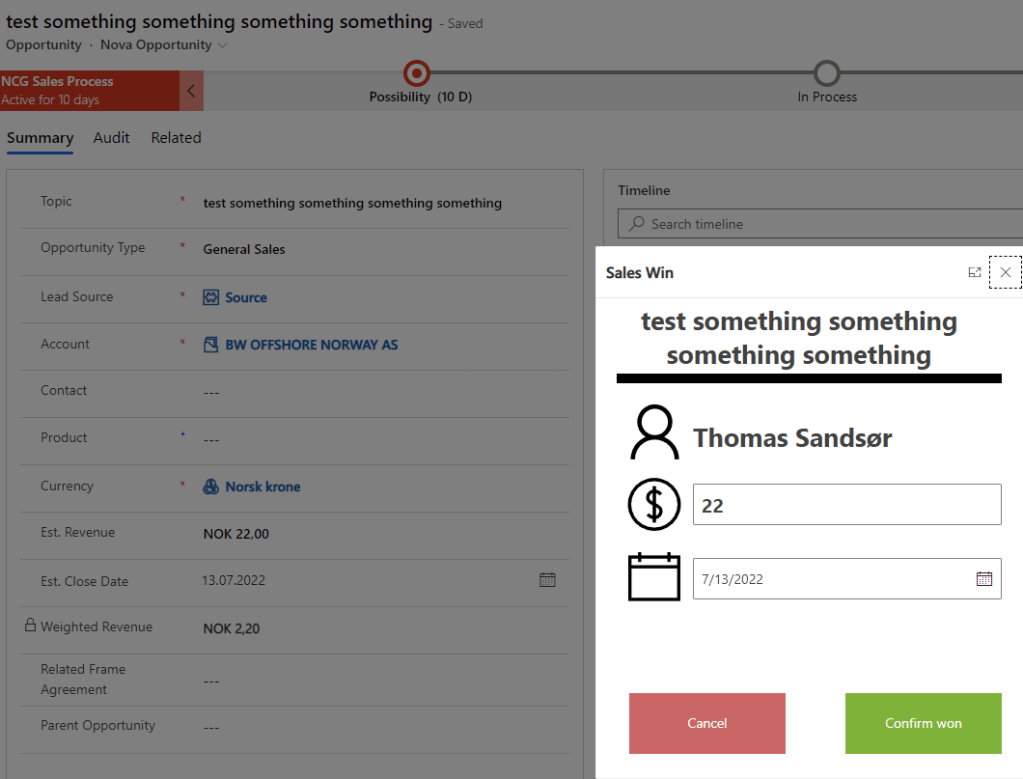
In the last post, we created a new close dialog, but we didn’t add any logic to the buttons.

Logic – Fields and Buttons

The most important parameter we send in via JavaScript last time was the GUID of the record that we are going to work with.

The first thing we do is add an onload to the app and perform a lookup as the very first step. This will give us all of the data for that given Opportunity that we can use within the Power App. We store the whole record in a variable “varOpportunity”.

A little clever step here is actually the “First(Opportunities)”. For testing purposes, this will open up the first Opportunity in the DB if you open the app without the GUID from Dynamics, and from here you can test the app make.powerapps.com studio without having to pass a parameter to the Custom Page 👍

ONLOAD

Set(VarOppportunity,
If(IsBlank(Param("recordId")),
First(Opportunities),
LookUp(Opportunities, Opportunity = GUID(Param("recordId"))))
)

Fields

Fields can now be added via the “varOpportunity” that contains all of the data to the first opportunity in the system.

BUTTONS

The cancel button only has “back()” as a function to close out the dialog, but the “Confirm WIN” has a patch statement for Opportunity.

//Patch the Opportunity fields
Patch(
    Opportunities,
    LookUp(
        Opportunities,
        Opportunity = GUID(VarOppportunity.opportunityid)
    ),
    {
        'Actual Close Date': EstClosingDate.Value,
        'Actual Revenue': Int(EstimatedRevenue.Value)
    }
);
//Hide input boxes and show confirmation
Set(
    varConfirmdetails,
    false
);
Set(
    varCongratulations,
    true
);

HIDE/SHOW

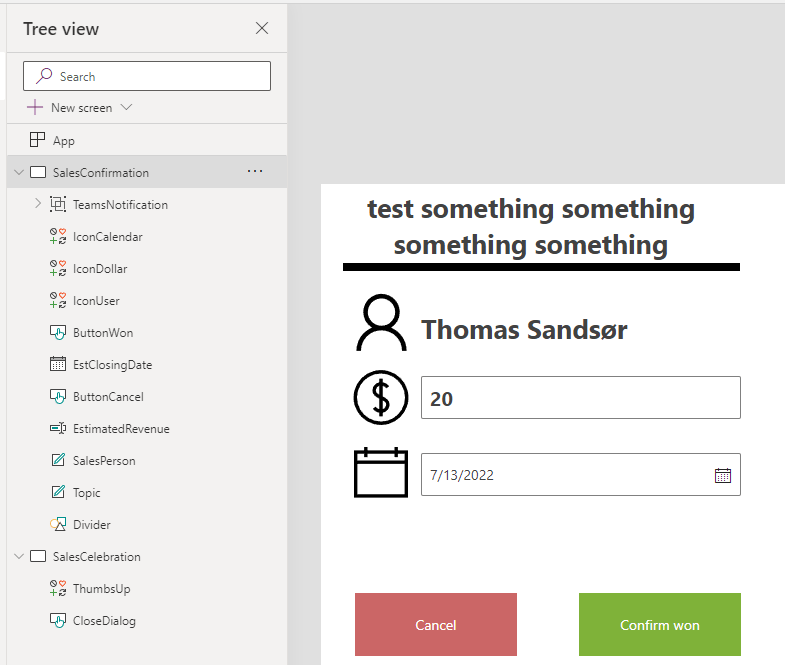
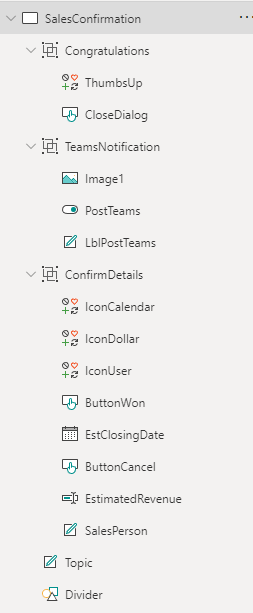
Because of some challenges I met with multiple screens, I had to use a single Screen with hide/show logic. Therefore I added all the fields to Groups and will hide Show based on groups.

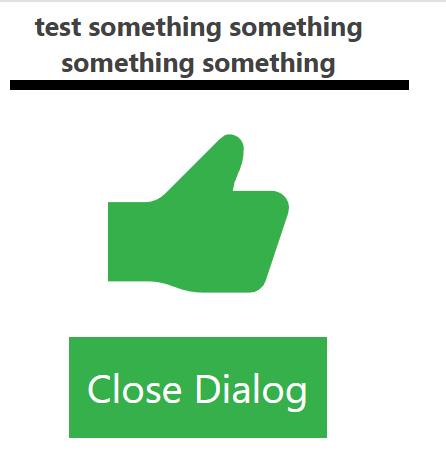
The Congratulations group looks like this.

Closing the Opportunity Challenge

If this were a custom entity we could close the opportunity by setting the Status and Status Reason values. Unfortunately, the Opportunity has a function for closing the Opportunity that will create a Case close dialog. In order for this to work, we have to call a custom service for closing the Case. This does get a bit tricky.

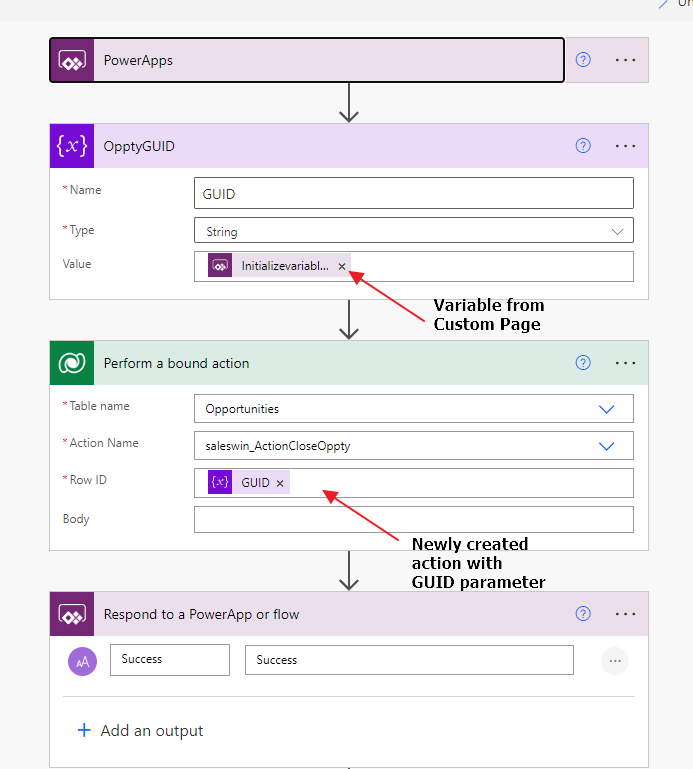
We now have to call an action from Power Automate to close the opportunity as WON. At the moment of writing the blog, the process of calling the Microsoft action in Power Automate wasn’t working, so I created my own action. I will show you how, and honestly maybe even recommend doing it this way for now. It works all of the time and uses the technology that has been working in CRM since 4.0.

Custom Action

Actions work with the same logic as a Workflow, but they can be fired at any time from anywhere. They can receive inputs, and generate outputs. A workflow will only trigger from CRUD events, and work within the context of the record triggering the actual workflow. They are in many ways an underrated function in Dynamics / Dataverse.

It’s a pretty simple step updating the status of the opportunity to “won”, and by doing it this way the system will automatically do the correct calls in the API for Opportunity Close.

This is all you need for the action. After activation, we can go back to the custom page and create a instant flow (Power Automate).

In the Custom Page we now add a line to our “Confirm WIN” button. (Yes, I know we probably should add some logic for success/fail, but that will be a part of the final solution on Github).

//Patch the Opportunity fields
Patch(
    Opportunities,
    LookUp(
        Opportunities,
        Opportunity = GUID(VarOppportunity.opportunityid)
    ),
    {
        'Actual Close Date': EstClosingDate.Value,
        'Actual Revenue': Int(EstimatedRevenue.Value)
    }
);
//Hide input boxes and show confirmation
Set(
    varConfirmdetails,
    false
);
Set(
    varCongratulations,
    true
);
//Update Opportunity Close entity
CloseOpptyPostTeams.Run(VarOppportunity.Opportunity);

WINNER WINNER 🏆🥇

You should now be able to close the opportunity as won via a custom page. Just remember to publish the custom page AND publish the app again. If not it will now show. Do remember to give it a few moments before refreshing after a change.

Custom Page – Open Custom Page with Ribbon Button

I am using Dynamics 365 as an example, but the process will be the same for Power Apps – Model Driven. Only difference is that Dynamics 365 has the Opportunity table that we are wanting to use.

If you want to learn more about Custom pages I suggest you look at the following posts:
Scott Durrow
Lisa Crosby
MCJ
Microsoft Custom Pages

I have also added the simple button setup to Github, if you just want to give it a go.
👉DOWNLOAD SIMPLE BUTTON HERE👈

Creating an app and adding the button

Start off by adding an app to a solution and giving it a proper name. In my case, I am choosing Sales Win, because I am creating a simple app for everyone to see the functionality. You could of course just add this to your existing app if that is what you want to do.

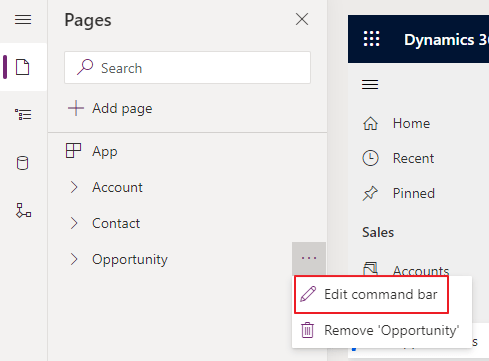
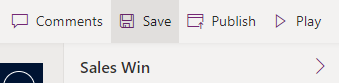
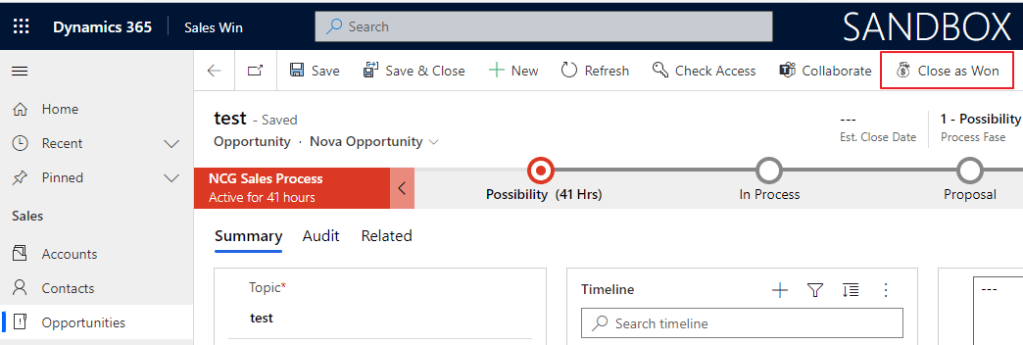
For the tricky part, you need to open the Command Bar. This is essentially Ribbon Workbench jr😉 In time I would only imagine that most of the Ribbon Workbench would be available here, but we are probably still a few years away from a complete transition here.

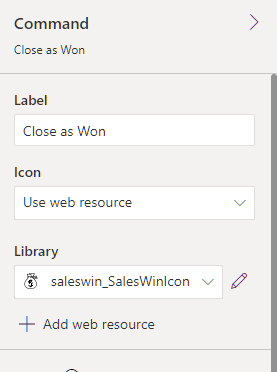
Choose the main form for this exercise, and then create a new Command. Command is actually a button. Why it’s called Command I’m not sure as we all are used to add buttons to a ribbon🤷‍♂️

On the right side, you can add an image, and I usually find mine through SVG’s online.
SVG’s for download <- a blog post I wrote about the topic. Add this as a webresource.

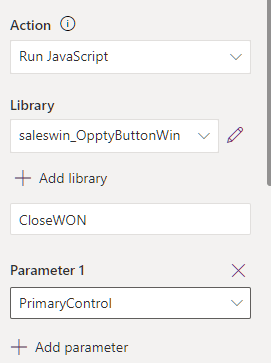
Now, we are going to have to create some JavaScript. It’s actually the only way to open a Custom Page. The JavaScript is pretty “simple”, and I will provide you with the copy-paste version.

JavaScript

🛑BEFORE YOU STOP READING BECAUSE OF JAVASCRIPT🛑

I will provide the JavaScript you need. Unfortunately, you will still need to understand how to copy-paste some script for stuff like custom pages to work.

The only parameter you have to change here if you are creating everything from scratch is:
name: “saleswin_saleswin_c0947” <- replace with the name of your custom page.

function CloseWON(formContext) {
    //Get Opportunity GUID and remove {}
    var recordGUID = formContext.data.entity.getId().replace(/[{}]/g, "");
    // Centered Dialog
    var pageInput = {
        pageType: "custom",
        name: "saleswin_saleswin_c0947", //Unique name of Custom page
        entityName: "opportunity",
        recordId: recordGUID,
    };
    var navigationOptions = {
        target: 2,
        position: 1,
        width: {value: 450, unit: "px"},
        height:{value: 550, unit: "px"}
    };
    Xrm.Navigation.navigateTo(pageInput, navigationOptions)
        .then(
            function () {
                // Called when the dialog closes
                formContext.data.refresh();
            }
        ).catch(
            function (error) {
                // Handle error
                alert("CANCEL");
            }
        );
}

This JavaScript opens up a custom page and sends in a GUID parameter (look at PageInput) to use within the page. This is just how Custom Pages work, so don’t try to do any magic here!

Other examples of how to load a custom page:
Microsoft Docs Custom Page

Hide-Show button

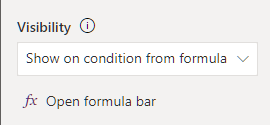
It’s important to hide or show the button at the correct times, and that is why you have to add logic. With the following function, the button is only visible when the Opportunity is in edit mode. When creating a new Opportunity you will not see this button.

Self.Selected.State = FormMode.Edit

Add a new page to your solution

A custom page is a lot like a Canvas App, but it’s not exactly the same. Not all functionality is the same as a Canvas App, so you need to get familiar with it first.

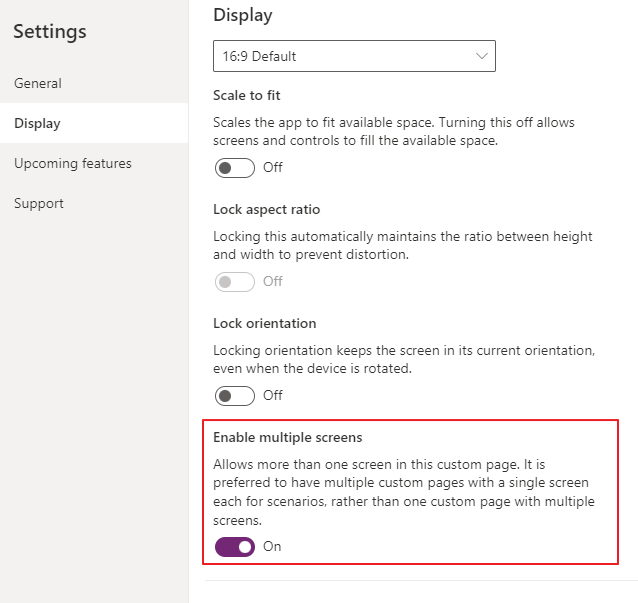
The first thing I noticed was the lack of multiple screens.

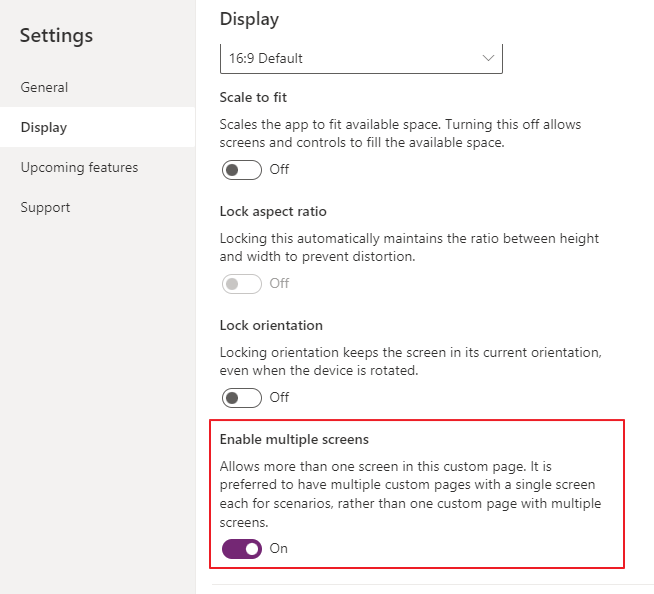
It seems not impossible to add more screens, but Microsoft has hidden this feature. The reason seems to be related to isolating a Screen to be a specific application. Might make sense, but not for my use case. It does make somewhat sense because a Custom Page can be opened from everywhere within Model Driven Apps. It’s actually not tied to anything (entity) at all. If you need to turn it on: 👇

Please don’t judge this Canvas App ATM. It will only get better over time 😂

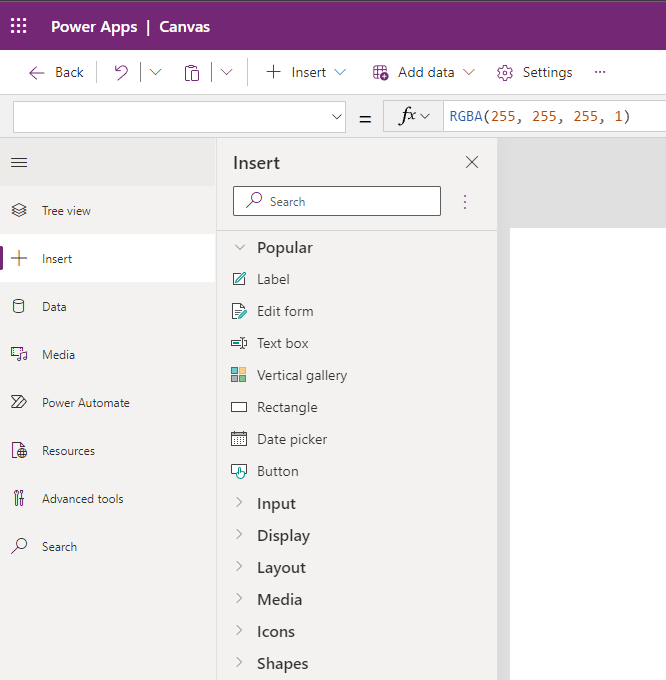
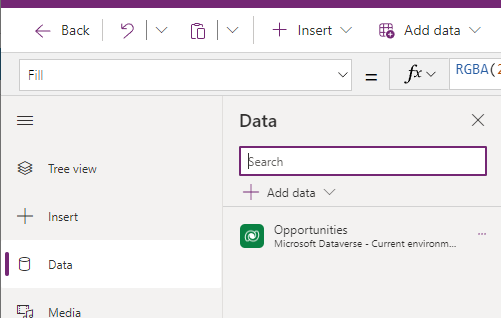
I added labels and text boxes without any logic to them yet and added a data source for Opportunities. This is all for the next step of our configuration of the Sales Win dialog.

Last step (maybe the most important one)

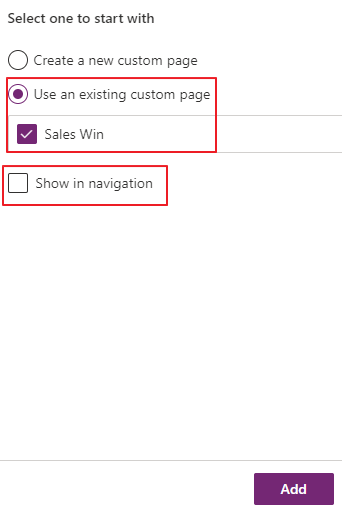
We now need to add the custom page to the APP.

Make sure you UNCHECK the “Show in navigation”. Otherwise, you will see this page as a navigation option on the left side like account, contact, oppty etc.

Finally, publish in the ribbon editor

What have we achieved so far?

Once the button is pushed, the Custom Page loads. 🙏👍🎉
Ribbon Button – Custom Page / Dialog

The deprecation of Dialogs has been discussed WAAAY too many times, and I still feel there is a gap for simple dialogs that would do lots of magic. A while back Microsoft introduced Custom Pages as one option to solve this missing piece, but simplicity is just not there yet.

I have been reviewing lots of great material from fellow MVP’s to study up a bit on the topic
MCJ – Custom Page updating Model Driven app
Scott Durrow – Adding logic to the new button configurator
Lisa Crosbie – Creating custom page

But I can’t quite shake the feeling that it’s still pretty tech-intensive to be able to create a Custom Page and call in from Dynamics. You need to have a decent understanding of the following:

  1. Creating a ribbon button in the new app configuration (easy, but adding commands not so easy)
  2. Javascript to actually start the Custom Page (not for everyone)
  3. Canvas App configuration (I am not a front-end type of guy, and hate having to start with a blank slate every time).
  4. Power FX for the showing of a button + updating whatever you are doing in the canvas app back to the model-driven app.

All in all, I would say that this is probably what you can expect a Dynamics/Power Apps consultant to understand, but it is not given that everyone feels comfortable while configuring. To be honest, Ribbon Workbench isn’t easy without a few tutorials either, but one gets better over time. (did anyone ever get the invert of a true/false statement right the first time?😂).

What to do?

Let’s just get to the bottom of the real issue. How to solve the problem of the Custom Page with a button and at the same time created a great way for sales to have a lot of fun!😁

Over the next weeks, I will start to publish a series of Custom Page and Sales, to showcase what you can do to improve Sales morale and adoption

Every post will be shown on the new Sales Page that I have “Win Notification” so stay tuned!!

The full solution will be available for download in the end.

Custom Page Multiple Screens

Custom pages can only have one screen… Right? No, actually they can have multiple screens like a normal Canvas App

I was a bit surprised when learning this because I have been told that there only was one screen per Custom Page. Turns out that Microsoft only recommends one screen pr Custom Page, because they want to isolate the pages better, and rather navigate between custom pages.

In some cases, you actually just want a simple screen instead of a new Custom Page.

Enabling multiple screens

This might be old news for many, but I for one did not notice this before recently🤷‍♂️

Dynamics 365 – Conversation Intelligence 📞

I could write a long post with lots of screenshots from the Conversation Intelligence, but I will be linking to the Microsoft DOC’s article in this post. It is really well written and summarized pretty much everything that I would want to say.

Docs Conversation Intelligence

Instead I will show the product in action via YouTube 💯🔥🎉

A huge thank you to Kai Stenberg for making this happen!

CRM 19 – Welcome to Norway 😍

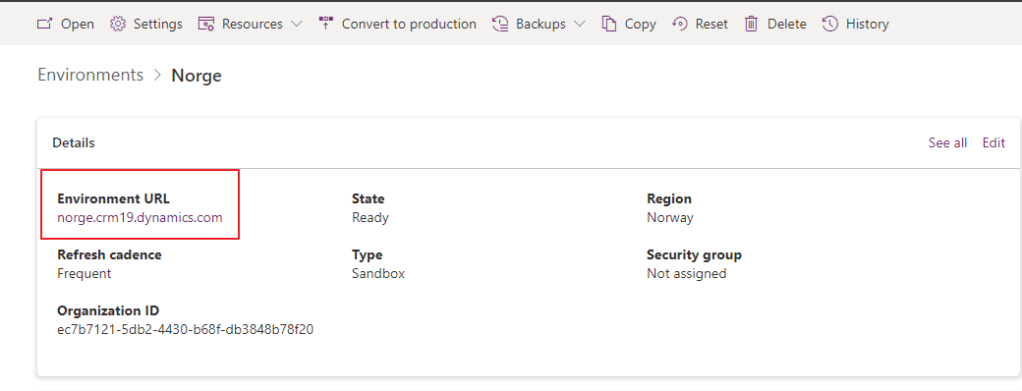
By accident I was clicking around in the Power Platform Admin Center new environments. This is when I noticed that Norway is now on the list!!

The environment URL was CRM19.dynamics.com, and that is really cool for all the nerds🤓 out there eagerly awaiting the entry of Norwegian Dynamics / Power Apps possibilities.

I was really excited at first to have a look at it, but I do feel I should also explain some of the limitations before everyone wanting to be a part of this !

Limitations

Dynamics 365 only has the following modules available within Norway ATM.

Dynamics / Power Platform Availability

Datacenter Regions <- Norway soon to be listed

This means that you wont find things like Dynamics Marketing, Sales Insights, Omnichannel and probably a few more. YET.. As all things related to geo availability, it’s usually only a matter of time, or if some law forces it to come in place.

Actions?

Should all Norwegians storm over to the new data center immediately now that it’s available? It might be a good idea to discuss with your partner what is what before making the move. Moving just for the sake of moving might not be worth it either. The EU storage options are great, and they have all of the bells/whistles ATM.

That being said.. I am really looking forward to trying out the latency when working “locally” with data in Dynamics 365.💯🎈🎉😁😍

PS:

Consultants should be aware that new trials in Norway will trigger a Norwegian Dynamics trial by default. You have to override this if you want a EU trial working with IE Dynamics Marketing.

Dynamics Customer Service Solution 2.0

A while back I released a Customer Service solution to get a DEMO or Simple production system up and running withing an hour.

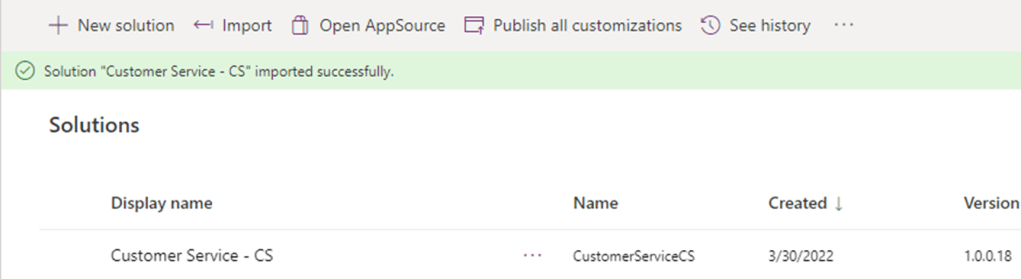
Due to recent updates to email to case and templates, the solution I had created failed every time on installation. After a few weeks with Microsoft Support we sorted it out, and the solution is back working again!😀😀🙏🎉🎉🥂🍾

Remember to get the latest version (18 or above) of solution from the GitHub folder.

The main change in the setup is the email to case is now a part of Power Automate, and no longer a part of our good friend WorkFlow

I wrote about it in my blog a while back how to create Email -> Case the new way

Quick guide for email using the new solution import

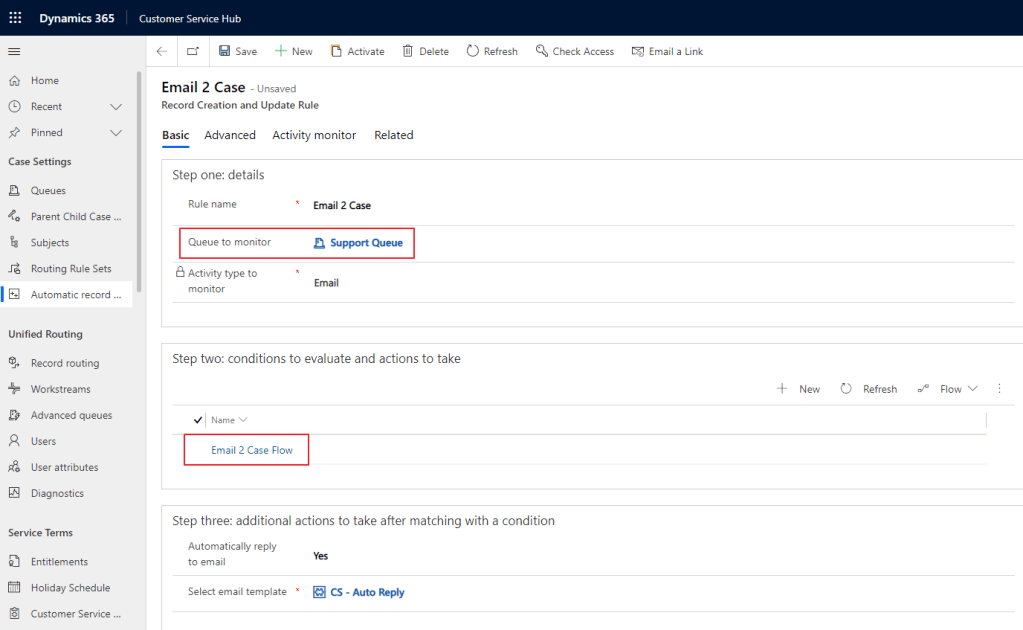
After importing the solution you will now find “Email 2 Case” in the Automatic Record Creation area. Open this via the Customer Service HUB

Make sure you select your Queue that you have added earlier ADD QUEUE

Open the Email 2 Case Flow to see the structure that Microsoft now has create for Email to Case.

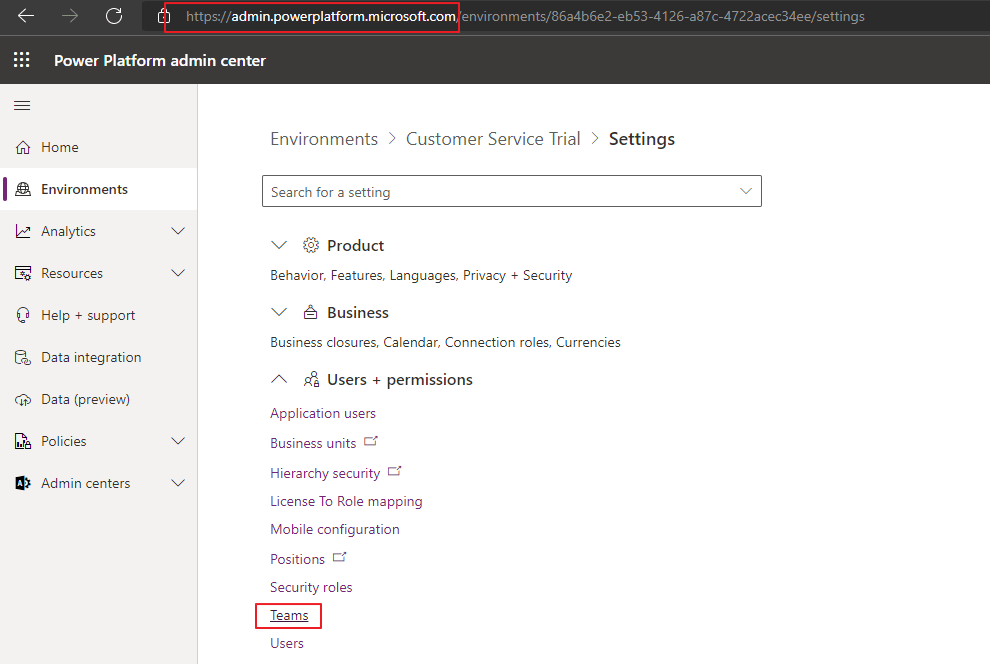
If you like adding the Team as owner to the cases (Optional), you have to add this line to the Owner field in the Flow.

NB! You have to retrieve the GUID from the Team in CRM.

Fining the Team GUID

Last step is to Activate the email to case record creation.. At this point you should be able to see emails entering CRM via Cases.

AI Builder + Lobe

During the recent Arctic Cloud Developer Challenge Hackathon I was playing around with AI Builder for the first time. The scenario we were going to build on there was the detection of Good guy / Bad guy.

The idea was that the citizens would be able to take pictures of suspicious behavior. Once the picture was taken, the classification of the picture would let them know if it was safe or not.

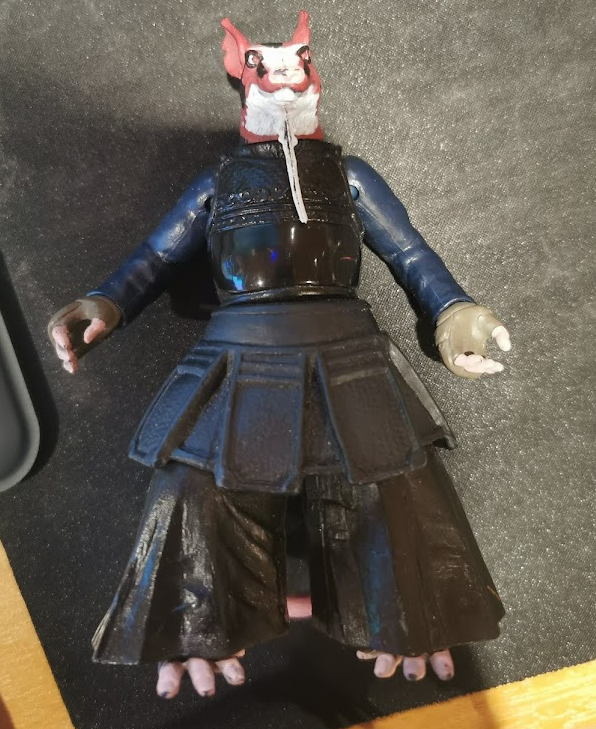
For this exercise I would use my trusted BadBoy/GoodBoy nephew toys:)

Lobe

To start it off I downloaded a free tool called Lobe. www.lobe.ai . Microsoft acquired this tool recently, and it’s a great tool to learn more about object recognition in pictures. The really cool thing about the software is that calculations for the AI model are done on your local computer, so you don’t need to setup any Azure services to try out a model for recognition.

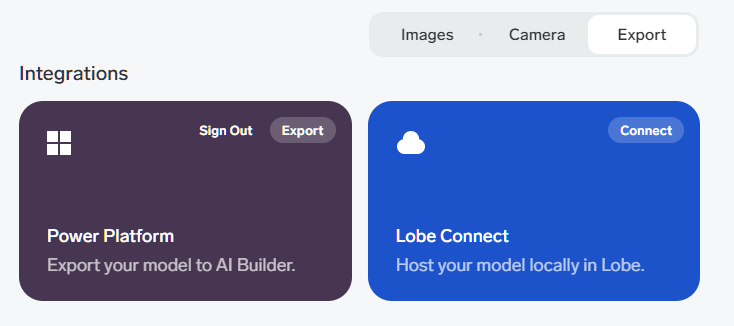
Another great feature is that it integrates seamlessly with Power Platform. Once you train you model with the correct data, you just export it to Power Platform!👏

The first thing you need to do is have enough pictures of the object. Just do at least 15 pictures from different angles to make it understand the object you want to detect.

Tagg all of the images with the correct tags.

Next step is to train the model. This will be done using your local PC resources. When the training is complete you can export to Power Platform.

It’s actually that simple!!! This was really surprising to me:)

Power App

Next up was the Power App the citizens were going to use for the pictures. The idea of course that everyone had this app on their phones and licensing wasn’t an issue 😂

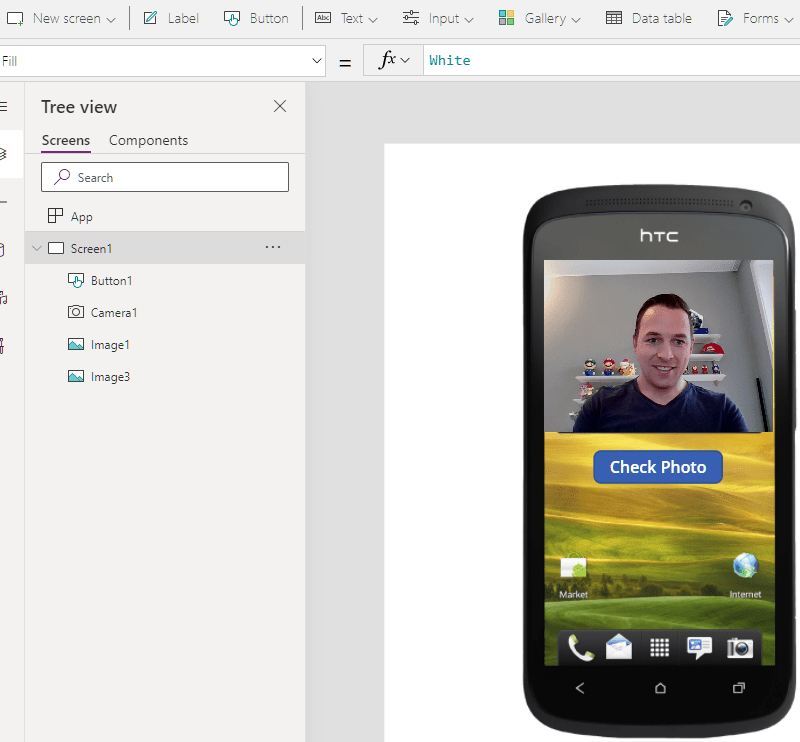
I just added a camera control, and used a button to call a Power Automate Cloud Flow, but this is also where the tricky parts began.

An image is not just an image!!!!! 😤🤦‍♂️🤦‍♀️

How on earth anyone is supposed to understand that you need to convert a picture you take, so that you can send it to Flow, only there to convert it to something else that then would make sense???!??!

Image64 and Power Automate – What a shit show

After asking a few friends, and googling tons of different tips/trics I was able to make this line here work. I am sure there are other ways of doing this, but it’s not blatantly obvious to me.

Set(WebcamPhoto, Camera1.Photo);

Set(PictureFormat,Substitute(Substitute(JSON(WebcamPhoto,JSONFormat.IncludeBinaryData),"data:image/png;base64,",""),"""",""));

'PowerAppV2->Compose'.Run(PictureFormat);

The receiving Power Automate Cloud Flow looked like this:

I tried receiving the image as a type image, but I couldn’t figure it out. Therefore I converted it to a Base64 I believe when sending to Flow. In the Flow I again converted this to a binary representation of the image before sending it to the prediction.

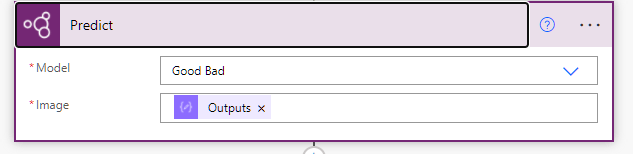
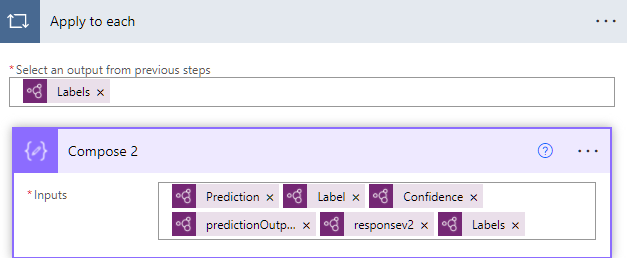
The prediction on the other hand worked out really nice!! I found my model that I had imported from Lobe, and used the ouputs from the Compose 3 action (base64 to binary). I have no idea what the differences are, but I just acknowledge that this is how it has to be done.. I am sure there are other ways, but that someone will have to teach me in the future.

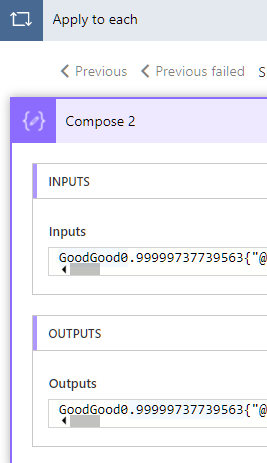
All in all it actually worked really well. As you can see here I added all types of outputs to learn from the data, but it was exactly as expected when taking a picture of Winnie the Poo 😊 The bear was categorized as good, and my model was working.

Why Lobe?

One can wonder why I chose to use Lobe for this, when the AI Builder has the training functionality included within the Power Platform. For my simple case it wouldn’t really matter what I chose to use, I just wanted to test out the newest tech.

When working with larger scale (numbers) of images, Lobe seems to be a lot easier for the importing/tagging/training of the model. Everything runs locally, so the speed of training and testing is a lot faster also. It’s also simple to retrain the model an upload again. This being a hackathon it was important to try new things out 😊

More about AI builder

I talked to Joe Fernandez from the AI builder team, and he pointed me to some resources that are nice to checkout regarding this topic.

https://myignite.microsoft.com/sessions/a5da5404-6a25-4428-b4d0-9aba67076a08 <- forward to 11:50 for info regarding the AI Builder

https://youtube.com/watch?v=MQQmDUCufS8 <- Lobe

ACDC 2022 – Summary

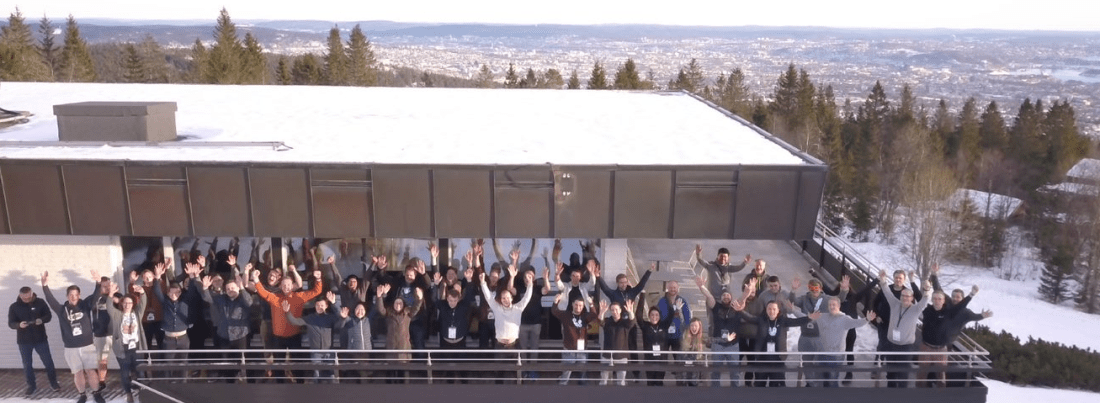
I just participated in a 3 day hackathon ACDC 2022 (arcticclouddeveloperchallenge.net) and it was one of the biggest emotional rollercoasters I have had in MANY years.

Let me just paint the picture first.. ACDC is a yearly hackathon where the best of the best in Norway gather to explore the Dynamics/Power Platform/M365/Azure platforms, creating stellar products. What makes it different from other hackathons?

  1. Mandatory physical attendance
  2. Sleepover at the hotel required, even though you live in the city
  3. Surprise challenges with rewards (head to head)
  4. Lunch and Dinner every day at the hotel, mandatory attendance
  5. Mandatory Socializing activities outside of the teams
  6. Amazing Judges Every time
  7. End of the hackathon dinner and party
  8. Great swag 👊
  9. Lots of energy drinks 🔋
  10. Little to no sleep.. Yea.. I felt that one personally 💤💤💤

I know I know.. Many of the hackathons out there have similar setups, but often they only include parts of what we have to offer. I am of course extremely bias, because I am part of the committee. Today I am writing as the participant from the Team Pizza Time. 🍕

Most of the teams participating were senior teams with tons of experience in Dynamics and lots of years experience within the workforce. We did however have a few new teams with us this year, and that usually is always quite the challenge. The Rules can be complex to follow the first times, and most would struggle keeping up.

The judges this year did an extraordinary job keeping everyone in line, and also helping out all of the new teams understanding what was going on.

Day 1

Welcome commetee

After the initial rigging of computers, each team was introduced. Every team presented their initial ideas and small hints on what technology they were planning to use the next 3 days.

Team:

Mikael Svenson, Eivind Berge, Thomas Sandsør and Poja Mofakheri

Business Case:

  1. Build a Turles HQ
  2. Pizza Ordering Store
  3. Pizza Delivery

An ambitions plan involving the following keywords for technology:

  1. Dataverse
  2. Power Apps Portals
  3. Power BI
  4. Canvas App
  5. Model Driven App
  6. Raspberry PI
  7. IOT (proximity, heat)
  8. Motion Sensor Camera
  9. Hue Color Lights
  10. Intranet in Teams

Progress:

Our team had a pre meeting deciding what tech we wanted to work on, and the scenario’s we wanted to solve. Our scenario was to build a Turtles HQ with security notifications and control center functionality. Then we were going to migrate this story into a Pizza Shop having to work with Pizza Orders and Deliveries.

After our first meeting regarding the solution, I think we all had an idea of what we wanted to solve but not necessarily the same one. It is not uncommon for creative people to think differently about one topic even though they think they are on the same page. This is one of the challenges when working with technology. Later on this would prove to be a huge challenge for our team.

After day one we had been picking a solid amount of points. We had our Teams Intranet, Portals for Ordering, Power Apps for Ordering, Power BI report, Raspberry PI, IOT sensors (2 heat, 2 motion sensors, 1 Hue light bulb), Google Nest Hub, Native React app for Pizza inspo etc etc.. We were on fire, and far beyond the other teams in technology!! (personal opinion). 🔥🔥💯💯

We even won a head to head challenge against the other teams. A challenge where the first one to finish received extra points. In the head to head challenge we had to embed a Power App within Power BI report, and read/edit the data in this Power App. The idea was to update Power Bi directly via the embedded Power App. This scored us a solid extra number of points and a new badge for the collection🥇

At this point in time we were seriously kicking some ass and went to bed as potential winners.

Day 2 – WTF happened?

Where to begin…. I woke up happy and proud of all the achievements from day 1. Everything seemed to be going as I had planned. We were geeking BIG TIME and having so much fun putting different technical things together. We were also gathering lots of the extra bonus points for doing the occasional odd “side quest”.

This day we had started to automate processes so that sensors were triggering events, the Power App was connecting to feedback surveys, and the portal for ordering was working with weather API + maps to give estimated delivery times etc etc.

At the end of the day, every team had to deliver a blog post explaining what we had done since day one. We were 9 teams onsite, so it was important for the judges to have something to read through to be able to cover everyone’s updates. We had made some great progress with our technologies and almost all gadgets were functioning in automation as we had planned. We were feeling quite confident in the next round of points.

This is where the rollercoaster of emotions started! 🎢🎢🎢

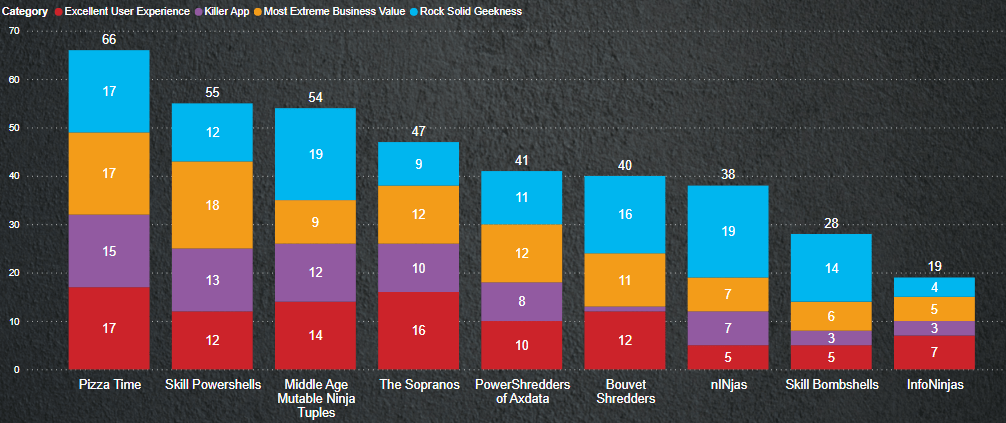
Announcing the points from day 2, we had moved from point winners to point losers. We were almost dead last in every category that we had been winning the day before. This was not only the case for Pizza Time, but it was also the case for a few of the other senior teams. What had happened we were asking each other. The junior team with almost no experience at all was getting all of the points. This surely must have been some type of error.. Right!??!?. Of course we had a lot of meetings with the judges trying to figure out what the f*** had happened, but their answers were quite simple.

“Thomas, did you answer how you had added more value to the main categories from day one?”.

Judges

I was baffled..

“Answer: I wrote about all of the amazing things we put together of tech ** Check blog day 2**. What we have done is really cool!!”

Thomas

“But how does that relate to the categories where you present business value, user experience etc?”

Judges

“Well………………..Fuck….

Thomas

I had to think about that one. In my mind the business value was obvious. We had put together so much technology that was pretty impressive (given the amount of time). After about 30 minutes of not saying much, and just looking at my screen in despair, I realized they were right. We were not presenting the solution with a value proposition. It even made us wonder if the initial value proposition was good enough.

After dinner and some “bad vibes”, started what I personally felt was an extraordinary journey. A journey that made me extremely proud to be a part of the team we were on.

We sat down for almost 2 hours straight just breaking down every piece of our solution, trying to figure out what the business value was. We compared it to other deliveries that had lots of points, and that’s when we noticed a few key elements. They were better at selling business value, where the technology only was secondary. It was so simple and obvious that it pissed me off that I hadn’t thought of that before.

The principle applies to every real life scenario. If I can’t convince my customer that my technology add value to their business, they will never by my services.

So the seniors put their heads together and pulled an “all nighter”. We completely ripped our business case apart, and revitalized every aspect of our technology. Our mission was no longer about the Turtles HQ and keeping the city safe from monsters, but it was about the city being in a bad state and helping out those in need.

Day 3

I never really know when I started day 3, because I simply didn’t sleep. I was up all night doing adjustments to the tech, having to say yes/no to a few components. It hurt having to trash parts of a solution I had been working on for 1,5 days, but that’s the name of the game!

Our pitch had moved from a crime fighting city with Turtles, to a city in need of help after covid. Unemployment was up and the gaps in poor were even bigger now than ever before. People living on the street needed food, and we had a service that could provide food for the needy. Our mission statement went from being bold and covering a lot of work loads, to simpler “We make pizza for the people, no matter what social status you have”.

You can read more about our final delivery here, and you could even compare it to the first post if curious

Final Delivery

Conclusion

The youngsters made us realize what we should have been focusing on all along. What is the problem, and how can we solve it. We were so focused on being geeks and having fun that we lost track of a key element to delivering IT solutions. I am a little angry that I didn’t think of this earlier when delivering, but at the same time it would not have given us the chance to turn around and prove the value of Senior Consultants. When we got hit in the face with reality, we could have just quit.. Instead we pushed through the night and delivered a phenomenal presentation (personal opinion) that we were really proud of.

Eventually we finished 2nd place behind the kids, but I am extremely happy how the team managed to work together and push each other to the limits. We ended up feeling like we won that 2nd place, and next year you better believe that I am coming for the 1st!!!🏆