Uninstalling Dynamics 365 for Marketing dependency error

I installed Microsoft Marketing for the purpose of testing in our dev environment. My first irritation was the need of a separate portal just for marketing. I had to reset my customer self service portal just for marketing (fairly annoying). I have heard that this will change later this April, so hoping for the good news:)

PS! I also had to install VOC and I can’t really understand why I have to install this!

ANYWAY. If you wonder what the uninstall button does, here you go!

Email from Dynamics 365 marketing team

I started off opening the email I got when I installed the Dynamics 365 for Marketing and clicked the bottom link, and then “uninstall marketing from this org”.

Uninstall marketing from this org
Yes I’m sure
Work it!
Are you sure it is?

Well that is nice. It all took about 2 minutes. Could it be true that it was that easy?

NO (lol)

30 ish solutions and 1 portal reset later I was almost there!

Still there!
Reset portal
OMG!!
What could possibly go wrong?

Thank you VOC for creating dependencies that I simply can’t find.. Supportcase created.

Conclusion

This was far from smooth. Uninstalling the solutions way to long because Dynamics kept freezing (probably because of database locks).

Worst of all was probably that Voice Of Customer was installed and I can’t remove it without a support case.

Update:

Support called, and they found a dependency in the App for VOC that did not uninstall correctly. If you go into the default solution, and then remove the app step by step you can finally delete the VOC solution! For me that meant doing the ribbon first. Then the entities in the app, and finally the app. All the while publishing changes.

Creating a new app

Creating apps is essential for showing only what the user needs to see. Remember that Dynamics is an enterprise platform, but a simple sales role only needs to se bits of it. Therefore we create an app containing the configuration we want the given security role to see.

Navigate to www.powerapps.microsoft.com and open Solutions on the left

Find your solution, and open the edit via the “…”

Dynamics 365 creating app UI

Add a new Model-driven app. This is what we CRM consultants know as a regular CRM configuration. A Canvas app is the “No Code – Low Code” powerpoint approach to designing apps. Trust me, it is code and it is not what you want for this simple exercise.

Creating Model Driven App UI
Creating a sitemap dynamics365 UI

This is where it starts getting tricky if you are here for the first time. The sitemap that we used to design in other tools has now been moved into Dynamics, and is configurable PR app. Start by opening the sitemap. The entities will come later.

Designing sitemap Dynamics365 UI

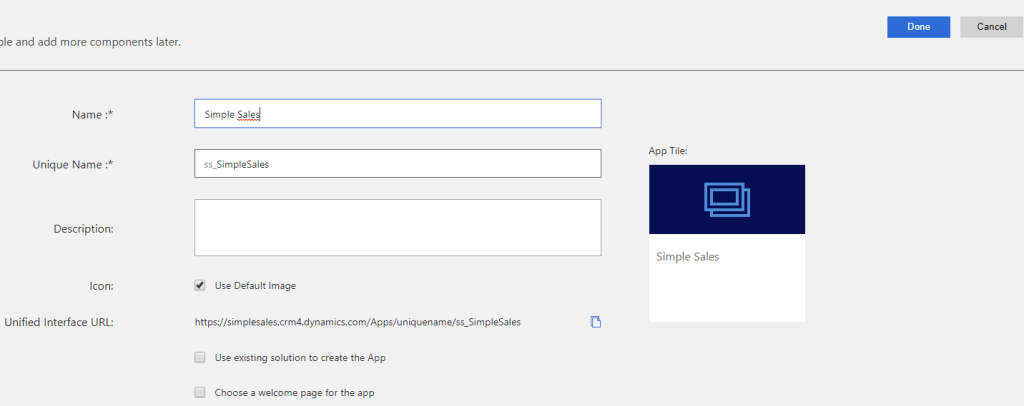
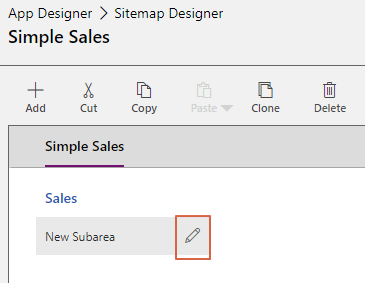
The clicks here might be a little confusing here, but it will make sense in the end. I put “Simple Sales” as the name of the app and the main navigation. You can put whatever you want there. Sales is a grouping and SubArea is the entity we are going to define. Use the “+” when adding. Drag an Drop doesn’t always work that well.

Sitemap define entities

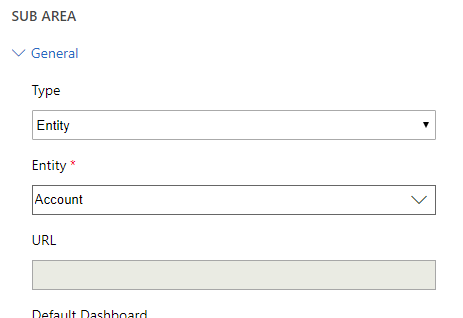
On the right side you choose type “Entity” and entity “Account”.

Sitemap final result

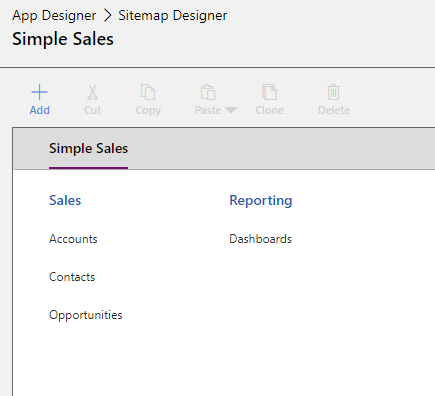
Eventually I ended up with this. All I need to see is are 3 entities and Dashboard for my simple sales demo.

Save and publish

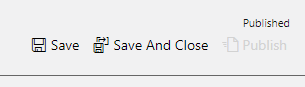
Do not forget to click “save”, then “publish” before “save and close”. If you don’t publish, you won’t get the changes you need.

The app is almost done

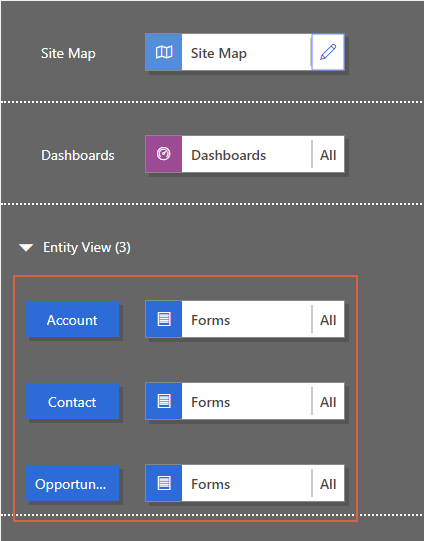
As you can see the app is now populated with a few new entities. In my simple demo I am not going to limit what is shown out to the end user. You have the option of choosing forms, dashboards, view etc.

Save, Publish and PLAY!

You have now created a new app:)

Creating a new solution

Whenever you start a new Dynamics customer/demo, you should start off by creating a new solution. A solution is a container of the configuration you can move from one environment to another.

Top 3 reasons to start with a solution
1. Get the publisher right from the beginning (no more “new_fieldname”)
2. Create a config environment only for what you need (easy to navigate when you are configuring)
3. If you make a good demo, you can reuse the solution file for next time’

I will be using the new solution navigation, but I still would argue that the classic is a lot faster to navigate, and that the new configuration setup doesn’t support all options at the time writing this post.

Sign in to http://powerapps.microsoft.com using the CRM admin user.

Selecting correct environment

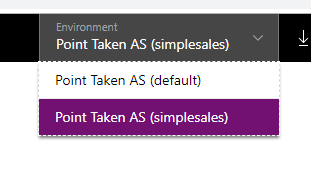
First thing you have to notice is that you might have to change the environment to “SimpleSales” to find your Dynamics database. Just make it a habit for now not to write to the Default.

Creating new solution

Next you can navigate to solutions on the left, and hit the “New Solution”.

Creating new solution

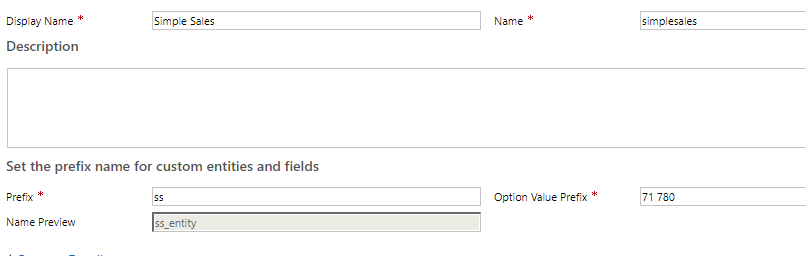
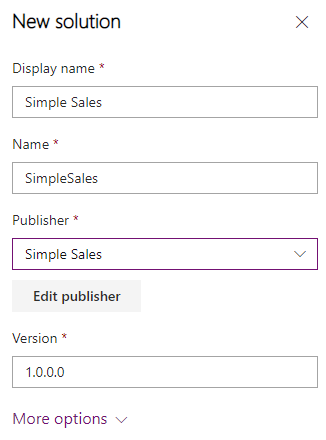
To define the publisher, you have to open the dropdown, and then select “+ Publisher”. This will open the classic screen of publishers. I chose to call this Simple Sales. If you are creating a demo for a customer, I would actually consider using the customer name here. I might write more about that some other time.

All new fields will now be labeled with “ss_fieldname”. It just feels a little more professional even thought you won’t notice a technical difference.

New solution definition

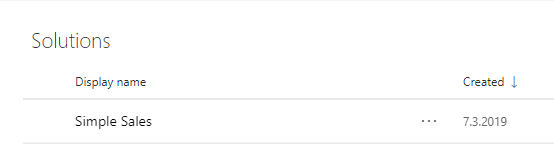
Click save, and you should se your newly created solution

Creating a new Dynamics 365 trial

https://signup.microsoft.com/Signup?OfferId=B07A1127-DE83-4a6d-9F85-2C104BDAE8B4&dl=ENTERPRISEPACK&culture=en-US&country=US&ali=1

NB! Open this in private browser or profile in Chrome

The following URL will start up a Office 365 E3 30 day trial, and that is exactly where you want to start. Creating Dynamics trial directly won’t show the wonders of the O365 admin panel. More about that later.

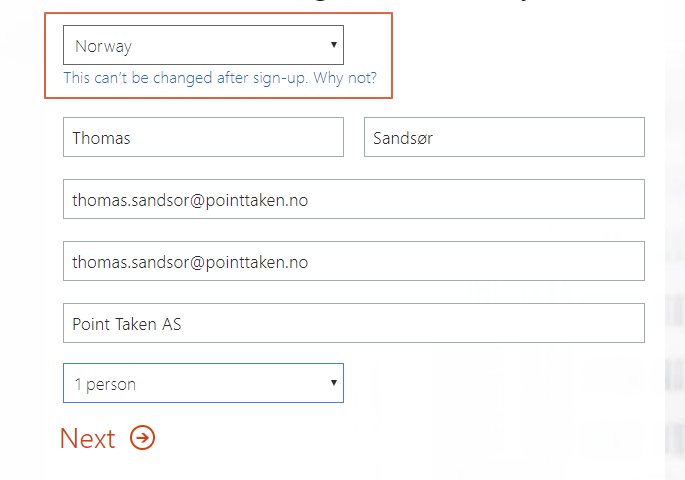
I choose Norway here because I want the European datacenter fir Dynamics. This is not the language of Dynamics, so choose the country where you live.

Create User

Just call this user the admin. It will have global admin rights, so no need to name it anything else. NB! name the organization something that you won’t be using for a production instance. Give it a name “CustomerDemo.onmicrosoft.com” som the name later on isn’t taken.

After the registration process you can open www.portal.office.com

From here you open the Admin panel, and we are going to sign up for a Dynamics 365 trial.

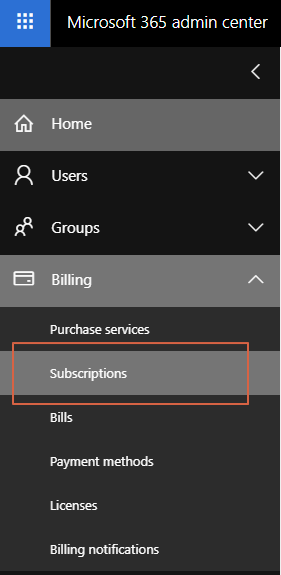
Open Admin
Open Subscription
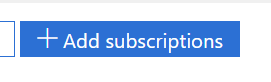
Add Subscription
Start Dynamics Trial

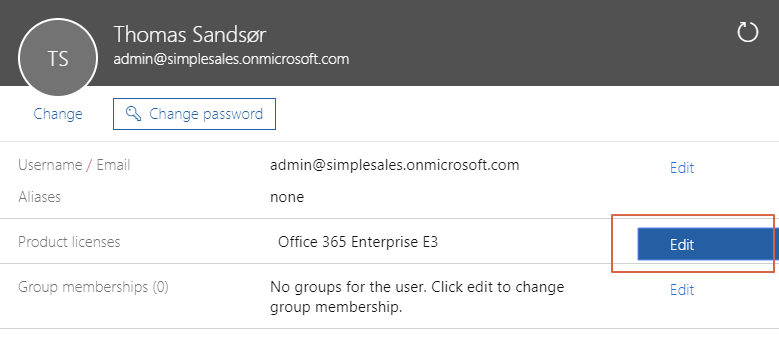
After the trial is ready, remember to assign the license to the user.

Locate user
Add license
Add license

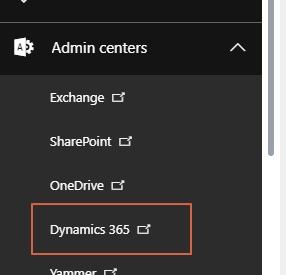
Now you can open the Dynamics 365 admin center. I am choosing to open the original center because the new center still isn’t fully functional yet.

Open Dynamics admin

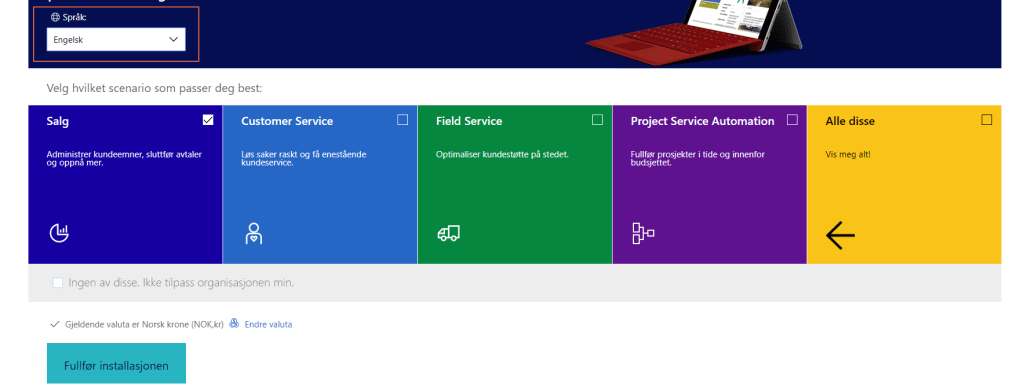
The first time you open this button you will be prompted with the question of apps you want to install. This process will also install demo data. NB! this time you need to choose the language and currency. This will define the language and currency of you Dynamics installation as base, and can’t be changed later!

Choose setup

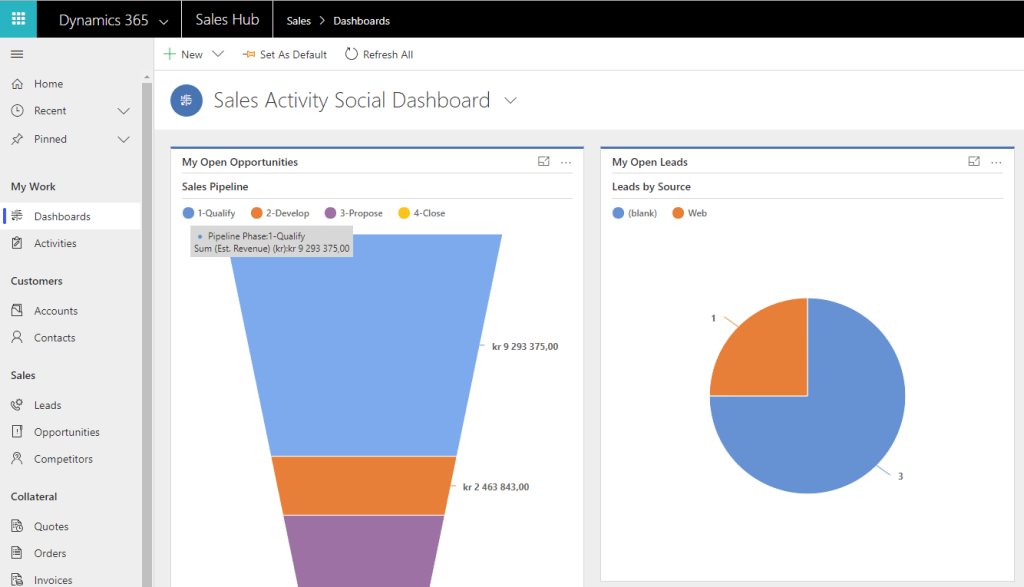
After a few moments you can access the Dynamics installation via the administration panel to see what has been setup.

Open Dynamics
Result

You now have a new trial. I would advise to follow my page about setting up a good demo. There is still a lot of work to be done “How to demo Sales

Dynamics 365 migrating to the cloud

Dynamics CRM 2015 was the first online version, and since then we haven’t had a single partner driven way of going to the cloud without using special software like SSIS and Scribe etc.

Good news is that Microsoft is planning to release the LCS tool the fast track team uses for partners later this year 2018. It’s only been more than 3 years with customers waiting for a solution, and Microsoft not understanding why the cloud transition isn’t going faster.

It’s amazing to see how little effort Microsoft is putting into doing this smoother. At the time they finally release the tool, it might be a little to late.

In the meanwhile, you can read my Fast Track hack🙂

Dynamics 365 Fast Track hack

Ever wondered why Fast Track is limited to 250 users only? I decided to ask Microsoft at Ignite, and they had absolutely no idea why this was the issue. I even asked if I could buy the services standalone, and the answer was “NO”.

So I asked them about manipulating my user count for 1 – 2 months and they said “it doesn’t affect my budget, so sure” 😉

If you have 100 users on CPS, you buy an extra 150 licenses for 1 month. Then you start the Fast Track program, and you migrate to the cloud. The best thing is that this is a migration without data loss, because of database copy. When you are done, you cancel the 150 licenses and you return to normal use.

In most cases you will save lots of money and have no dataloss.

Dynamics 365 license hack

Why I endorse this?

Because I am sick and tired of Microsoft being so flaky with their licenses. It is impossible to be a good consultant these days with so many changes and unclear direction.

PS: since I wrote this post and made a video, it seems Microsoft is accepting this behavior. That is of course until they restrict the usage as they always do.

The Hack

This is for the simple users requiring some simple custom entities and opportunity. Case not included. And because of the Team Member with P2 you have no issues using the outlook app and so on.

CE full plan115$
Sales Professional*56$?
PowerApps P2 + Team Member**40 + 8 = 48$

*Sales professional releases now in October, and not sure what the exact price will be
** Restricted entities that can’t be used with the combo.

Background

Is licensing for Dynamics 365 really that complex?

Well, not if you are willing to pay 115$ pr month for a user in CRM. This license includes everything you might use and more.

So what about the customers in the SMB/SMC space?

Here is where the interesting discussions begin. Microsoft has never been an SMB/SMC product. They have been trying to compete against Salesforce to become leader of the magic quadrant. This is why consultants always have figured out how to navigate around the license model to find the best possible fit.

First there was BASIC. A great license for small needs that even covered Case. Shure this might be a little to much to ask for a company like MS to give us free Case management, but at the time Microsoft didn’t realize that Case was about the only really useful entity in the system. Proven later when they admitted that they were loosing many cases to direct sales CRM solutions because they were simpler.

Then we got Team Member without the option for Case, but still a pretty strong license because of the custom entities without limitations.

So what happened October 1 2018?

Out of the blue Microsoft now decided to remove access for Account in Team Member license. I wish they would inform us why they did this, but who knows. Back to the drawing board for our solutions, but here comes the temporary hack