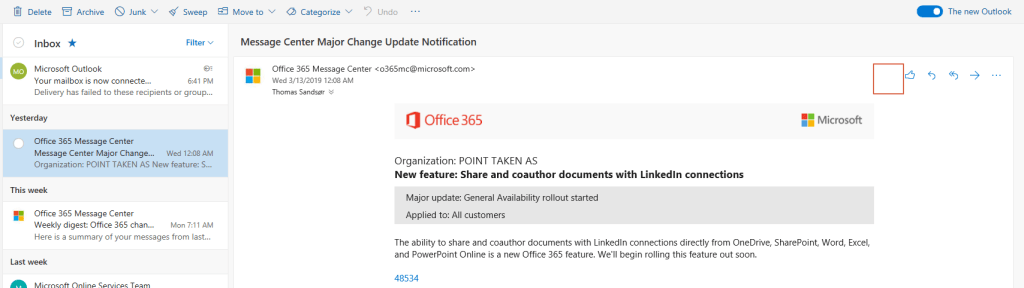
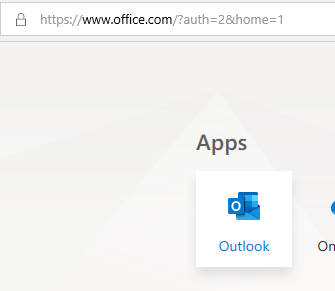
If you can’t find the Dynamics tracking app in OWA you are not alone. It is simply not supported (yet). Not quite sure why. As you can see in the pictures below, I have one with the new OWA and the other with the old OWA
The purpose of this exercise is to see tracked items in outlook that provide an important visual aid for the user. Why this is not default on I honestly don’t know.
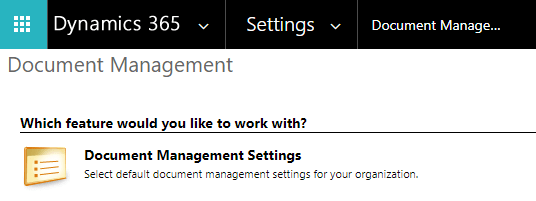
The SharePoint standard connector will work for customers with simple needs for collaboration. There is a Teams integration available soon, and I will write about that once it is released in Europe.
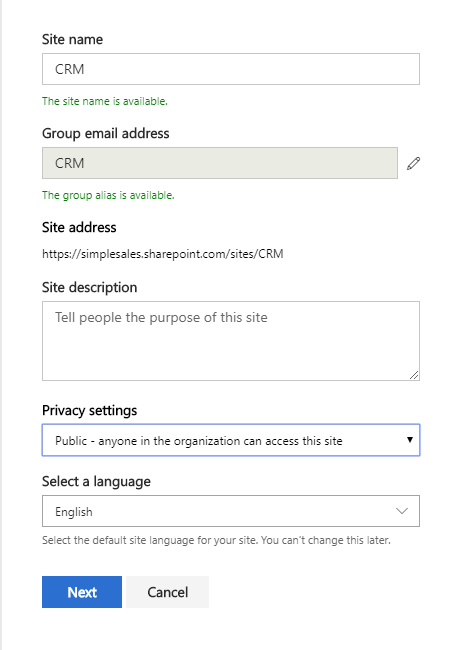
Start off by creating a new site in SharePoint. I prefer to create everything on a new site, because then we can control the site better.
Copy the URL of the site before you move on back to CRM.
I prefer to create folder for the entities Account and Opportunity. Remove all the other entities in the simple demo (not that it really matters).
I prefer to have a structure based on account. This will create opportunity folders bellow the account folder.
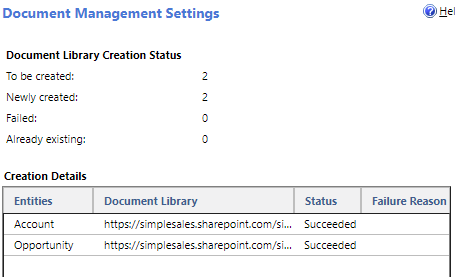
If it all worked out, you can now open an opportunity with account connected.
Opening the document on opportunity will now give full access to storing documents in SharePoint. I will write an extended blog about considerations to make when integrating this to Teams later.
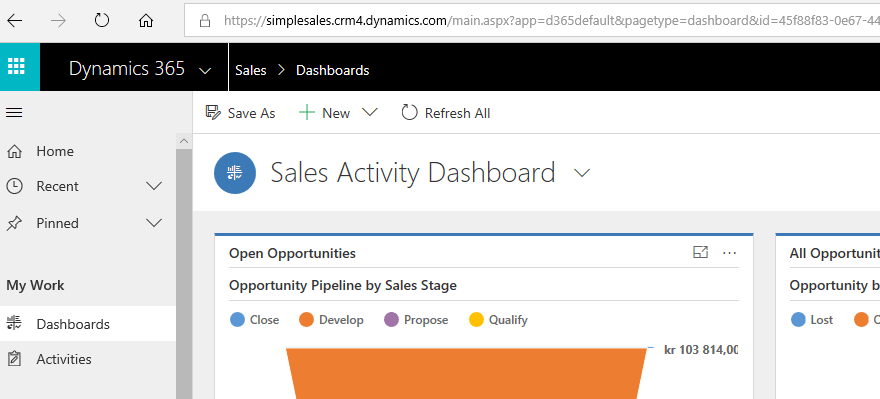
Open your dynamics instance and remember to force classic mode. The new UI hasn’t updated at the time writing this blog. At the end of the URL “?forceClassic=1”.
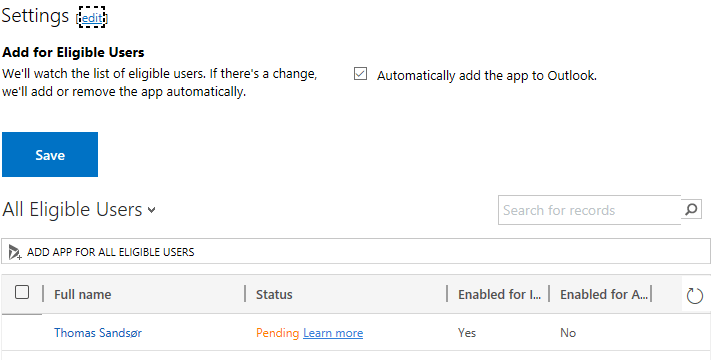
Select “Automatically add the app”, then click Save. The status will change to Pending, and the app will be added in the background. It might take a few minutes.
Some system emails in trial are special and might not work, but you should see the icon in the upper right hand corner next to reply all and the “thubs up”. Open the app.
This is what you see when the app is loaded in your Outlook. More about the app in a later post.
This is a series about installing everything you need to display the simple sales. Therefore this is only showing what you need to do for the simple sales demonstration, and everything is based online.
If you are forced into the new UI like the picture above, you need to change your url to force the classic view. add “?forceClassic=1” to the end of the string to get the old view.
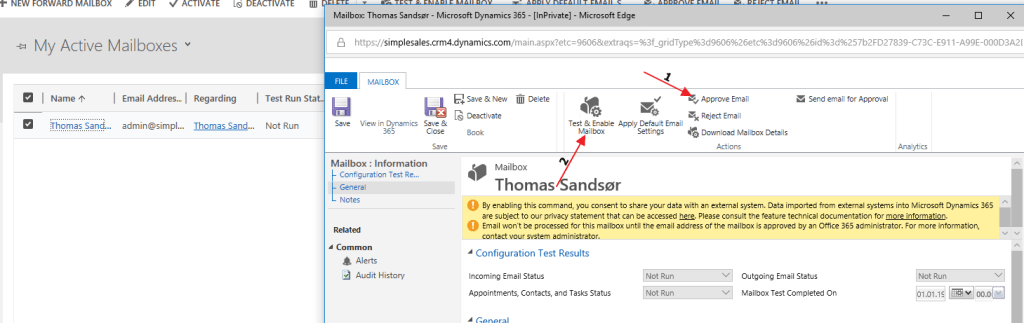
Open Email Configuration and then the mailbox
Open the record in view. First you need to approve the email (has to be done by the global administrator). Then you can “Test & Enable” the mailbox.
On the alerts over to the left you should se the results as completed. The setup of the Email router is now complete.
Next step we have to setup the email rules. This is not important for the simple demo, but this is how I would consider setting up the email router settings in a prod environment.
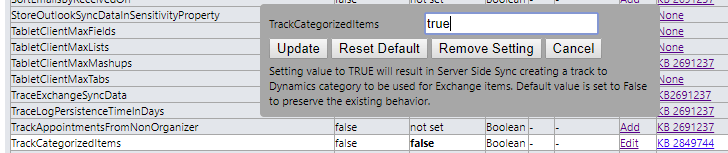
I chose to use correlation and smart matching to track emails. I personally don’t like the tracking token, and if possible would avoid it. I do see a few cases where it would make sense to keep, but there is no real right or wrong here.
This setup is based on the simple demo setup in my blogg, and if you have any other complex setup this might not work. Dynamics 365 supports many different configuration of Exchange, but that would be a more technical article.
Lets me start out by saying that the UI is WAY faster to navigate than the old interface. The load time for the records has increased by a lot and the views are snappy. I am not saying that it is ready to take over yet, but they are definitely doing some things right!
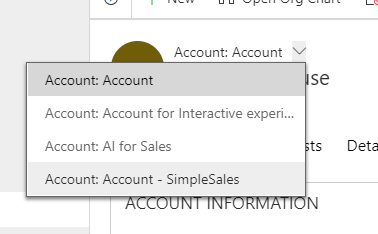
Anyway, I came across a great way to navigate a view the other day. This feature might have been there for a long time, but it was new to me.
Dynamics 365 simplified navigation UI
Starting from the view you can open a record. From here you can open the view you came from and simply navigate the records. Cool feature 🙂
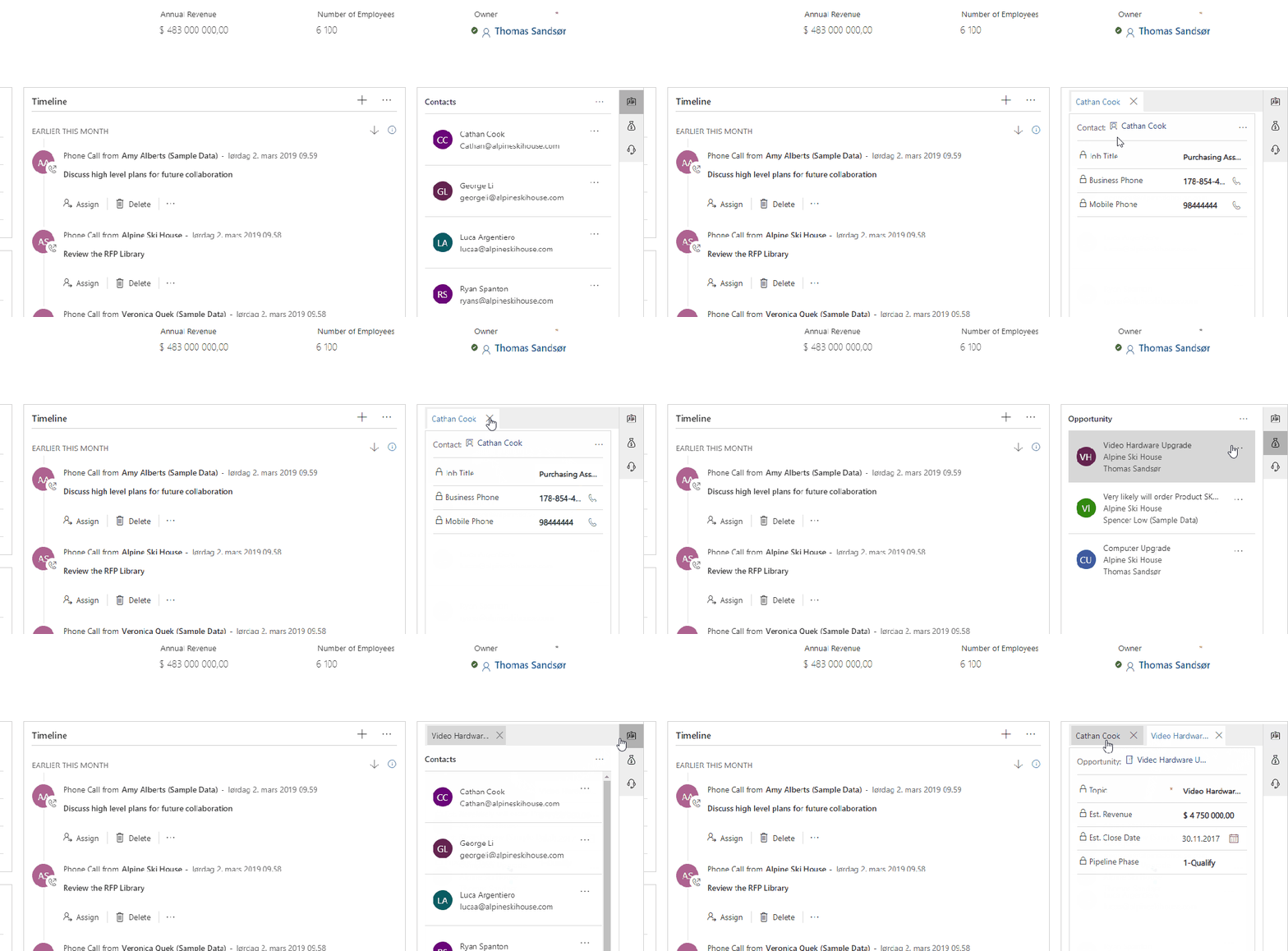
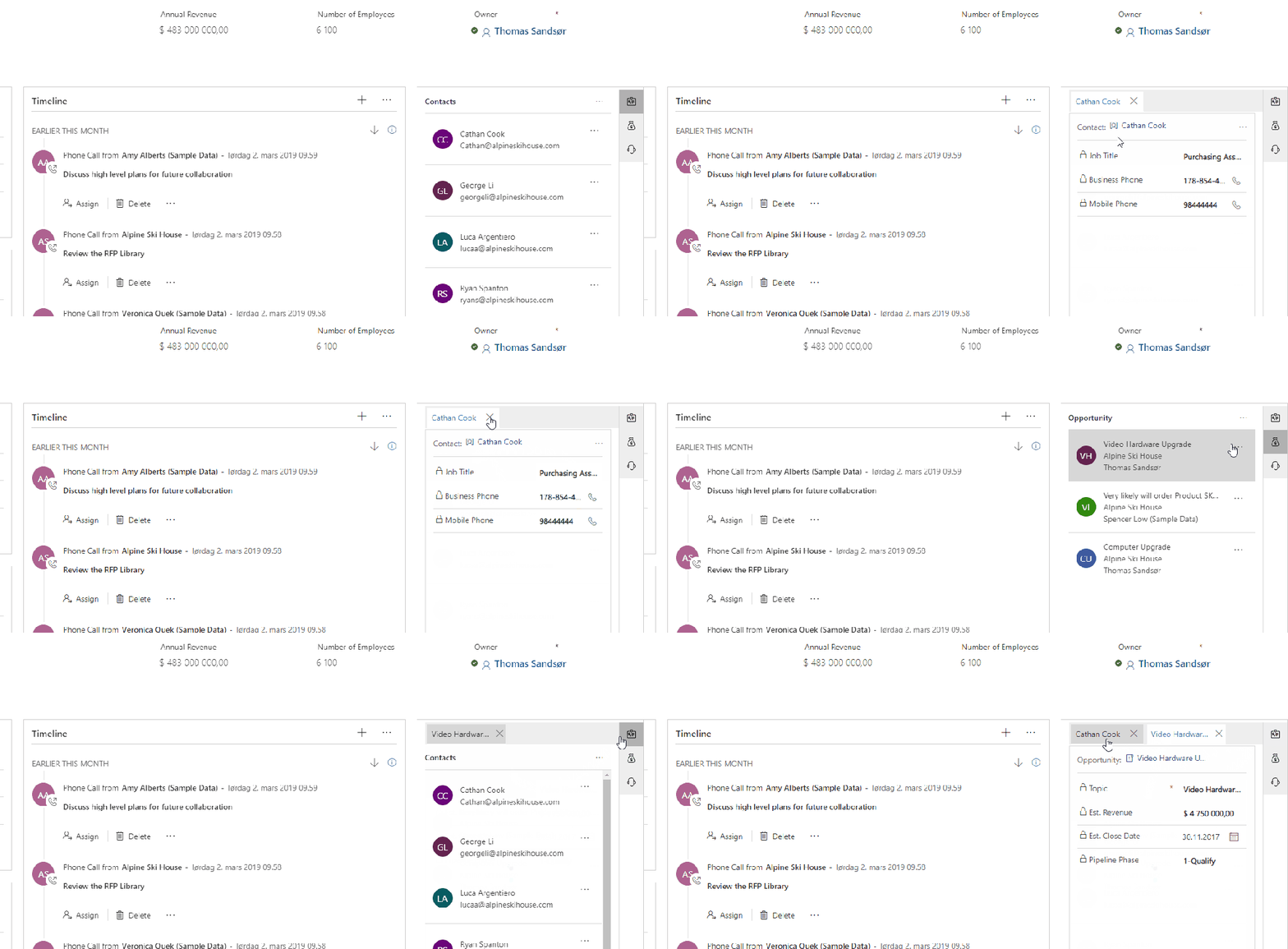
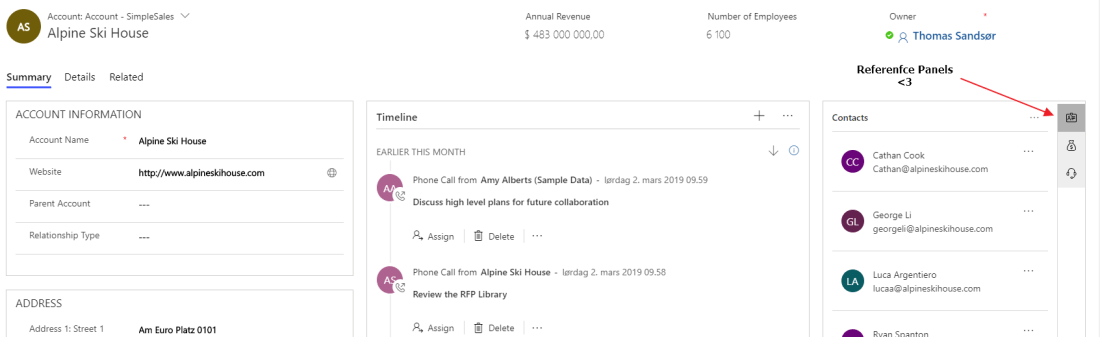
During ignite 2018 Jukka introduced me to reference panels during a hands on lab. At the time I couldn’t for the love of god understand what the point was. It was being viewed in the “old” UI and it all looked really stupid.
Then all of the sudden Unified Interface made it all come together for me.
First start off by getting a hold of some icon’s (New icons for Dynamics 365 UI) Contact Opportunity Case
To add icons to your solution check this blog
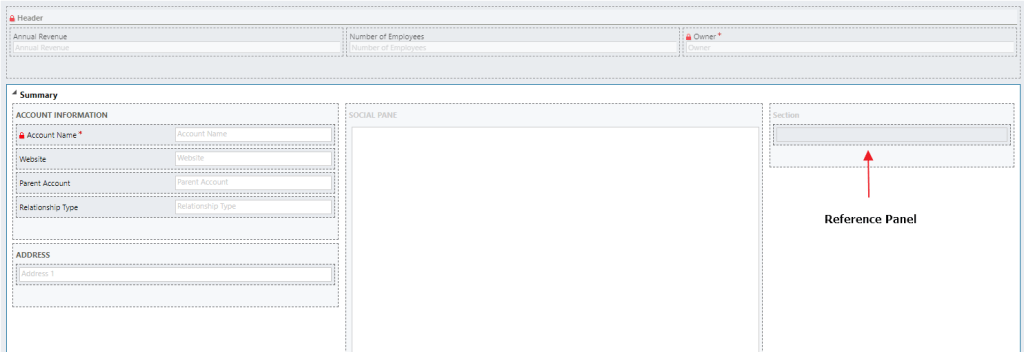
Start of by adding a reference panel to your Account form. A new section will be added.
The section looks completely normal, but it is different. I have chosen to move the section to the right part of the screen. Now when you add a subgrid to this section, you will see the difference!
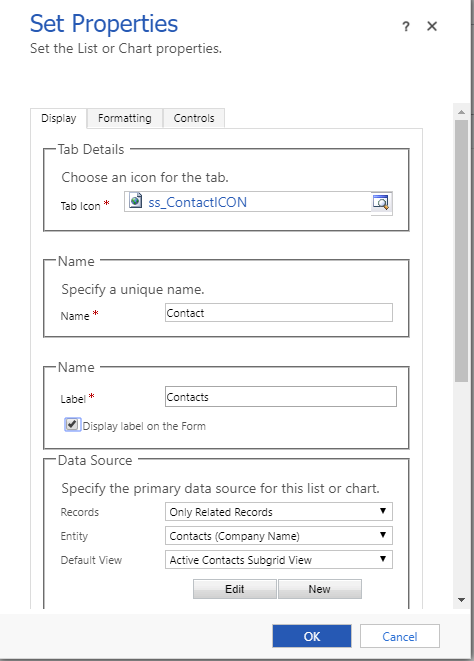
Adding reference panel subgrid
Notice the difference here? “Tab Icon” is required. Locate the .svg file you downloaded for contact, and the rest is the same. Repeat the process for Opportunity and Case.
Save & Publish. Now open Unified Interface to view your form
Again I have to state that we all have different preferences, and this is only my suggestion on how to make a simple demo. We all see the world different, and therefore no right or wrong answers here:)
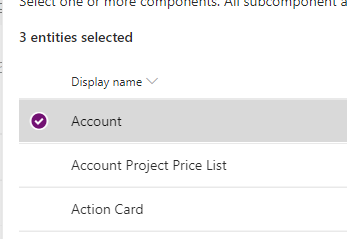
The whole point here is to add existing entities Account, Contact, Opportunity to the solution.
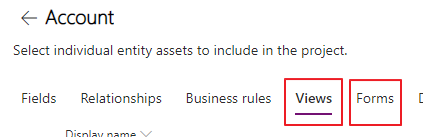
I prefer to only add what I will be working with. So I add the following views and forms for all entities
Entity
Account
Contact
Oppty
Form
Main + QuickCreate + QuickView
Main + QuickCreate + QuickView
Main + QuickCreate + QuickView
View
Open Account + Ascociated view
Open Contat+ Ascociated view
Open Account + My Opportunities + Ascociated view +
You don’t really need the views, but I like them in case I want to do some editing, because I don’t have to create them from scratch. The QuickView form is because of the Reference Panels.
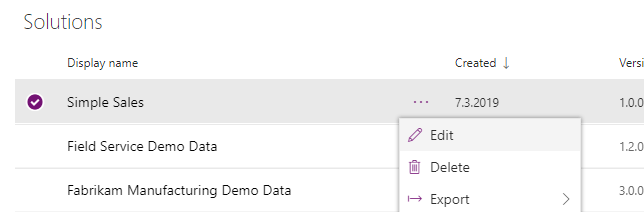
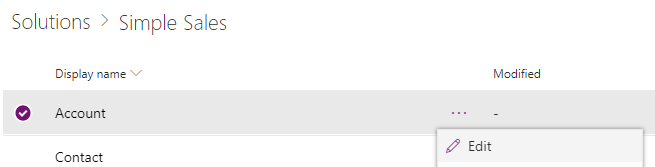
Your solution should look something like this now.
For the next step I configure the forms
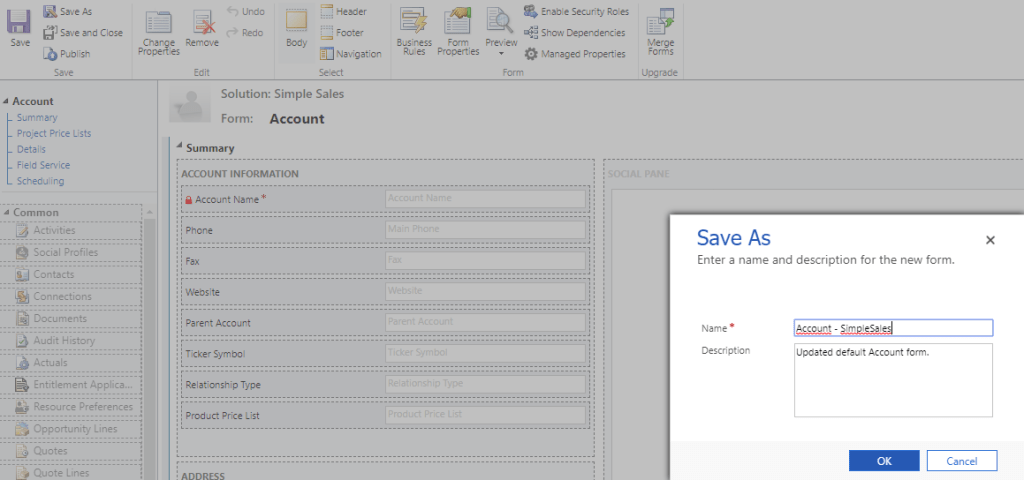
NB!!! Before you edit the form, click “save as” and give it a name. I never configure the main forms because I want to keep them untouched for all future MS updates.
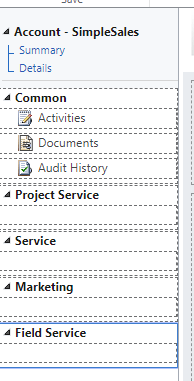
I also like to control the activity view, because the demo can be very “cluttery” if that is even a word.
Appointment, Email, Phone, TaskRemove as much as possible
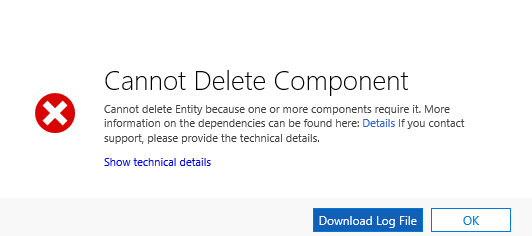
Don’t think this is normal, because I have not been able to reproduce the error since. I created a very simple flow on top of a few custom entities. I used both the Dynamics connector and the CDS connector while testing. When I was going to clean up my mess, I got an error when deleting.
That being said, when I tried to reproduce the flow SDK step, I was not able to. This meant that I was able to delete an entity with an active flow, and I would say that isn’t optimal either?
I tried removing the flow, but that didn’t help.
Had to add the SDK step, and then delete the step before it was ok.
I have tried reproducing the error, but not able to. Still don’t know how flow registered a plugin step in Dynamics, or why it didn’t remove it when trying to delete.
Remember the 16×16 and 32×32 icons? Well, you don’t need them any more:) All you need to think about now are the .svg icons that adjust accordingly to what it should.
The issue at hand is one we all know and hate. The little puzzle image that indicates that you didn’t take the time to complete everything 100%. In my case I created a custom entity called Project.
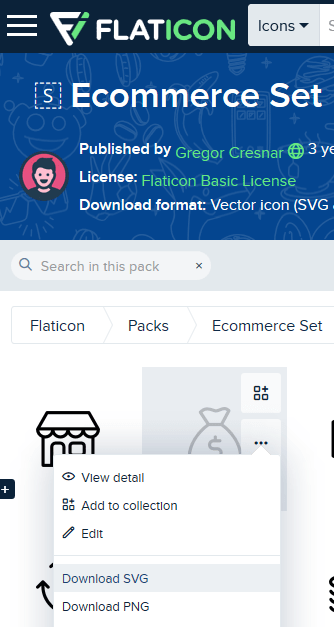
https://www.flaticon.com <– Go here to get a hold of any icon you want. Free if you give credit to the author of the file. Remember that you have to download .svg file format.
Locate correct iconCredit:)
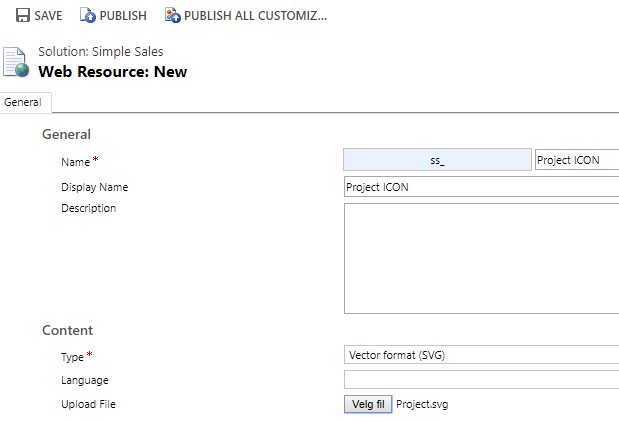
Open your solution and add a new webresource of type .SVG. Remember save and publish!
Create WebresourceSave and publish
Unfortunately you now have to navigate to the Classic view, because this is currently not available in the PowerApps configuration yet.
Open the icon update, and select your new webresource Project Icon. Save and publish the entity.
Locate the correct .svg file
Open your UI app, and voila!! Everywhere will now have the correct icon because Dynamics 365 UI is automatically formatting this to the correct size 🙂





































 CRM Keeper