Microsoft: Trying to Out-Tech Too Early or Right on Time?

In the ever-evolving landscape of customer service, Microsoft is trying to integrate cutting-edge technology into their Contact Center solution. The latest push? Leveraging AI and IVR to create a seamless, efficient customer experience. However, recent findings by Gartner raise a critical question: Are they innovating too quickly, or is this the perfect moment to bring AI into the spotlight?

The AI and IVR Vision

Microsoft’s vision for the Contact Center of the future is a robust blend of AI-driven virtual agents and advanced Interactive Voice Response (IVR) systems. These tools are designed to automate routine inquiries, reduce call times, and free up human agents to handle more complex issues. By implementing AI, Microsoft aims to revolutionize customer interactions, making them more personalized and efficient.

At the core of this vision is the belief that AI and IVR can enhance the customer experience by providing quick, accurate responses to frequently asked questions, guiding users through complex processes, and even predicting customer needs based on historical data.

What the Customers are Saying

According to a Gartner survey, a significant 64% of customers expressed a preference for companies to refrain from using AI in customer service. This statistic highlights a potential disconnect between the technological advancements companies are implementing and the actual desires of their customer base.

Why this reluctance? Many customers feel that AI lacks the empathy and understanding of a human agent. There’s a perception that bots are rigid, unable to navigate complex emotional nuances or understand the full context of a customer’s issue. Additionally, the frustration of dealing with a bot that doesn’t grasp specific queries or misunderstands the customer’s intent is real and tangible.

The Good Old DTMF: A Preference for Simplicity

The DTMF (Dual-Tone Multi-Frequency) system, with its simple, straightforward keypad-based navigation, still holds a special place in the hearts of many customers. The ability to press a number and reach the desired department or service without having to converse with a bot or navigate complex IVR menus is appealing. This preference meets a broader customer desire for control and predictability in their interactions.

DTMF represents a known quantity – it’s familiar, it’s simple, and it works. In an age where technology can often feel overwhelming or intrusive, the simplicity of DTMF can be a comforting presence.

Striking the Right Balance

So, is Microsoft trying to out-tech too early, or are they right on time? The answer might lie in finding the sweet spot between technological innovation and customer comfort.

While AI and IVR have the potential to transform the contact center experience, it’s crucial to implement these technologies in a way that respects customer preferences and concerns. This might mean offering a hybrid approach, where customers can choose between speaking to a human agent, interacting with a bot, or using DTMF. By providing options, companies can cater to the varying needs and preferences of their customer base.

Conclusion

As Microsoft continues to push the boundaries of what’s possible in customer service technology, it’s essential to keep the customer at the heart of every decision. Innovation should not come at the expense of customer satisfaction. By listening to customer feedback and adapting accordingly, companies can ensure they are not just on the cutting edge of technology, but also aligned with the desires of their customers.

Microsoft’s push into AI and IVR may well be a step in the right direction – but only if it’s accompanied by a commitment to flexibility and customer-centricity. In the end, the best technology is the one that serves the customer most effectively.

Dynamics Customer Service Solution 2.0

A while back I released a Customer Service solution to get a DEMO or Simple production system up and running withing an hour.

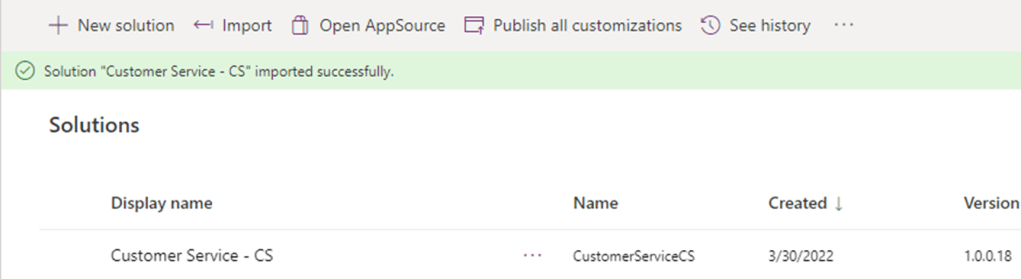
Due to recent updates to email to case and templates, the solution I had created failed every time on installation. After a few weeks with Microsoft Support we sorted it out, and the solution is back working again!😀😀🙏🎉🎉🥂🍾

Remember to get the latest version (18 or above) of solution from the GitHub folder.

The main change in the setup is the email to case is now a part of Power Automate, and no longer a part of our good friend WorkFlow

I wrote about it in my blog a while back how to create Email -> Case the new way

Quick guide for email using the new solution import

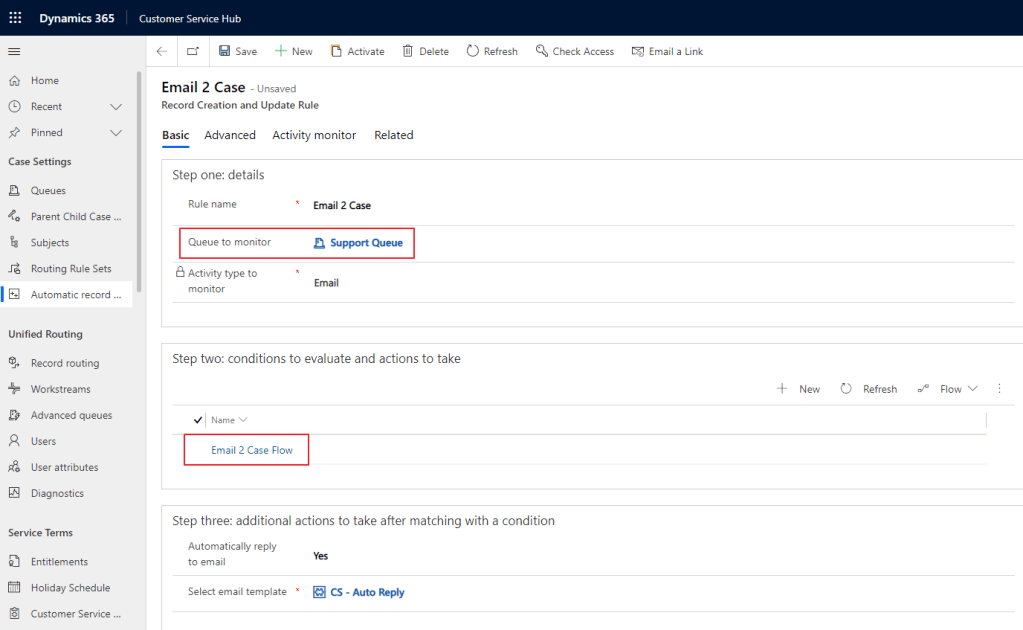
After importing the solution you will now find “Email 2 Case” in the Automatic Record Creation area. Open this via the Customer Service HUB

Make sure you select your Queue that you have added earlier ADD QUEUE

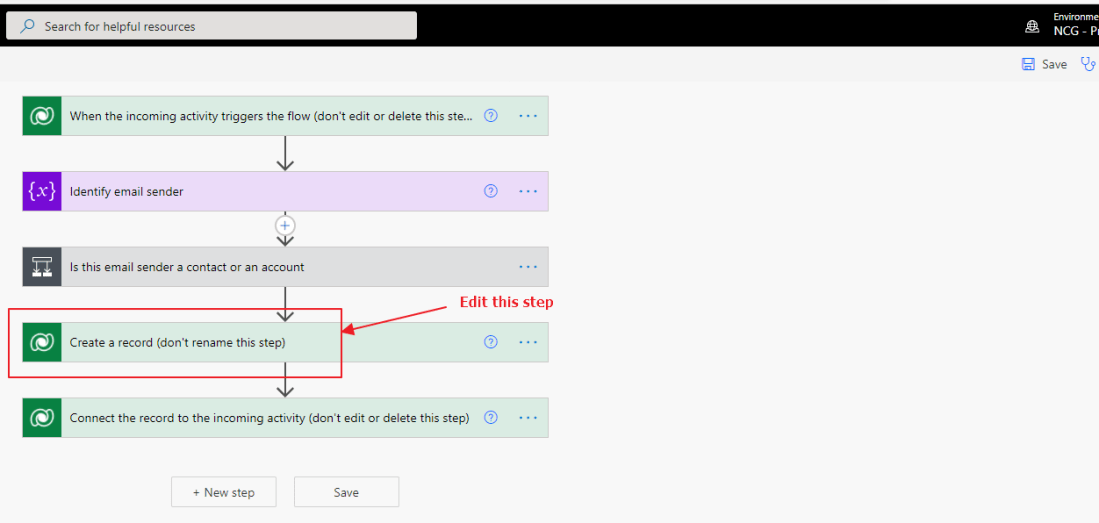
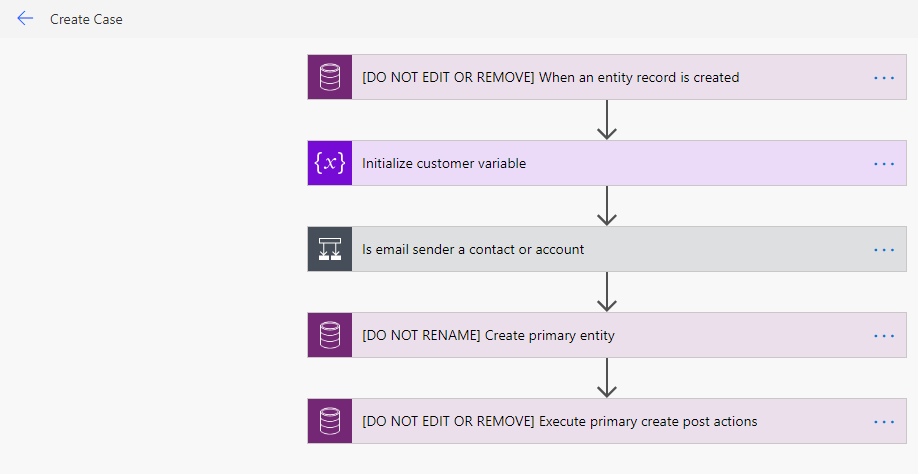
Open the Email 2 Case Flow to see the structure that Microsoft now has create for Email to Case.

If you like adding the Team as owner to the cases (Optional), you have to add this line to the Owner field in the Flow.

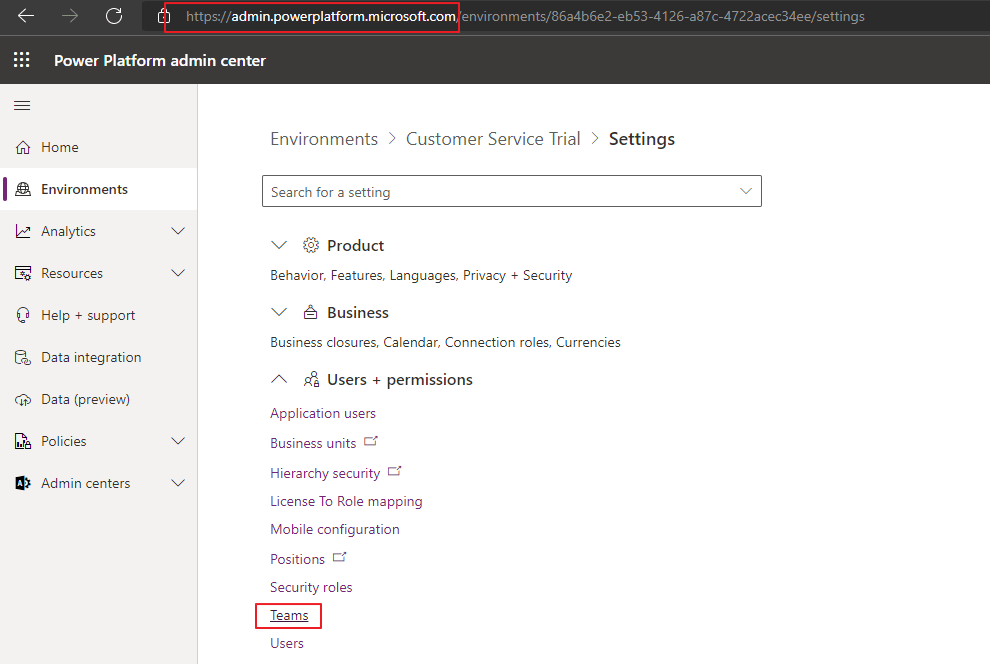
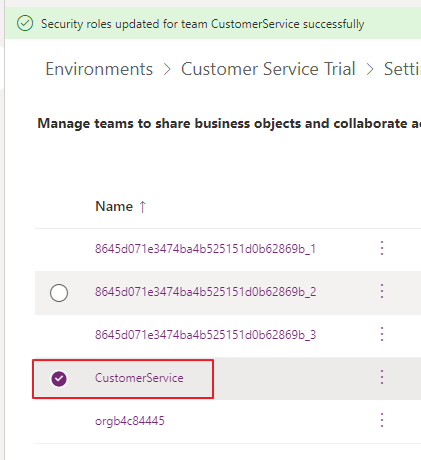
NB! You have to retrieve the GUID from the Team in CRM.

Fining the Team GUID

Last step is to Activate the email to case record creation.. At this point you should be able to see emails entering CRM via Cases.

🚨Update🚨 Automatic record creation rules NOW!

If you are using email to case, SLA or any Automatic Record Creation in classic you really need to update your rules ASAP to the new UI.

I can’t seem to find the message in the make.powerapps.com, but it’s one of the first messages that appears when opening the classic editor in solutions.

This post is not going to comment the pros/cons of the old vs the new. I will have to come back to you on that one. I am simply stating that you have to do this because it’s not only being deprecated, but it is being shut down. Microsoft has actually created a migration path for the rules, and documented the process fairly well.

https://docs.microsoft.com/en-us/dynamics365/customer-service/migrate-automatic-record-creation-and-sla-agreements

I use these rules for the most in the email to case scenario. First it has some conditions, and then it has the actual create of the case record.

When running through the migration, it does in fact get the conditions correct when migrating, but not the owner that I have in the create statement later. This has to be manually added to the flow created by MS.

Post Migration

After the migration is done, I had the following:

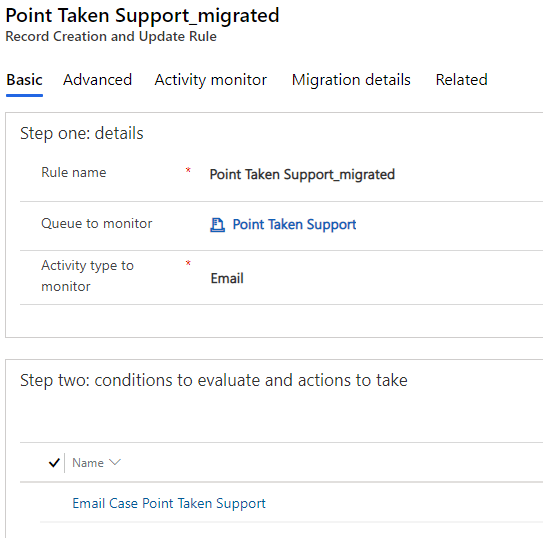
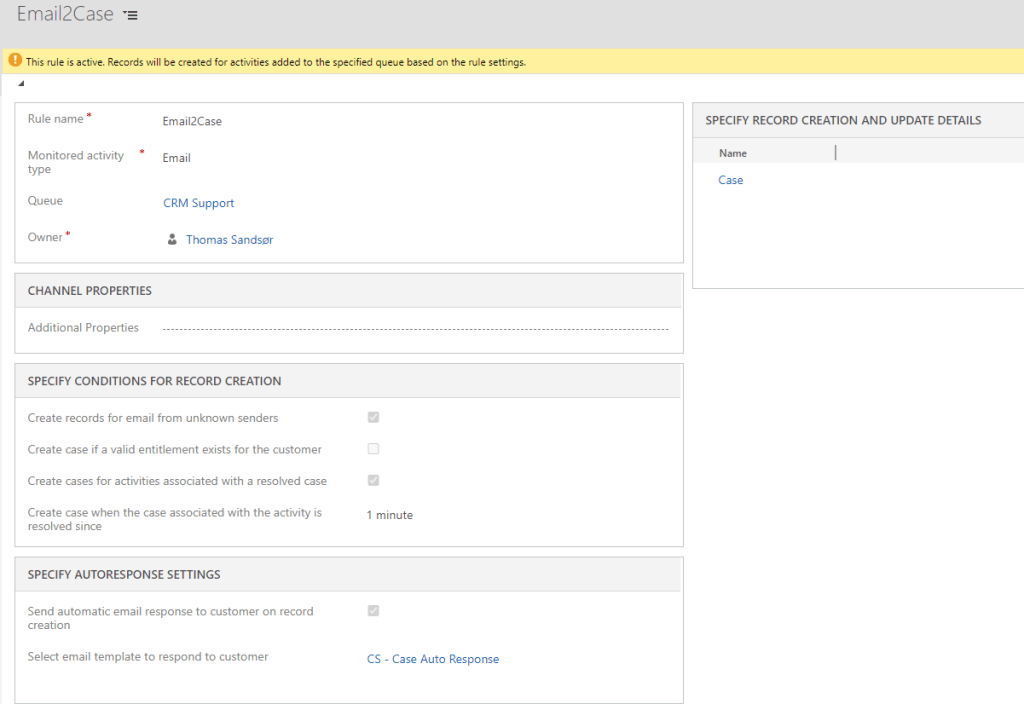
A record rule in the new UI

The conditions also got migrated without issues

And a new flow that Microsoft Autocreates for the email to case record creation. The red box marks where I had to add the “owner” field for the Teams ownership that I normally use.

All of these steps are automatically added by Microsoft. This is also the case if you do a NEW Email to Case from the UI. It feels a bit odd to put my faith in the hands of something automatically created, but for now I have to go with the flow.

NB!!! REMEMBER TO CLICK THE SAVE BUTTON IN FLOW BEFORE ACTIVATING THE RULE

So far it seems to be working OK, but I have to do some more heavy testing before I can conclude that the Flow is as stable as the old rules within Dynamics. We are running it in production, so I will update if I see any problems 🤞

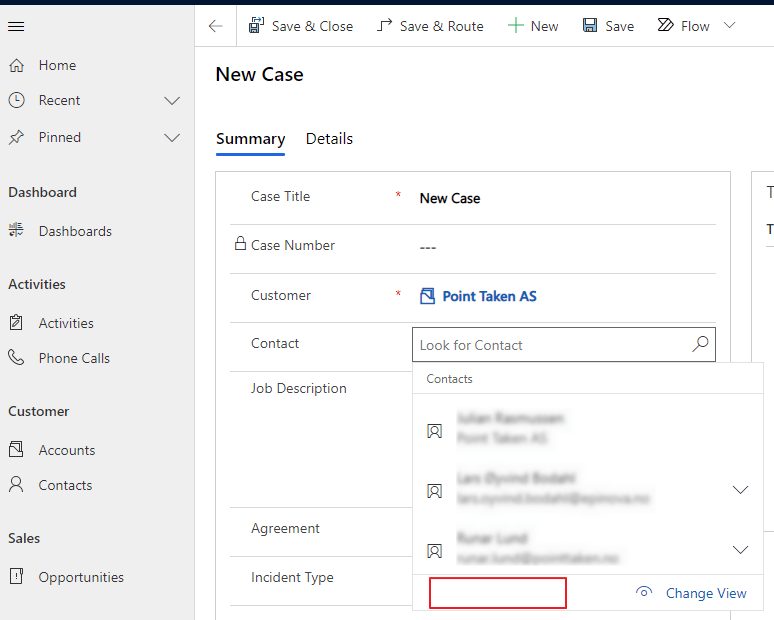
Dynamics 365 Case add new contact missing

Recently I had this happen twice without really knowing why. The add new contact button was missing on the case form. In the old UI it was present, but in the new UI it was gone.
Problem

Luckily support found out that this is caused by the contact field containing some old “metadata”. All you have to do is remove it and add it back.

FIX

As you see here we have added the same field twice.. Now you can remove the “OLD” contact field and then publish..

Voila!

A pretty random thing to happen, but an easy fix:)

Dynamics 365 Customer Service in 1 hour or less ⏰

Did you know that it is possible to setup a fully functional Customer Service installation in less than one hour?

I am proud to present all 3 parts
1. The community solution – Download
2. The Video for installation
3. The Video for demonstrating the product

I have put a lot of hours into this configuration, because I wanted other consultants to see how nice and easy Customer Service could be delivered. I have been using countless hours every time I wanted to show a new demo, so I finally put in the extra work to make it complete. This will hopefully save you a LOT of work next time you want to demo Customer Service, or deliver a good solution to your customer.

1. Download

Go get my free community solution for Customer Service.

https://github.com/thomassandsor/CustomerService

2. Install the solution

See how install the solution within one hour

3. Demo the solution

This is a showcase of how I would demo the solution. Find your own pitch and make yourself comfortable with it. Just make sure you have good demo data!! Good Luck 😀

Dynamics 365 Customer Service – The Solution

This is the last post in a long series about Customer Service and Dynamics 365. After several implementations over the years, the following configuration should be a great place to start.

Before we get started

Fire up a new trial of Dynamics with Customer Service, and add an office 365 trial to the same instance. I will not be going in depth on how to create a trial. Navigate here if you need tips

NB! for some steps you need Global Admin privilege

1. Exchange

The first step we need to do is setup a Shared Mailbox in the admin for O365. Navigate to https://admin.microsoft.com <- Make sure you are on the correct org when doing this.

When done you should se the message above. You now have successfully created a new email address for Exchange.

Dynamics Configuration

2. Import Solution

Download the solution from here
https://github.com/thomassandsor/CustomerService – open folder solution, and download THE LATEST VERSION 18+

In the video I will explain why UNMANAGED, but I am not an ISV is the short answer. I have written about what’s included, so easy to reverse.

Remember to PUBLISH CHANGES

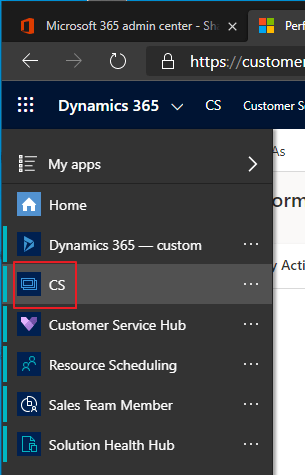
You will now see a new App called CS

3. Add Team + Security Role

Next you need to add a new team to Dynamics. Open the Advanced Settings in the navigation to the top right. We will be doing the next part in the old client

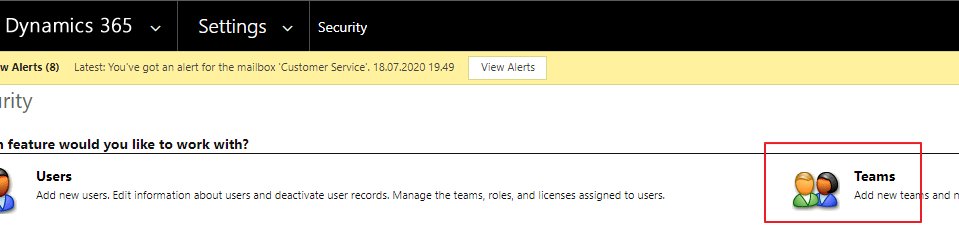
Open Settings – Security and Team. Add a new team and give it a name. I have chosen Customer Service. This is the team name that will own the Cases before they are assigned.

Also remember to add the security role “Team – Customer Service”. This security role is imported along with the solution

4. Add Queue + assign Team

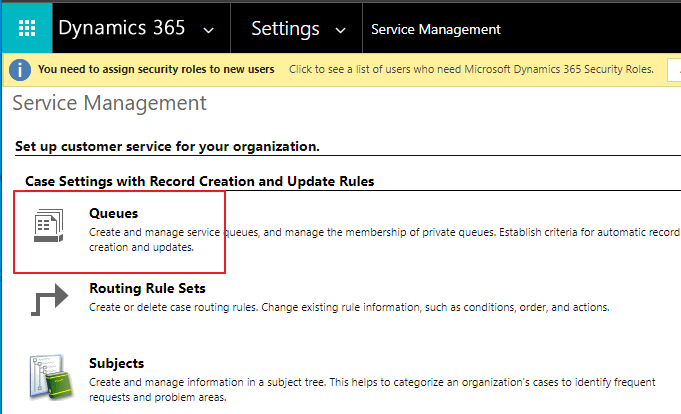
This is the step where we connect Microsoft Exchange with Dynamics 365

Name of the queue is not important, but make something that is sensible.

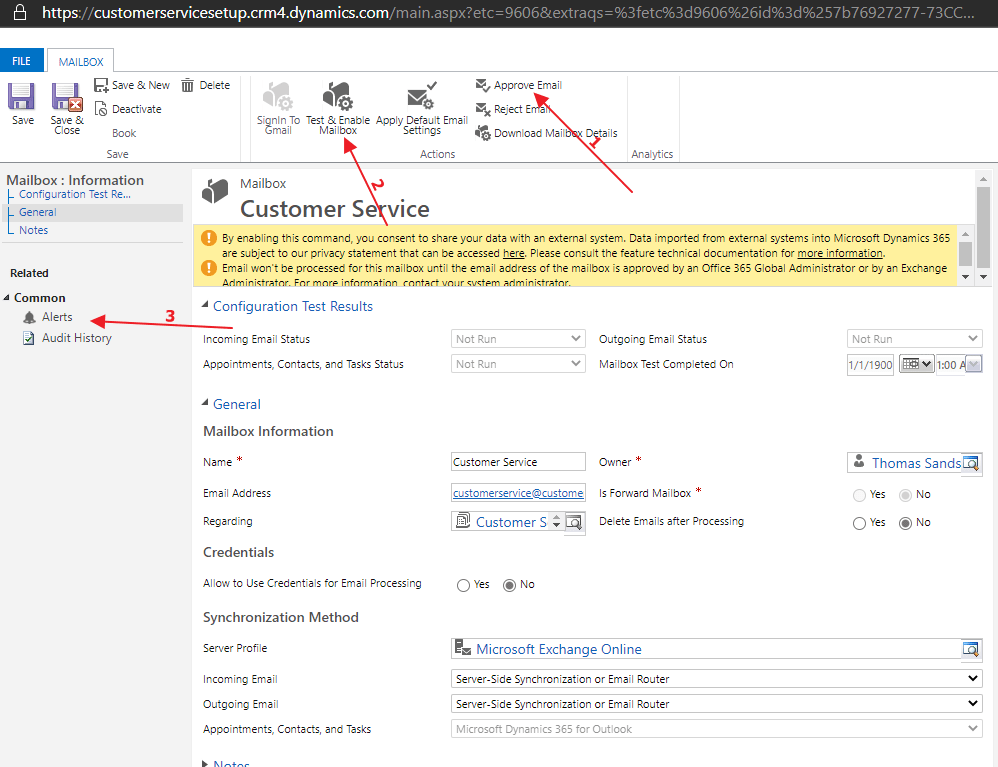
When you click save, a new Mailbox will be created automatically by the system. Open the Mailbox, an navigate to the next step.

5. Approve Email and test receive mailbox

This is the point where you need to be Global Admin to continue. Start by approving the mailbox/email address.

Step 2 you test and enable the mailbox. Once this is done, head on over to “alerts”

You might need to refresh this a few times before it displays anything. The refresh button in the upper right corner is the easiest way to update the feed. You should only see information messages now. This should not generate any errors.

6. Email Settings

Next step is really important for keeping the subject logic. All of this will make sense later when you see the reply of the emails you send. Open the Email Configuration Settings and make sure it looks just like below.

7. Create Account and Contact

Now we create an Account and Contact that we use for our demo. The Account name can be whatever you want, but the contact needs to have a valid email address.

8. Send Test Email Outbound

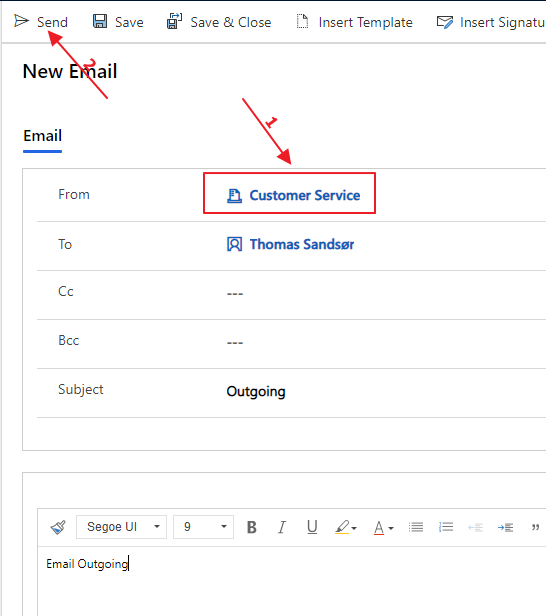
Now it is important to check that emails actually are going out of the system. Open the contact you created with the valid email address. Create a new email activity.

NB! make sure that you substitute the from address to Customer Service (queue you created earlier) before you hit send. This will send FROM the queue to the Contact.

If things go as planned you will see an email appear in the mailbox. Be sure to check you spam if nothing is in the inbox!!!

9. Activate Record Creation and Upadte + add Team to Case Created Owner

After importing the solution you will now find “Email 2 Case” in the Automatic Record Creation area. Open this via the Customer Service HUB

Make sure you select your Queue that you have added earlier ADD QUEUE

Open the Email 2 Case Flow to see the structure that Microsoft now has create for Email to Case.

If you like adding the Team as owner to the cases (Optional), you have to add this line to the Owner field in the Flow.

NB! You have to retrieve the GUID from the Team in CRM.

Fining the Team GUID

Last step is to Activate the email to case record creation.. At this point you should be able to see emails entering CRM via Cases.

10. Add Signature

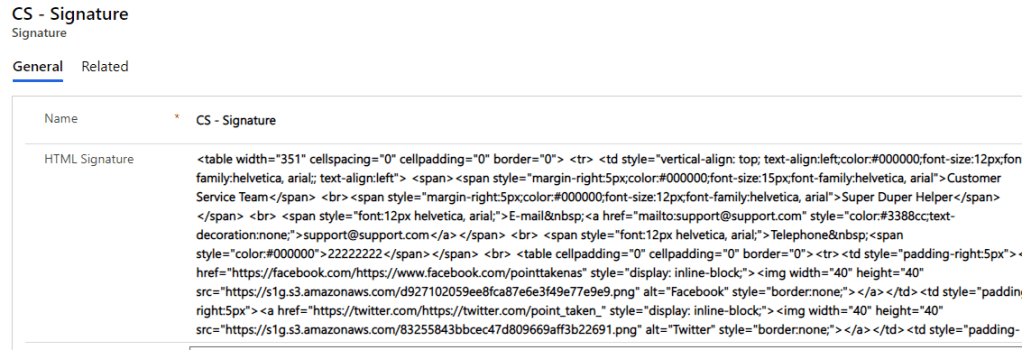
Next step we have create a signature for the user. Signatures can be personal or company specific. The signature is located under the setup section. Navigation is at the bottom left of the CS app.

The signature below is HTML. I don’t expect you do this from scratch. I have a great guide here

11. Add User with Signature and Default Queue

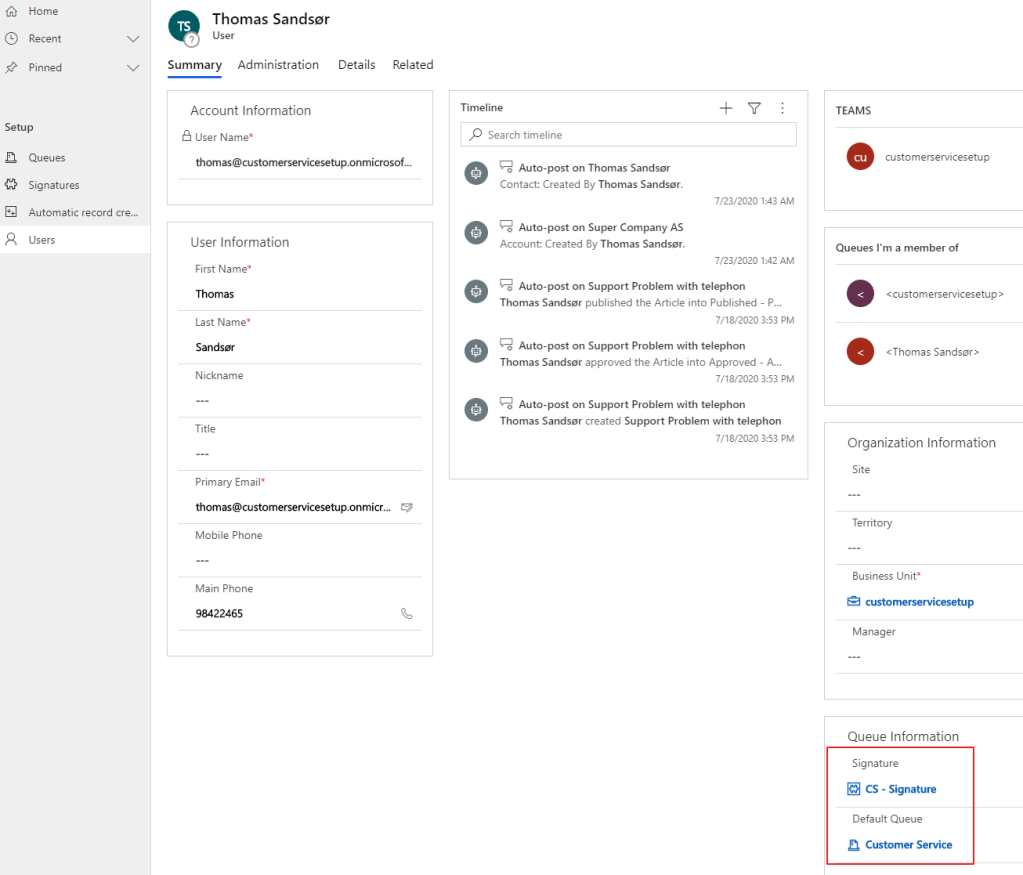
Getting close to the end now, we have to add all our hard work to the Customer Service User replying to the emails. In the user form you see 2 fields “Signature” and “Default Queue”.

Update with the queue you created earlier, and the signature you just created. This is what will defines what the email leaving the system will look like.

12. Add Email Warning – New Activity on Case

This last step is optional. I created it in Flow, so beware of possible hitches with a few things regarding the current environment connector.

The purpose is to notify the Agent that a new Email has arrived for the case. If for some reason the system received email to a close case, I reopen the case and notify the agent.

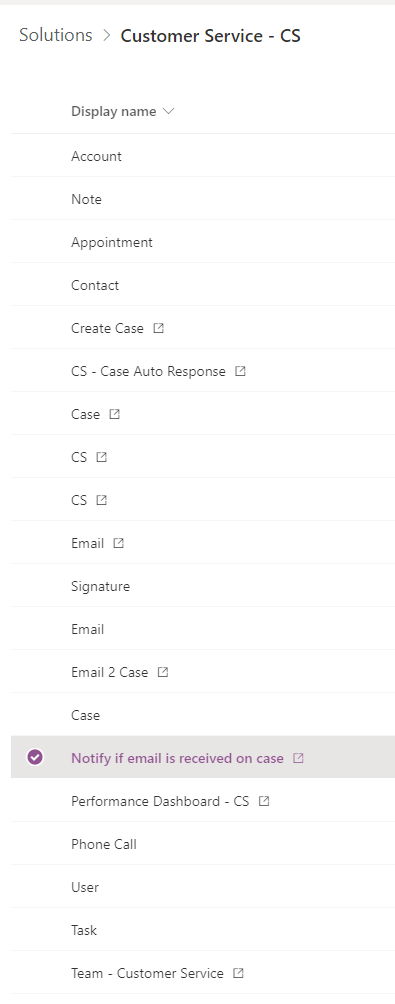
https://make.powerapps.com and open the solution Customer Service – CS

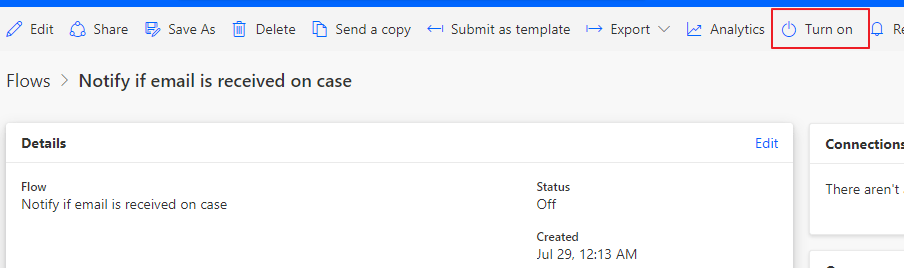
Open the Flow. You might be asked to authenticate the connection, so do this before you move on.

Last step is activating the process

You are now in action 😀

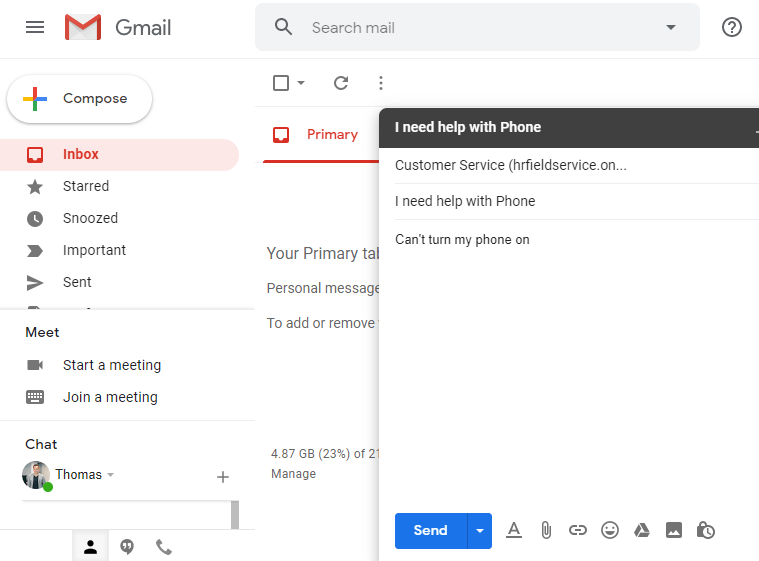
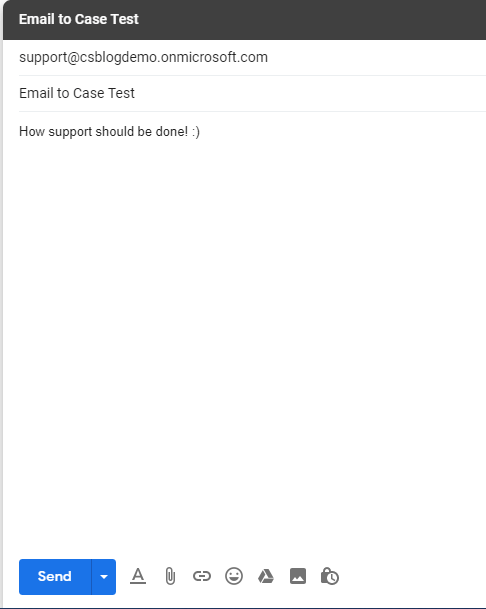
Let’s see what happens when I now send an email inn to Dynamics

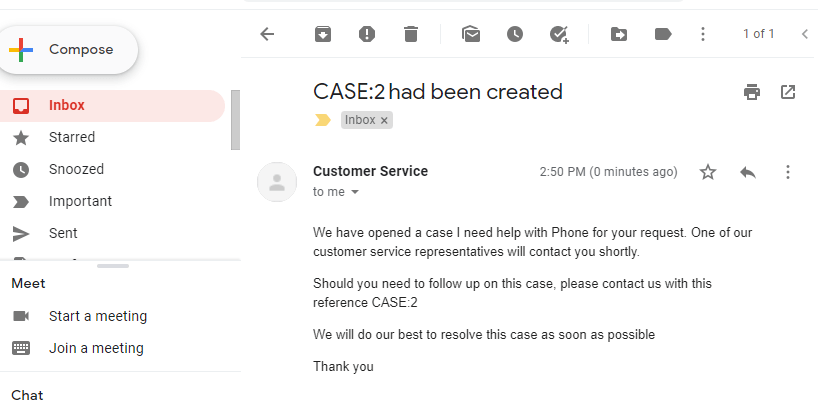
Then wait for the autoresponse

Inside of CRM the Case now has been created

Stay tuned

Next week I demonstrate how to demo the solution 🎬🎥

Dynamics 365 Email to case – The New Way

Microsoft released a new way to do automatic record creation a few months ago, but I never got around to ckeck it out before now.

The most obvious reason for the new release is creating something that is possible use within new UI. Therefore you can only find this in the customer service app at the moment.

Heads up

At the current moment the new approach doesn’t work, for a contact that is known by the system with an account. I am working with support help them understand the error with the flow. Will update the post when they fix the error. This means that the new solution only works when the contact is not connected to a parent account.

Old

In the “old” days we created everything via settings in the navigation. You start off creating a new record and link it to a queue you want to listen to. I prefered the following setup, and I have explained why in my other post regarding Customer Service

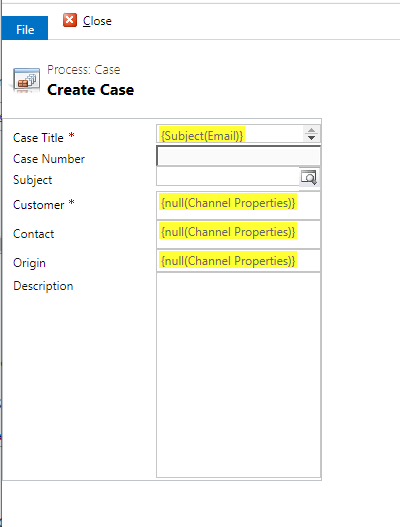
When you created the role for creation of case, it would use the following standard setup. Notice that the contact here would be set if account and contact were known. Contact would be contact, and account would be customer.

New

The new way of doing things is a lot like the old, but there are some differences.

Don’t get fooled by the name in queue to monitor. This is a regular email queue, but I gave it the name “flow”. The first thing we have to create is a new rule for the queue.

Here is where we see the first major difference. The condition for creation seems to use the same visuals as the new advanced find.

At the bottom you choose the rule and click create. This brings you over to Microsoft flow. Instead of the old WF, MS autocreares a new flow for you.

Just like the old flow, Microsoft didn’t want to you touch the details of the flow.

The old flow filled out the contact and customer fields, while the new one for some reason doesn’t (yet). I will try to work with MS on this also.

What to do next?

I honestly don’t know when they expect all of these rules to be transfered over, but I guess it will have to be done in the future when they try to sunset the old WorkFlows.

In the meanwhile I hope they fix the flow, so that it works as expected:)

Dynamics Customer Service form – Simple yet functional

This post is a part of a series of posts for Customer Service. The complete GUIDE can be found here

Before we complete it all I will clean the form a bit. The demo I will be focusing on is the B2B space. If you use the B2C part of support, you might not need any of this. Just continue to the next post:)

Before

It looks good out of the box, but it doesn’t provide a great amount of value.

  1. Business Process Flow on the top of this case is close to useless. It only indicates that you can have a process that looks nice. The steps don’t make sense, and as always with BPF…. You can’t create a step without a mandatory field present. 😒
  2. The first quick view shows a view of the company information. It takes up a lot of space, and in my opinion displays relatively irrelevant information about the customer. If you want quick info about customer, you can “hover over” the customer field.
  3. The right side is setup with reference panels. I wrote an article about loving them a while back, but Customers seem to prefer normal subgrids when actually navigating. Recent Cases is actually just a quick view, and that doesn’t do us much good. Try opening one of the cases, and you won’t see much. We will have to clean this up for it to actually work. We will also remove entitlements, because it’s too much of a hassle in a simple Customer Service scenario.
  4. I hide the tabs on top for now, because I simply don’t need them. If at one point you want to expand, you can reintroduce them.
  5. Subjects.. Are they staying or going. I am not sure what the future holds for this. It’s quite confusing. At some parts of history it seemed very central for Customer Service and Knowledge Articles. Then Categories came along. I would like some clear information what is what. For simplicity I will use subjects for demo. Personally not to happy about it.
  6. The customer field here is as confusing at the customer field was originally for Opportunity. If you are using Customer Service for B2B this has to be linked to an account and not contact. If you use B2C I guess you can just leave it and never really see it as a problem. In my cases I always have to change this to store Account, and then use the Contact field for Contact. Opportunity has managed to change from Customer field to Account & Contact. Don’t see why Case can’t do the same…

Cleanup

1. BPF – Business Process Flow removal

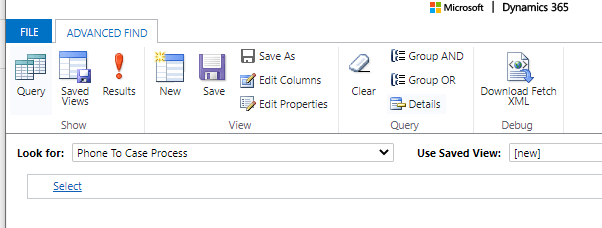
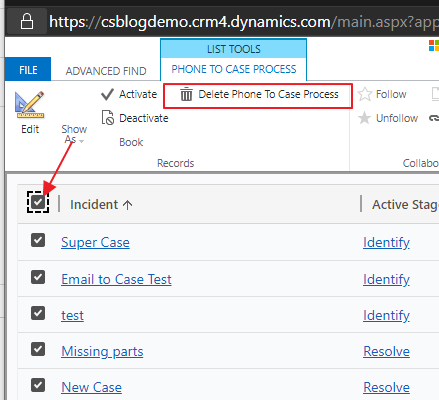
Start off by deactivating the BPF from customization. Then we have to delete all records of the process running. Open Advanced Find, and look for the table that has the same name as the Business Process Flow

PS: If you happen to have a demo setup, it might also include Field Service demo data. Then you have to repeat the process for “Case to Work Order Business Process”.

2. Quick View

Does not give any extra added value. I am replacing this function with a similar value, but different way of working. I open in form editor and remove.

3. Remove Entitlements in Reference Panel

First make sure to remove the Entitlements

Then make sure that the view is set to Recent Cases. Don’t trust that the name of the subgrid is correct. You actually have to make sure that you have the Recent Cases view here.

Create a new section for Recent Cases, and move the Recent Cases out of the Reference Panel. This way we can actually click on a case and open it from the Quick View.

4. Hide tabs

Just hide it. Don’t need it for now

5. Fix Customer field – B2B scenario

In the B2B scenario we need to make a few adjustments to the customer field, and add some onload logic for the agent. In the B2B scenario we need the customer data to be good, and therefore we can’t accept cases where the contact is unknown.

Check this article on how to fix the Customer/Contact fields

6. Subject

Remove unwanted subjects.

Result

Let’s just agree that this doesn’t look very exciting, but it does the job. It does the job quite well!

This is how I want it to look. I have hidden a bunch of components that Microsoft includes as standard Customer Service. Normally it is just a little too much. This will lead to an easy training and a simple customer service view for the agent.

Removing the Business process flow we loose a lot of colors, but this is for actual production. Not a fancy demo to excite someone buying.

Dynamics Email Subject

This post is a part of a series of posts for Customer Service. The complete GUIDE can be found here

Are you as excited as me now that things are coming together?!?!🙌😜 Probably not .. hehe

So the title might not sound exciting, but when you combine the work done in earlier posts with the work we will do in this post, you have got yourself a good setup for Email support system.

JavaScript

So we continue with the JavaScript from the last post, but here we will add a little something from the CASE. If you remember from the Autonumber post we now have a better CASE number that somewhat makes sense. Let’s use JavaScript to retrieve it.

Go all the way down to the last function

var formContext = "";

function OnCrmPageLoad(executionContext) {
    formContext = executionContext.getFormContext();
    
    //
    //You don't need to change this. Just understand that forms have one the following states when opening
    //
    var FormTypes =
    {
        Undefined: 0,
        Create: 1,
        Update: 2,
        ReadOnly: 3,
        Disabled: 4,
        QuickCreate: 5,
        BulkEdit: 6
    }
    runAlways(formContext);

    switch (formContext.ui.getFormType()) {
        case FormTypes.Create: OnNewFormLoad(); break;
        case FormTypes.Update: OnUpdateFormLoad(); break;
        case FormTypes.ReadOnly: OnReadOnlyFormLoad(); break;
        case FormTypes.Disabled: OnDisabledFormLoad(); break;
        case FormTypes.QuickCreate: OnQuickCreateFormLoad(); break;
        case FormTypes.BulkEdit: OnBulkEditFormLoad(); break;
        case FormTypes.Undefined: alert("Error"); break;
    }
}

//
//I only use the RunAlways, OnNewFormLoad and OnUpdateFormLoad, but i keep the others here if i ever would need. 
//When looking at this you can always know what funtion is running. Easy to read and debug. 
//On my OnNewFOrmLoad I am now calling a function "GetDefaultQueueAndSignature"
//
function runAlways() { }
function OnNewFormLoad() {
    //
    //On new form load we call get Signature and Queue
    //
    GetDefaultQueueAndSignature();
    //
    //For regarding we have to check that it contains ID before getting data, and we have to check that it is case
    //
    var RegardingObject = formContext.getAttribute("regardingobjectid").getValue();
    if (RegardingObject != null) {
        if (RegardingObject[0].entityType == "incident") {
            GetCaseIDSetSubject();
        }
    }
}
function OnUpdateFormLoad() {
    //
    //On new UpdateForm load we call get Signature and Queue
    //
    GetDefaultQueueAndSignature();
    //
    //For regarding we have to check that it contains ID before getting data, and we have to check that it is case
    //
    var RegardingObject = formContext.getAttribute("regardingobjectid").getValue();
    if (RegardingObject != null) {
        if (RegardingObject[0].entityType == "incident") {
            GetCaseIDSetSubject();
        }
    }
}
function OnReadOnlyFormLoad() { }
function OnDisabledFormLoad() { }
function OnQuickCreateFormLoad() { }
function OnBulkEditFormLoad() { }


//******************************************************************** */
//CUSTOM FUNCTIONS are added below here. Below this point you add all types of functions you need. 
//******************************************************************** */
function GetDefaultQueueAndSignature() {
    //Get User GUID and replace "{" and "}" with blanks. 
    var UserID = Xrm.Utility.getGlobalContext().userSettings.userId;
    UserID = UserID.replace("{", "");
    UserID = UserID.replace("}", "");

    //Get User Default Queue and Signature via WebApi
    Xrm.WebApi.online.retrieveRecord("systemuser", UserID, "?$select=_queueid_value&$expand=cs_Signature($select=cs_htmlsignature)").then(
        function success(result) {
            var Id = "{" + result["_queueid_value"] + "}";
            var Name = result["_queueid_value@OData.Community.Display.V1.FormattedValue"];
            var LogicalName = result["_queueid_value@Microsoft.Dynamics.CRM.lookuplogicalname"];
            if (result.hasOwnProperty("cs_Signature")) {
                var Signature = result["cs_Signature"]["cs_htmlsignature"];
            }
            if (LogicalName == null || Signature == null) {
                alert("User Record missing Queue and/or Signature");
                return;
            }

            //Set FROM lookup to queue
            formContext.getAttribute("from").setValue([{ id: Id, name: Name, entityType: LogicalName }]);
            //Set signature before current text in body
            var Body = formContext.getAttribute("description").getValue();
            if(Body != null){
                formContext.getAttribute("description").setValue("<br /><br />" + Signature + Body);
            }else{
                formContext.getAttribute("description").setValue("<br /><br />" + Signature);
            }
            
        },
        function (error) {
            Xrm.Utility.alertDialog(error.message);
        }
    );
}

function GetCaseIDSetSubject() {
    //Get Uswer GUID and replace "{" and "}" with blanks. 
    var CaseID = formContext.getAttribute("regardingobjectid").getValue()[0].id;
    CaseID = CaseID.replace("{", "");
    CaseID = CaseID.replace("}", "");

    Xrm.WebApi.online.retrieveRecord("incident", CaseID, "?$select=ticketnumber").then(
        function success(result) {
            var CaseNumber = result["ticketnumber"];
            var Subject = formContext.getAttribute("subject");
            //
            //Check if Subject contains data
            //
            if (Subject.getValue() != null) {
                var SubjectContainsID = Subject.getValue().includes(CaseNumber);
                //
                //IF subject does not contain casenumber, i add the casenumber to the subject
                //
                if (SubjectContainsID == false) {
                    formContext.getAttribute("subject").setValue(Subject.getValue() + " - " + CaseNumber);
                }
            } 
            //
            //This is a new email without a subject. Get the CaseNumber, and inform that topic has to be set
            //
            else {
                formContext.getAttribute("subject").setValue("[Insert Topic] - " + CaseNumber);
            }
        },
        function (error) {
            Xrm.Utility.alertDialog(error.message);
        }
    );

}

We are getting the CASE number from Case / Incident. Then we perform a few checks to see if there is an active subject in the email, and if the email contains the case number from before.

New Email

Let’s see what happens when I now open a new email from a case. Not as a reply to email, but as a new email thread.

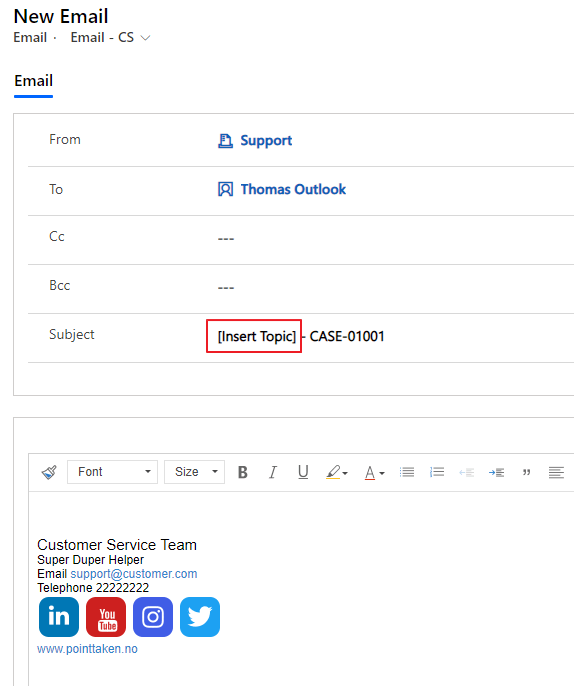
Look at that. You have the subject pre populated with a notification that the customer agent should add a topic. This of course could be defaulted to whatever you want in the script, but I left it like this.

Existing Email reply

In this case we see what happens when I reply to an email a customer sent to my CRM system

The CRM Email will look like this. Now I hit reply

Now this is what the subject line should look like.

Conclusion

This small detail means the world of a difference for the people working with customer service and the customers. Whenever they are referring to a case, they can use the same case number. No more tracking token idiocrasy. When you use the global search in dynamics you get hits from the emails and the cases. That is what I call being just a little more efficient!

Please implement this as OOTB Microsoft.

As you can see my posts are now coming together. Next post includes a little extra for quality of data, before I add a video of how to use it.